很久沒有更新博客了,再不寫點東西都爛了。
這次更新一個小內容,是兩個插件的組合使用,實現頭像上傳功能。
業務需求:
- 頭像上傳功能,要對上傳的文件進行剪切,且保證頭像到服務器時必須是正方形的。
- 優化<input type="file">的顯示樣式,基礎的樣式實在太難看了。
- 上傳的頭像需要進行質量壓縮跟大小裁剪,以減緩浏覽器的壓力。
成果預覽:
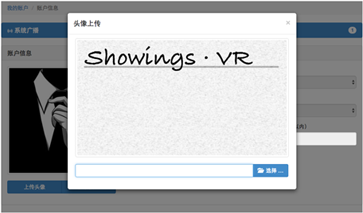
使用到的技術插件
- Jcrop:用於前端“裁剪”圖片
- bootstrap-fileinput:用於前端優化上傳控件樣式
- ARTtemplate:JS版的JSTL?反正就是一個騰訊的模板化插件,很好用,真心。
- bootstrap-sco.modal.js:這個是bootstrap的一個模態插件
- SpringMVC:使用框架自帶的MultipartFile來獲取文件(效率能夠大大的提高)
- Image:這個是Java的內置類,用於處理圖片很方便。
原理說明
首先是Jcrop這個前端JS插件,這個插件很好用,其實在各大網站中也很常見,先上圖:

說說原理,實際上,Jcrop並沒有在客戶端幫我們把圖片進行裁剪,只是收集了用戶的“裁剪信息”,然後傳到後端,最後的裁剪和壓縮,還是要依靠服務器上的代碼來進行。
我們可以看到這個插件在圖片上顯示出了8個控制點,讓用戶選擇裁剪區域,當用戶選擇成功後,會自動的返回“裁剪信息”,所謂的裁剪信息,其實就是選框的左上角原點坐標,及裁剪框的寬度和高度,通過這四個值,在後端就可以進行裁剪工作了。
但是我們要注意,用戶在上傳圖片的時候,長度寬度都是不規則的,當然我們可以用bootstap-fileinput這個插件去限制用戶只能上傳指定寬高的圖片,但這就失去了我們“裁剪”的意義,而且用戶的體驗就非常差勁。然而jcrop所返回的坐標值及寬高,並不是基於所上傳圖片自身的像素,而是如圖中所示,是外層DIV的寬高。舉一個例子,上圖我實際放入的個人照片寬度是852px,但是Jcrop的截取寬度是312px,這個312px並不是真正圖片上的實際寬度,是經過縮放後的寬度,所以我們後端一定需要重新對這個312px進行一次還原,還原到照片實際比例的寬度。
好啦,原理就是這樣子。接下來,就是上代碼了。
HTML
<script id="portraitUpload" type="text/html">
  <div style="padding: 10px 20px">
    <form role="form" enctype="multipart/form-data" method="post">
      <div class="embed-responsive embed-responsive-16by9">
        <div class="embed-responsive-item pre-scrollable">
          <img alt="" src="${pageContext.request.contextPath}/img/showings.jpg" id="cut-img"
             class="img-responsive img-thumbnail"/>
        </div>
      </div>
      <div class="white-divider-md"></div>
      <input type="file" name="imgFile" id="fileUpload"/>
      <div class="white-divider-md"></div>
      <div id="alert" class="alert alert-danger hidden" role="alert"></div>
      <input type="hidden" id="x" name="x"/>
      <input type="hidden" id="y" name="y"/>
      <input type="hidden" id="w" name="w"/>
      <input type="hidden" id="h" name="h"/>
    </form>
  </div>
</script>
這個就是一個ArtTemplate的模板代碼,就寫在</body>標簽上方就行了,因為text/html這個類型,不會被識別,所以實際上用Chrome調試就可以看得到,前端用戶是看不到這段代碼的。
簡單解釋一下這個模板,這個模板是我最後放入模態窗口時用的模板,就是把這段代碼,直接丟進模態彈出來的內容部分。因為是文件上傳,自然需要套一個<form>標簽,然後必須給form標簽放入 enctype="multipart/form-data",否則後端Spring就無法獲取這個文件。
"embed-responsive embed-responsive-16by9"這個類就是用來限制待編輯圖片加載後的寬度大小,值得注意的是,我在其內種,加了一個
<div class="embed-responsive-item pre-scrollable">
pre-scrollable這個類,會讓加載的圖片不會因為太大而“變形”,因為我外層通過embed-responsive-16by9限制死了圖片的寬高,圖片本身又加了img-responsive這個添加響應式屬性的類,為了防止圖片縮放,導致截圖障礙,所以就給內層加上pre-scrollable,這個會給圖片這一層div加上滾動條,如果圖片高度太高,超過了外層框,則會出現滾動條,而這不會影響圖片截取,同時又保證了模態窗口不會“太長”,導致體驗糟糕(尤其在移動端)。
底下四個隱藏域相信大家看他們的name值也就知道個大概,這個就是用於存放Jcrop截取時所產生的原點坐標和截取寬高的值。
JS
$(document).ready(function () {
  new PageInit().init();
});


function PageInit() {
  var api = null;
  var _this = this;
  this.init = function () {
    $("[name='upload']").on('click', this.portraitUpload)
  };


  this.portraitUpload = function () {
    var model = $.scojs_modal({
        title: '頭像上傳',
        content: template('portraitUpload'),
        onClose: refresh
      }
    );
    model.show();
    var fileUp = new FileUpload();
    var portrait = $('#fileUpload');
    var alert = $('#alert');
    fileUp.portrait(portrait, '/file/portrait', _this.getExtraData);
    portrait.on('change', _this.readURL);
    portrait.on('fileuploaderror', function (event, data, msg) {
      alert.removeClass('hidden').html(msg);
      fileUp.fileinput('disable');
    });
    portrait.on('fileclear', function (event) {
      alert.addClass('hidden').html();
    });
    portrait.on('fileloaded', function (event, file, previewId, index, reader) {
      alert.addClass('hidden').html();
    });
    portrait.on('fileuploaded', function (event, data) {
      if (!data.response.status) {
        alert.html(data.response.message).removeClass('hidden');
      }
    })
  };

  this.readURL = function () {
    var img = $('#cut-img');
    var input = $('#fileUpload');
    if (input[0].files && input[0].files[0]) {
      var reader = new FileReader();
      reader.readAsDataURL(input[0].files[0]);
      reader.onload = function (e) {
        img.removeAttr('src');
        img.attr('src', e.target.result);
        img.Jcrop({
          setSelect: [20, 20, 200, 200],
          handleSize: 10,
          aspectRatio: 1,
          onSelect: updateCords
        }, function () {
          api = this;
        });
      };
      if (api != undefined) {
        api.destroy();
      }
    }
    function updateCords(obj) {
      $("#x").val(obj.x);
      $("#y").val(obj.y);
      $("#w").val(obj.w);
      $("#h").val(obj.h);
    }
  };

  this.getExtraData = function () {
    return {
      sw: $('.jcrop-holder').css('width'),
      sh: $('.jcrop-holder').css('height'),
      x: $('#x').val(),
      y: $('#y').val(),
      w: $('#w').val(),
      h: $('#h').val()
    }
  }
}
這個JS是上傳頁面的相關邏輯。會JS的人都看得懂它的意義,我就簡單說一下幾個事件的意義:
 portrait.on('fileuploaderror', function (event, data, msg) {
       alert.removeClass('hidden').html(msg);
       fileUp.fileinput('disable');
     });
這個事件,是用於bootstrap-fileinput插件在校驗文件格式、文件大小等的時候,如果不符合我們的要求,則會對前面HTML代碼中有一個
<div id="alert" class="alert alert-danger hidden" role="alert"></div>
進行一些錯誤信息的顯示操作。
 portrait.on('fileclear', function (event) {
       alert.addClass('hidden').html();
     });
這部分代碼,是當文件移除時,隱藏錯誤信息提示區,以及清空內容,當然這是符合我們的業務邏輯的。
 portrait.on('fileloaded', function (event, file, previewId, index, reader) {
       alert.addClass('hidden').html();
     });
這部分代碼是當選擇文件時(此時還沒進行文件校驗),隱藏錯誤信息,清空錯誤內容,這麼做是為了應對如果上一次文件校驗時有錯誤,而重新選擇文件時,肯定要清空上一次的錯誤信息,再顯示本次的錯誤信息。
 portrait.on('fileuploaded', function (event, data) {
       if (!data.response.status) {
         alert.html(data.response.message).removeClass('hidden');
       }
     })
這部分是當文件上傳後,後端如果返回了錯誤信息,則需要進行相關的提示信息處理。
this.getExtraData = function () {
    return {
      sw: $('.jcrop-holder').css('width'),
      sh: $('.jcrop-holder').css('height'),
      x: $('#x').val(),
      y: $('#y').val(),
      w: $('#w').val(),
      h: $('#h').val()
    }
  }
這部分代碼是獲取上傳文件時,附帶需要發往後端的參數,這裡面可以看到,x、y自然是Jcrop截取時,選框的左上角原點坐標,w、h自然就是截取的寬高,但是剛才我說了,這個是經過縮放後的寬高,不是依據圖片實際像素的寬高。而sw、sh代表的是scaleWidth、scaleHeight,就是縮放寬高的意思。這個.jcrop-holder的對象是當Jcrop插件啟用後,加載的圖片外層容器的對象,只需要獲取這個對象的寬高,就是圖片被壓縮的寬高,但是因為我限制了圖片的寬度和高度,寬度的比例是定死的(不是寬高定死,只是比例定死,bootstrap本身就是響應式框架,所以不能單純的說寬高定死,寬高會隨著使用終端的變化而變化),高度是根據寬度保持16:4,可是我又加了pre-scrollable這個類讓圖片過高時以滾動條的方式不破壞外層容器的高度,所以我們實際能拿來計算縮放比例的,是寬度,而不是高度,但是這裡我一起傳,萬一以後有其他的使用場景,要以高度為准也說不定。
好了,然後我需要貼上bootstrap-fileinput插件的配置代碼:
this.portrait = function (target, uploadUrl, data) {
    target.fileinput({
      language: 'zh', //設置語言
      maxFileSize: 2048,//文件最大容量
      uploadExtraData: data,//上傳時除了文件以外的其他額外數據
      showPreview: false,//隱藏預覽
      uploadAsync: true,//ajax同步
      dropZoneEnabled: false,//是否顯示拖拽區域
      uploadUrl: uploadUrl, //上傳的地址
      allowedFileExtensions: ['jpg'],//接收的文件後綴
      showUpload: true, //是否顯示上傳按鈕
      showCaption: true,//是否顯示標題
      browseClass: "btn btn-primary", //按鈕樣式
      previewFileIcon: "<i class='glyphicon glyphicon-king'></i>",
      ajaxSettings: {//這個是因為我使用了SpringSecurity框架,有csrf跨域提交防御,所需需要設置這個值
        beforeSend: function (xhr) {
          xhr.setRequestHeader(header, token);
        }
      }
    });
  }
這個代碼有寫了注釋,我就不多解釋了。關於Ajax同步,是因為我個人認為,上傳文件這個還是做成同步比較好,等文件上傳完成後,js代碼才能繼續執行下去。因為文件上傳畢竟是一個耗時的工作,有的邏輯又確實需要當文件上傳成功以後才執行,比如刷新頁面,所以為了避免出現問題,還是做成同步的比較好。還有就是去掉預覽,用過bootstrap-fileinput插件的都知道,這個插件的圖片預覽功能很強大,甚至可以單獨依靠這個插件來制作相冊管理。但是因為我們這次要結合Jcrop,所以要割掉這部分功能。
SpringMVC-Controller獲取文件
@ResponseBody
  @RequestMapping(value = "/portrait", method = {RequestMethod.POST})
  public JsonResult upload(HttpServletRequest request) throws Exception {
    Integer x = Integer.parseInt(MyStringTools.checkParameter(request.getParameter("x"), "圖片截取異常:X!"));
    Integer y = Integer.parseInt(MyStringTools.checkParameter(request.getParameter("y"), "圖片截取異常:Y!"));
    Integer w = Integer.parseInt(MyStringTools.checkParameter(request.getParameter("w"), "圖片截取異常:W!"));
    Integer h = Integer.parseInt(MyStringTools.checkParameter(request.getParameter("h"), "圖片截取異常:H!"));
    String scaleWidthString = MyStringTools.checkParameter(request.getParameter("sw"), "圖片截取異常:SW!");
    int swIndex = scaleWidthString.indexOf("px");
    Integer sw = Integer.parseInt(scaleWidthString.substring(0, swIndex));
    String scaleHeightString = MyStringTools.checkParameter(request.getParameter("sh"), "圖片截取異常:SH!");
    int shIndex = scaleHeightString.indexOf("px");
    Integer sh = Integer.parseInt(scaleHeightString.substring(0, shIndex));


    //獲取用戶ID用於指向對應文件夾
    SysUsers sysUsers = HttpTools.getSessionUser(request);
    int userID = sysUsers.getUserId();
    //獲取文件路徑
    String filePath = FileTools.getPortraitPath(userID);

    CommonsMultipartResolver multipartResolver = new CommonsMultipartResolver(
        request.getSession().getServletContext());

    String path;
    //檢查form中是否有enctype="multipart/form-data"
    if (multipartResolver.isMultipart(request)) {
      //將request變成多部分request
      MultipartHttpServletRequest multiRequest = (MultipartHttpServletRequest) request;
      //獲取multiRequest 中所有的文件名
      Iterator iterator = multiRequest.getFileNames();
      while (iterator.hasNext()) {
        //一次遍歷所有文件
        MultipartFile multipartFile = multiRequest.getFile(iterator.next().toString());
        if (multipartFile != null) {
          String[] allowSuffix = {".jpg",".JPG"};
          if (!FileTools.checkSuffix(multipartFile.getOriginalFilename(), allowSuffix)) {
            throw new BusinessException("文件後綴名不符合要求!");
          }
          path = filePath + FileTools.getPortraitFileName(multipartFile.getOriginalFilename());
          //存入硬盤
          multipartFile.transferTo(new File(path));
          //圖片截取
          if (FileTools.imgCut(path, x, y, w, h, sw, sh)) {
            CompressTools compressTools = new CompressTools();
            if (compressTools.simpleCompress(new File(path))) {
              return JsonResult.success(FileTools.filePathToSRC(path, FileTools.IMG));
            } else {
              return JsonResult.error("圖片壓縮失敗!請重新上傳!");
            }
          } else {
            return JsonResult.error("圖片截取失敗!請重新上傳!");
          }
        }
      }
    }
    return JsonResult.error("圖片獲取失敗!請重新上傳!");
  }
Image圖片切割
/**
   * 截圖工具,根據截取的比例進行縮放裁剪
   *
   * @param path    圖片路徑
   * @param zoomX    縮放後的X坐標
   * @param zoomY    縮放後的Y坐標
   * @param zoomW    縮放後的截取寬度
   * @param zoomH    縮放後的截取高度
   * @param scaleWidth 縮放後圖片的寬度
   * @param scaleHeight 縮放後的圖片高度
   * @return 是否成功
   * @throws Exception 任何異常均拋出
   */
  public static boolean imgCut(String path, int zoomX, int zoomY, int zoomW,
                 int zoomH, int scaleWidth, int scaleHeight) throws Exception {
    Image img;
    ImageFilter cropFilter;
    BufferedImage bi = ImageIO.read(new File(path));
    int fileWidth = bi.getWidth();
    int fileHeight = bi.getHeight();
    double scale = (double) fileWidth / (double) scaleWidth;

    double realX = zoomX * scale;
    double realY = zoomY * scale;
    double realW = zoomW * scale;
    double realH = zoomH * scale;

    if (fileWidth >= realW && fileHeight >= realH) {
      Image image = bi.getScaledInstance(fileWidth, fileHeight, Image.SCALE_DEFAULT);
      cropFilter = new CropImageFilter((int) realX, (int) realY, (int) realW, (int) realH);
      img = Toolkit.getDefaultToolkit().createImage(
          new FilteredImageSource(image.getSource(), cropFilter));
      BufferedImage bufferedImage = new BufferedImage((int) realW, (int) realH, BufferedImage.TYPE_INT_RGB);
      Graphics g = bufferedImage.getGraphics();
      g.drawImage(img, 0, 0, null);
      g.dispose();
      //輸出文件
      return ImageIO.write(bufferedImage, "JPEG", new File(path));
    } else {
      return true;
    }
  }
縮放比例scale一定要用double,並且寬高也要轉換成double後再相除,否則會變成求模運算,這樣會降低精度,別小看這裡的精度下降,最終的截圖效果根據圖片的縮放程度,誤差可是有可能被放大的很離譜的。
圖片壓縮
package com.magic.rent.tools;

/**
 * 知識產權聲明:本文件自創建起,其內容的知識產權即歸屬於原作者,任何他人不可擅自復制或模仿.
 * 創建者: wu  創建時間: 2016/12/15
 * 類說明: 縮略圖類(通用) 本java類能將jpg、bmp、png、gif圖片文件,進行等比或非等比的大小轉換。 具體使用方法
 * 更新記錄:
 */

import com.magic.rent.exception.custom.BusinessException;
import com.sun.image.codec.jpeg.JPEGCodec;
import com.sun.image.codec.jpeg.JPEGImageEncoder;
import org.slf4j.Logger;
import org.slf4j.LoggerFactory;

import javax.imageio.ImageIO;
import java.awt.*;
import java.awt.image.BufferedImage;
import java.io.File;
import java.io.FileOutputStream;

public class CompressTools {
  private File file; // 文件對象
  private String inputDir; // 輸入圖路徑
  private String outputDir; // 輸出圖路徑
  private String inputFileName; // 輸入圖文件名
  private String outputFileName; // 輸出圖文件名
  private int outputWidth = 100; // 默認輸出圖片寬
  private int outputHeight = 100; // 默認輸出圖片高
  private boolean proportion = true; // 是否等比縮放標記(默認為等比縮放)
  private static Logger logger = LoggerFactory.getLogger(CompressTools.class);


  public CompressTools() {
  }

  public CompressTools(boolean proportion) {
    this.proportion = proportion;
  }

  /**
   * 設置輸入參數
   *
   * @param inputDir
   * @param inputFileName
   * @return
   */
  public CompressTools setInputInfo(String inputDir, String inputFileName) {
    this.inputDir = inputDir;
    this.inputFileName = inputFileName;
    return this;
  }

  /**
   * 設置輸出參數
   *
   * @param outputDir
   * @param outputFileName
   * @param outputHeight
   * @param outputWidth
   * @param proportion
   * @return
   */
  public CompressTools setOutputInfo(String outputDir, String outputFileName, int outputHeight, int outputWidth, boolean proportion) {
    this.outputDir = outputDir;
    this.outputFileName = outputFileName;
    this.outputWidth = outputWidth;
    this.outputHeight = outputHeight;
    this.proportion = proportion;
    return this;
  }


  // 圖片處理
  public boolean compress() throws Exception {
    //獲得源文件
    file = new File(inputDir);
    if (!file.exists()) {
      throw new BusinessException("文件不存在!");
    }
    Image img = ImageIO.read(file);
    // 判斷圖片格式是否正確
    if (img.getWidth(null) == -1) {
      System.out.println(" can't read,retry!" + "<BR>");
      return false;
    } else {
      int newWidth;
      int newHeight;
      // 判斷是否是等比縮放
      if (this.proportion) {
        // 為等比縮放計算輸出的圖片寬度及高度
        double rate1 = ((double) img.getWidth(null)) / (double) outputWidth + 0.1;
        double rate2 = ((double) img.getHeight(null)) / (double) outputHeight + 0.1;
        // 根據縮放比率大的進行縮放控制
        double rate = rate1 > rate2 ? rate1 : rate2;
        newWidth = (int) (((double) img.getWidth(null)) / rate);
        newHeight = (int) (((double) img.getHeight(null)) / rate);
      } else {
        newWidth = outputWidth; // 輸出的圖片寬度
        newHeight = outputHeight; // 輸出的圖片高度
      }
      long start = System.currentTimeMillis();
      BufferedImage tag = new BufferedImage(newWidth, newHeight, BufferedImage.TYPE_INT_RGB);
      /*
       * Image.SCALE_SMOOTH 的縮略算法 生成縮略圖片的平滑度的
       * 優先級比速度高 生成的圖片質量比較好 但速度慢
       */
      tag.getGraphics().drawImage(img.getScaledInstance(newWidth, newHeight, Image.SCALE_SMOOTH), 0, 0, null);
      FileOutputStream out = new FileOutputStream(outputDir);

      // JPEGImageEncoder可適用於其他圖片類型的轉換
      JPEGImageEncoder encoder = JPEGCodec.createJPEGEncoder(out);
      encoder.encode(tag);
      out.close();
      long time = System.currentTimeMillis() - start;
      logger.info("[輸出路徑]:" + outputDir + "\t[圖片名稱]:" + outputFileName + "\t[壓縮前大小]:" + getPicSize() + "\t[耗時]:" + time + "毫秒");
      return true;
    }
  }


  /**
   * 簡單壓縮方法,壓縮後圖片將直接覆蓋源文件
   *
   * @param images
   * @return
   * @throws Exception
   */
  public boolean simpleCompress(File images) throws Exception {
    setInputInfo(images.getPath(), images.getName());
    setOutputInfo(images.getPath(), images.getName(), 300, 300, true);
    return compress();
  }

  /**
   * 獲取圖片大小,單位KB
   *
   * @return
   */
  private String getPicSize() {
    return file.length() / 1024 + "KB";
  }

  public static void main(String[] args) throws Exception {
    CompressTools compressTools = new CompressTools();
    compressTools.setInputInfo("/Users/wu/Downloads/background.jpg", "background.jpg");
    compressTools.setOutputInfo("/Users/wu/Downloads/background2.jpg", "background2.jpg", 633, 1920, false);
    compressTools.compress();
  }

}
我專門把圖片壓縮寫成了一個類。
其中可以看到一些關於文件路徑的方法,其實沒有什麼特別的,就是截取後綴獲取路徑之類的,我這邊也貼出來吧,免得有些朋友看的雲裡霧裡的。
package com.magic.rent.tools;

import com.magic.rent.exception.custom.BusinessException;

import javax.imageio.ImageIO;
import java.awt.*;
import java.awt.image.BufferedImage;
import java.awt.image.CropImageFilter;
import java.awt.image.FilteredImageSource;
import java.awt.image.ImageFilter;
import java.io.File;
import java.util.ArrayList;

/**
 * 知識產權聲明:本文件自創建起,其內容的知識產權即歸屬於原作者,任何他人不可擅自復制或模仿.
 * 創建者: wu  創建時間: 2016/11/25
 * 類說明:
 * 更新記錄:
 */
public class FileTools {

  public static final int IMG = 1;

  /**
   * 獲取項目根目錄
   *
   * @return 根目錄
   */
  public static String getWebRootPath() {
    return System.getProperty("web.root");
  }

  /**
   * 獲取頭像目錄,若不存在則直接創建一個
   *
   * @param userID 用戶ID
   * @return
   */
  public static String getPortraitPath(int userID) {
    String realPath = getWebRootPath() + "img/portrait/" + userID + "/";
    File file = new File(realPath);
    //判斷文件夾是否存在,不存在則創建一個
    if (!file.exists() || !file.isDirectory()) {
      if (!file.mkdirs()) {
        throw new BusinessException("創建頭像文件夾失敗!");
      }
    }
    return realPath;
  }

  /**
   * 重命名頭像文件
   *
   * @param fileName 文件名
   * @return
   */
  public static String getPortraitFileName(String fileName) {
    // 獲取文件後綴
    String suffix = getSuffix(fileName);
    return "portrait" + suffix;
  }

  /**
   * 判斷文件後綴是否符合要求
   *
   * @param fileName  文件名
   * @param allowSuffix 允許的後綴集合
   * @return
   * @throws Exception
   */
  public static boolean checkSuffix(String fileName, String[] allowSuffix) throws Exception {
    String fileExtension = getSuffix(fileName);
    boolean flag = false;
    for (String extension : allowSuffix) {
      if (fileExtension.equals(extension)) {
        flag = true;
      }
    }
    return flag;
  }


  public static String getSuffix(String fileName) {
    return fileName.substring(fileName.lastIndexOf(".")).toLowerCase();
  }

  /**
   * 將文件地址轉成鏈接地址
   *
   * @param filePath 文件路徑
   * @param fileType 文件類型
   * @return
   */
  public static String filePathToSRC(String filePath, int fileType) {
    String href = "";
    if (null != filePath && !filePath.equals("")) {
      switch (fileType) {
        case IMG:
          if (filePath.contains("/img/")) {
            int index = filePath.indexOf("/img/");
            href = filePath.substring(index);
          } else {
            href = "";
          }
          return href;
      }
    }
    return href;
  }

  /**
   * 獲取指定文件或文件路徑下的所有文件清單
   *
   * @param fileOrPath 文件或文件路徑
   * @return
   */
  public static ArrayList<File> getListFiles(Object fileOrPath) {
    File directory;
    if (fileOrPath instanceof File) {
      directory = (File) fileOrPath;
    } else {
      directory = new File(fileOrPath.toString());
    }

    ArrayList<File> files = new ArrayList<File>();

    if (directory.isFile()) {
      files.add(directory);
      return files;
    } else if (directory.isDirectory()) {
      File[] fileArr = directory.listFiles();
      if (null != fileArr && fileArr.length != 0) {
        for (File fileOne : fileArr) {
          files.addAll(getListFiles(fileOne));
        }
      }
    }

    return files;
  }


  /**
   * 截圖工具,根據截取的比例進行縮放裁剪
   *
   * @param path    圖片路徑
   * @param zoomX    縮放後的X坐標
   * @param zoomY    縮放後的Y坐標
   * @param zoomW    縮放後的截取寬度
   * @param zoomH    縮放後的截取高度
   * @param scaleWidth 縮放後圖片的寬度
   * @param scaleHeight 縮放後的圖片高度
   * @return 是否成功
   * @throws Exception 任何異常均拋出
   */
  public static boolean imgCut(String path, int zoomX, int zoomY, int zoomW,
                 int zoomH, int scaleWidth, int scaleHeight) throws Exception {
    Image img;
    ImageFilter cropFilter;
    BufferedImage bi = ImageIO.read(new File(path));
    int fileWidth = bi.getWidth();
    int fileHeight = bi.getHeight();
    double scale = (double) fileWidth / (double) scaleWidth;

    double realX = zoomX * scale;
    double realY = zoomY * scale;
    double realW = zoomW * scale;
    double realH = zoomH * scale;

    if (fileWidth >= realW && fileHeight >= realH) {
      Image image = bi.getScaledInstance(fileWidth, fileHeight, Image.SCALE_DEFAULT);
      cropFilter = new CropImageFilter((int) realX, (int) realY, (int) realW, (int) realH);
      img = Toolkit.getDefaultToolkit().createImage(
          new FilteredImageSource(image.getSource(), cropFilter));
      BufferedImage bufferedImage = new BufferedImage((int) realW, (int) realH, BufferedImage.TYPE_INT_RGB);
      Graphics g = bufferedImage.getGraphics();
      g.drawImage(img, 0, 0, null);
      g.dispose();
      //輸出文件
      return ImageIO.write(bufferedImage, "JPEG", new File(path));
    } else {
      return true;
    }
  }
}
順便一提:getWebRootPath這個方法,要生效,必須在Web.xml中做一個配置:
 <context-param>
    <param-name>webAppRootKey</param-name>
     <param-value>web.root</param-value>
   </context-param>
否則是無法動態獲取項目的本地路徑的。這個配置只要跟在Spring配置後面就行了,應該就不會有什麼大礙,其實就是獲取本地路徑然後設置到系統參數當中。
好了,這就是整個插件的功能了。
以上就是本文的全部內容,希望對大家的學習有所幫助,也希望大家多多支持。
- 上一頁:JS基於面向對象實現的拖拽功能示例
- 下一頁:JS簡單實現表格排序功能示例