JS實現可編輯的後台管理菜單功能【附demo源碼下載】
編輯:關於JavaScript
本文實例講述了JS實現可編輯的後台管理菜單功能。分享給大家供大家參考,具體如下:
<!DOCTYPE html PUBLIC "-//W3C//DTD XHTML 1.0 Transitional//EN"
"http://www.w3.org/TR/xhtml1/DTD/xhtml1-transitional.dtd">
<html xmlns="http://www.w3.org/1999/xhtml">
<head>
<meta http-equiv="Content-Type" content="text/html; charset=utf-8" />
<title>JS可編輯後台菜單</title>
<style type="text/css">
body {
  font-size: 12px;
}
ul, li, h2 {
  margin: 0;
  padding: 0;
}
ul {
  list-style: none;
}
#top {
  width: 900px;
  height: 40px;
  margin: 0 auto;
  background-color: #CCCC00
}
#top h2 {
  width: 150px;
  height: 40px;
  background-color: #99CC00;
  float: left;
  font-size: 14px;
  text-align: center;
  line-height: 40px;
}
#topTags {
  width: 750px;
  height: 40px;
  margin: 0 auto;
  background-color: #CCCC00;
  float: left
}
#topTags ul li {
  float: left;
  width: 100px;
  height: 25px;
  margin-right: 5px;
  display: block;
  text-align: center;
  cursor: pointer;
  padding-top: 15px;
}
#main {
  width: 900px;
  height: 500px;
  margin: 0 auto;
  background-color: #F5F7E6;
}
#leftMenu {
  width: 150px;
  height: 500px;
  background-color: #009900;
  float: left
}
#leftMenu ul {
  margin: 10px;
}
#leftMenu ul li {
  width: 130px;
  height: 30px;
  display: block;
  background: #99CC00;
  cursor: pointer;
  line-height: 30px;
  text-align: center;
  margin-bottom: 5px;
}
#leftMenu ul li a {
  color: #000000;
  text-decoration: none;
}
#content {
  width: 750px;
  height: 500px;
  float: left
}
.content {
  width: 740px;
  height: 490px;
  display: none;
  padding: 5px;
  overflow-y: auto;
  line-height: 30px;
}
#footer {
  width: 900px;
  height: 30px;
  margin: 0 auto;
  background-color: #ccc;
  line-height: 30px;
  text-align: center;
}
.content1 {
  width: 740px;
  height: 490px;
  display: block;
  padding: 5px;
  overflow-y: auto;
  line-height: 30px;
}
</style>
<script type="text/javascript">
window.onload=function(){
  function $(id){return document.getElementById(id)}
  var menu=$("topTags").getElementsByTagName("ul")[0];//頂部菜單容器
  var tags=menu.getElementsByTagName("li");//頂部菜單
  var ck=$("leftMenu").getElementsByTagName("ul")[0].getElementsByTagName("li");//左側菜單
  var j;
  //點擊左側菜單增加新標簽
  for(i=0;i<ck.length;i++){
    ck[i].onclick=function(){
      $("welcome").style.display="none"//歡迎內容隱藏
      clearMenu();
      this.style.background="yellow";
      //循環取得當前索引
      for(j=0;j<8;j++){
        if(this==ck[j]){
          if($("p"+j)==null){
            openNew(j,this.innerHTML);//設置標簽顯示文字
          }
        clearStyle();
        $("p"+j).style.backgroundColor="yellow";
        clearContent();
        $("c"+j).style.display="block";
        }
      }
      return false;
    }
  }
  //增加或刪除標簽
  function openNew(id,name){
    var tagMenu=document.createElement("li");
    tagMenu.id="p"+id;
    tagMenu.innerHTML=name+"  "+"<img src='close.gif' style='vertical-align:middle'/>";
    //標簽點擊事件
    tagMenu.onclick=function(evt){
      clearMenu();
      ck[id].style.background="yellow";
      clearStyle();
      tagMenu.style.backgroundColor="yellow";
      clearContent();
      $("c"+id).style.display="block";
    }
    //標簽內關閉圖片點擊事件
    tagMenu.getElementsByTagName("img")[0].onclick=function(evt){
      evt=(evt)?evt:((window.event)?window.event:null);
      if(evt.stopPropagation){evt.stopPropagation()} //取消opera和Safari冒泡行為;
      this.parentNode.parentNode.removeChild(tagMenu);//刪除當前標簽
      var color=tagMenu.style.backgroundColor;
      //設置如果關閉一個標簽時,讓最後一個標簽得到焦點
      if(color=="#ffff00"||color=="yellow"){//區別浏覽器對顏色解釋
        if(tags.length-1>=0){
          clearStyle();
          tags[tags.length-1].style.backgroundColor="yellow";
          clearContent();
          var cc=tags[tags.length-1].id.split("p");
          $("c"+cc[1]).style.display="block";
          clearMenu();
          ck[cc[1]].style.background="yellow";
        }
        else{
          clearContent();
          clearMenu();
          $("welcome").style.display="block";
        }
      }
    }
    menu.appendChild(tagMenu);
  }
  //清除菜單樣式
  function clearMenu(){
    for(i=0;i<ck.length;i++){
      ck[i].style.background="#99CC00";
    }
  }
  //清除標簽樣式
  function clearStyle(){
    for(i=0;i<tags.length;i++){
      menu.getElementsByTagName("li")[i].style.backgroundColor="#FFCC00";
    }
  }
  //清除內容
  function clearContent(){
    for(i=0;i<7;i++){
      $("c"+i).style.display="none";
    }
  }
}
</script>
</head>
<body>
<div id="top">
  <h2>管理菜單</h2>
  <div id="topTags">
    <ul>
    </ul>
  </div>
</div>
<div id="main">
  <div id="leftMenu">
    <ul>
      <li>導航一</li>
      <li>導航二</li>
      <li>導航三</li>
      <li>導航四</li>
      <li>導航五</li>
      <li>導航六</li>
      <li>導航七</li>
    </ul>
  </div>
  <div id="content">
    <div id="welcome" class="content" style="display:block;">
      <div align="center">
        <p> </p>
        <p><strong>歡迎光臨</strong></p>
        <p> </p>
      </div>
    </div>
    <div id="c0" class="content"><a href="###">導航一內容</a></div>
    <div id="c1" class="content"><a href="###">導航二內容</a></div>
    <div id="c2" class="content"><a href="###">導航三內容</a></div>
    <div id="c3" class="content"><a href="###">導航四內容</a></div>
    <div id="c4" class="content"><a href="###">導航五內容</a></div>
    <div id="c5" class="content"><a href="###">導航六內容</a></div>
    <div id="c6" class="content"><a href="###">導航七內容</a></div>
  </div>
</div>
<div id="footer">copyright jb51.net </div>
</body>
</html>
運行效果圖如下:
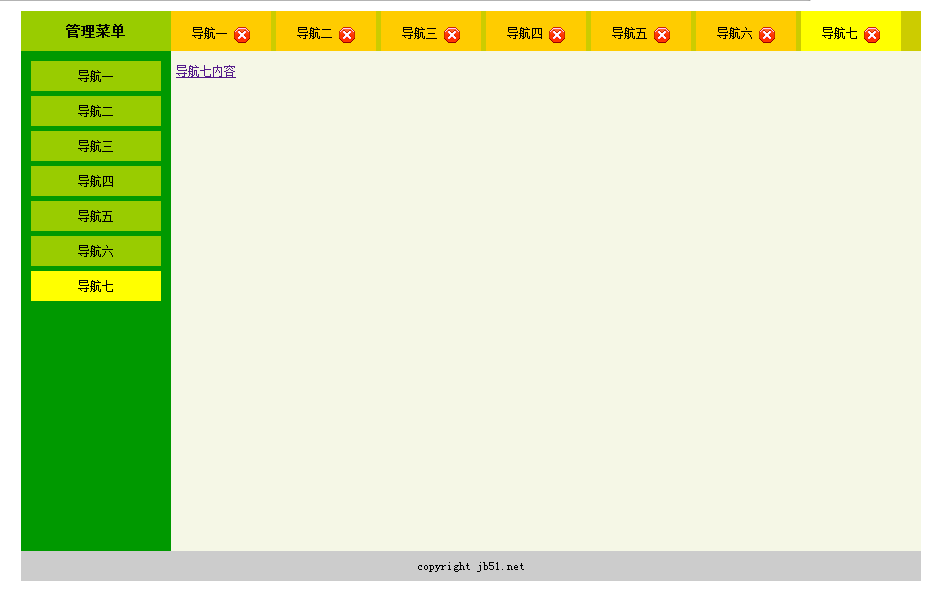
完整實例代碼點擊此處本站下載。
更多關於JavaScript相關內容感興趣的讀者可查看本站專題:《JavaScript數組操作技巧總結》、《JavaScript數學運算用法總結》、《JavaScript數據結構與算法技巧總結》、《JavaScript切換特效與技巧總結》、《JavaScript查找算法技巧總結》、《JavaScript動畫特效與技巧匯總》、《JavaScript錯誤與調試技巧總結》及《JavaScript遍歷算法與技巧總結》
希望本文所述對大家JavaScript程序設計有所幫助。
- 上一頁:JS之獲取樣式的簡單實現方法(推薦)
- 下一頁:輕松實現js彈框顯示選項
小編推薦
熱門推薦