如何解決ligerUI布局時Center中的Tab高度大小
編輯:關於JavaScript
1.0 引用的js,css
  <link href="/Content/scripts/ligerUI/skins/Aqua/css/ligerui-all.css" rel="stylesheet" />
  <link href="/Content/scripts/ligerUI/skins/ligerui-icons.css" rel="stylesheet" />
  <script src="~/Scripts/jquery-1.8.2.js"></script>
  <script src="/Content/scripts/ligerUI/js/ligerui.all.js"></script>
2.0 用js代碼設置ligerUI布局和Tab高度
<script>
    var tab;
    $(function () {
      $("#layout1").ligerLayout({ leftWidth: 200, topHeight: 80 });
      $("#accordion1").ligerAccordion({ height: 300 });
      //重要的代碼,設置新增加的tab的高度等於center div的高度.
      var height = $(".l-layout-center").height();
      tab = $("#tab1").ligerTab({ height: height });
    });
    //可以動態增加一個tab標簽頁,但是元素有哪些
    function addTab(url, text, tabid) {
      tab.addTabItem({ url: url, text: text, tabid: tabid });
    }
  </script>
3.0 簡單的設置樣式
  <style type="text/css">
    body { padding: 10px; margin: 0; }
    #layout1 { width: 100%; margin: 40px; height: 400px; margin: 0; padding: 0; }
    #accordion1 { height: 270px; }
    h4 { margin: 20px; }
    #accordion1 ul li { font-size: 14px; margin-left: 15px; }
    a { color: black; text-decoration: none; }
    a:hover { color: #ff6a00; }
  </style>
4.0 body中的內容
<body style="padding:10px">
  <div id="layout1">
    <div position="left" title="功能列表">
      <div id="accordion1">
        <div title="項目管理">
          <ul>
            <li><a href="javascript:void(0)" onclick="addTab( 'http://www.youku.com','指定隊伍', 1 )">指定隊伍</a></li>
            <li><a href="javascript:void(0)" onclick="addTab( 'http://www.jd.com','查看項目', 2 )">查看項目</a></li>
          </ul>
        </div>
        <div title="用戶管理">
          <ul>
            <li><a href="javascript:void(0)" onclick="addTab('http://www.baidu.com','用戶審核', 3 )">用戶審核</a> </li>
            <li><a href="javascript:void(0)" onclick="addTab( 'http://www.sina.com','查看用戶', 4 )">查看用戶</a></li>
          </ul>
        </div>
        <div title="其他" style="padding:10px">
          其他內容
        </div>
      </div>
    </div>
    <div position="center" id="tab1">
    </div>
    <div position="top" style="line-height: 80px;">
      <span style="font-size: 28px;font-weight: bolder;font-family:楷體;">超級管理員後台</span>
      <span><a href='@Url.Action("LoginOut","Admin")' style="margin-right: 20px;font-size: 18px;color: #0000cd;float: right;">退出</a></span>
    </div>
    <div position="bottom"></div>
  </div>
</body>
下面小編給大家帶來一篇關於LigerUI學習筆記之布局篇 layout
不說廢話了,直接給大家貼代碼了。
<!DOCTYPE html PUBLIC "-//W3C//DTD XHTML 1.0 Transitional//EN" "http://www.w3.org/TR/xhtml1/DTD/xhtml1-transitional.dtd">
<html xmlns="http://www.w3.org/1999/xhtml">
<head>
  <title>布局實力篇之自動適應窗口 高度</title>
  <link href="../lib/ligerUI/skins/Aqua/css/ligerui-all.css" rel="stylesheet" type="text/css" />
  <!--<link href="../lib/ligerUI/skins/Gray/css/all.css" rel="stylesheet" type="text/css" />--> 我用的另一套皮膚
  <!--我添加了自定義的樣式-->
  <link href="../style/site.css" rel="stylesheet" type="text/css" />
  <script src="../lib/jquery/jquery-1.3.2.min.js" type="text/javascript"></script>
  <script src="../lib/ligerUI/js/core/base.js" type="text/javascript"></script>
  <script src="../lib/ligerUI/js/plugins/ligerLayout.js" type="text/javascript"></script>
  <script type="text/javascript">
    $(function () {
      $("#container").ligerLayout({ leftWidth: 200 }); //這一句可是關鍵啊
    });
  </script>
</head>
<body>
  <div id="top">
    其實俺和他們不是一起的,俺是獨立的一部分
  </div>
  <div id="container">
    <div position="left"> 這裡也要注意啊
    </div>
    <div position="center" title="標題"> 加個標題更好玩
    </div>
  </div>
</body>
</html>
樣式文件
* { margin: 0px; padding: 0px; }
body { padding: 5px; margin: 0; padding-bottom: 15px; }
#top { height: 80px; margin-bottom: 3px; background-color:Lime }
總結:
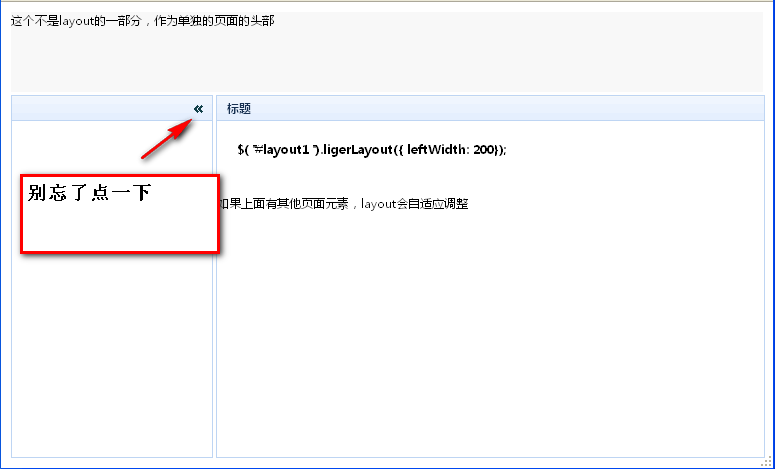
只需要將容器轉換為一個ligerlayout對象就行了
別忘了 position 屬性啊
順便來張效果圖
小編推薦
熱門推薦