這一篇來談一個實務上很常見、卻容易被忽略的需求:把網頁上的一段內容打印出來,或者直接另存成 Word 檔交給使用者去加工。
1、舊方案為什麼走不通了
以前我偏好用 LODOP 做打印,它是 ActiveX 控件,安裝後就能在頁面上做排版設計、預覽、打印,一般內容打印、證件套打都很稱手。
但瀏覽器環境變了。這個外掛在 Chrome 與 Firefox 上已經不受支援,等於整條路被堵死。例如下面這種需要打印對話框內文的情境:
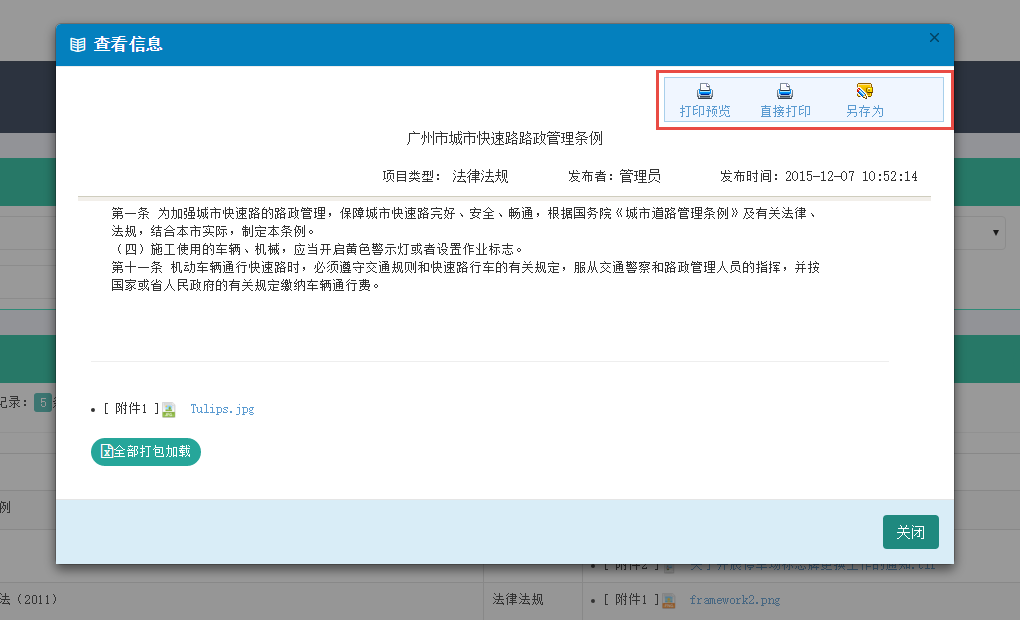
改用 LODOP 處理,Chrome 只會丟出一個錯誤提示,而且無論重新下載安裝或更新控件,提示都不會消失。

替代方案有兩個:PrintThis(https://github.com/jasonday/printThis)與 jquery-print-preview-plugin(https://github.com/etimbo/jquery-print-preview-plugin)。實測比對之後,我更喜歡 PrintThis 的簡潔。
2、PrintThis 的使用
先在頁面引入它的 JS 檔:
<script src="~/Content/JQueryTools/printThis/printThis.js"></script>
接著在頁面頂部放兩個按鈕,分別負責打印預覽與另存為:
<div class="toolbar"> <a href="#" onclick="javascript:Preview();"><img alt="打印預覽" src="~/Content/images/print.gif" /><br />打印預覽</a> <a href="#" onclick="javascript:SaveAs();"><img alt="另存為" src="~/Content/images/saveas.gif" /><br />另存為</a> </div>
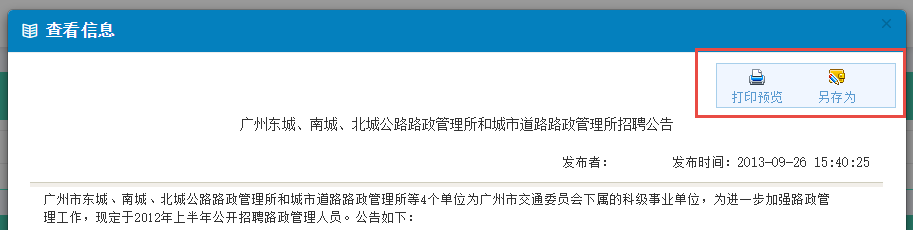
然後準備一個 DIV 用來承載要打印的內容,這樣也方便針對它做打印處理。
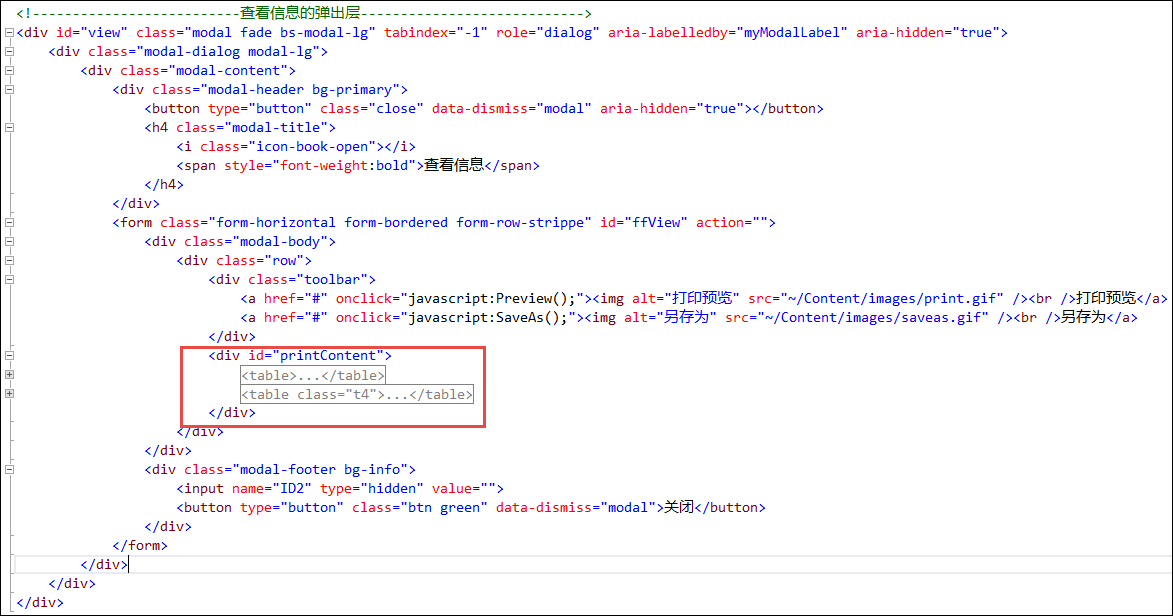
打印本身的程式碼非常短,直接對該層呼叫 printThis 即可:
//打印預覽 function Preview() { $("#printContent").printThis({ debug: false, importCSS: true, importStyle: true, printContainer: true, loadCSS: "/Content/Themes/Default/style.css", pageTitle: "通知公告", removeInline: false, printDelay: 333, header: null, formValues: true }); };
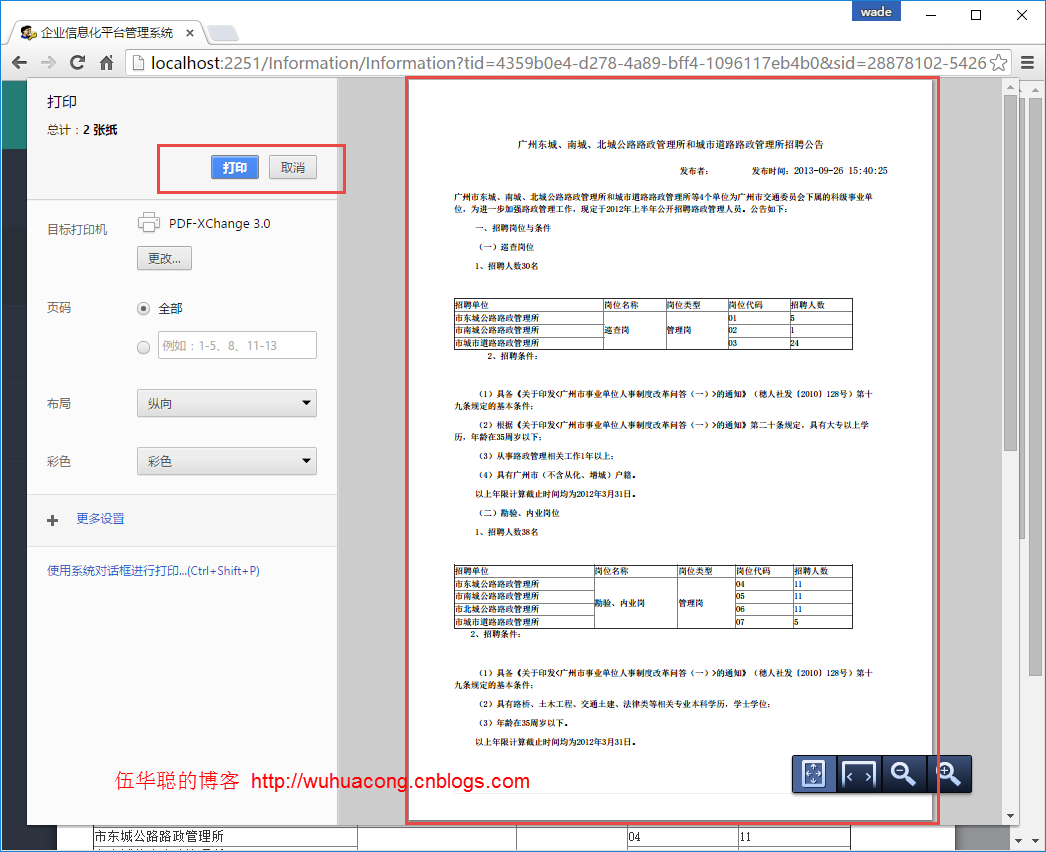
執行後,IE 與 Chrome 都會跳出系統的打印預覽視窗,由使用者確認是否輸出。
3、另存為 Word
除了打印,業務上往往還需要把內容導出成 Word,讓使用者自行編修。前端只要開一個新視窗打後台的匯出網址:
function SaveAs() { var id = $('#ID2').val(); window.open('/Information/ExportWordById?id=' + id ); }
後端收到 id 之後,把資料取出來套進 Word 模板即可。這裡我用 Aspose.Words 做模板化的文件生成。
模板中的書簽可以先在 Word 裡定義好,程式再依名稱取值:
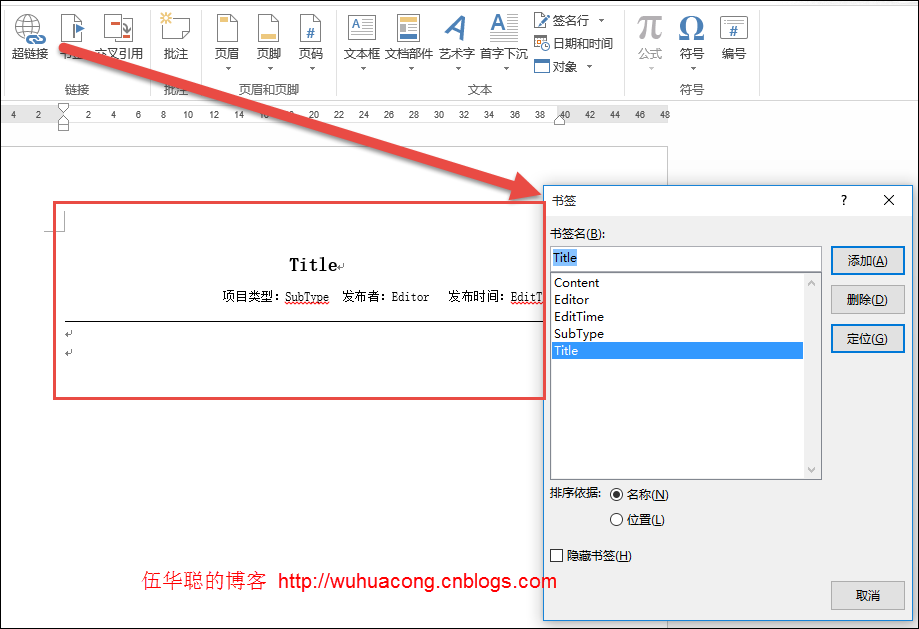
InformationInfo info = BLLFactory<Information>.Instance.FindByID(id); if (info != null) { string template = "~/Content/Template/政策法規模板.doc"; string templateFile = Server.MapPath(template); Aspose.Words.Document doc = new Aspose.Words.Document(templateFile);
置換有兩種途徑。一是純文字替換:
SetBookmark(ref doc, "Content", info.Content);
二是直接操作書簽物件:
Aspose.Words.Bookmark bookmark = doc.Range.Bookmarks[title]; if (bookmark != null) { bookmark.Text = value; }
但主體內容通常是 HTML,這部分必須特別處理——如果用純文字寫入,Word 裡只會看到一坨標籤原始碼。正確做法是用專用的 InsertHtml:
DocumentBuilder builder = new DocumentBuilder(doc); Aspose.Words.Bookmark bookmark = doc.Range.Bookmarks["Content"]; if (bookmark != null) { builder.MoveToBookmark(bookmark.Name); builder.InsertHtml(info.Content); }
用這個方式寫入的內容,渲染出來的樣子和網頁上看到的幾乎沒有差別。
把上述步驟整合起來,就得到完整的匯出方法:
public FileStreamResult ExportWordById(string id) { if (string.IsNullOrEmpty(id)) return null; InformationInfo info = BLLFactory<Information>.Instance.FindByID(id); if (info != null) { string template = "~/Content/Template/政策法規模板.doc"; string templateFile = Server.MapPath(template); Aspose.Words.Document doc = new Aspose.Words.Document(templateFile); #region 使用文本方式替換 //Dictionary<string, string> dictSource = new Dictionary<string, string>(); //dictSource.Add("Title", info.Title); //dictSource.Add("Content", info.Content); //dictSource.Add("Editor", info.Editor); //dictSource.Add("EditTime", info.EditTime.ToString()); //dictSource.Add("SubType", info.SubType); //foreach (string name in dictSource.Keys) //{ // doc.Range.Replace(name, dictSource[name], true, true); //} #endregion //使用書簽方式替換 SetBookmark(ref doc, "Title", info.Title); SetBookmark(ref doc, "Editor", info.Editor); SetBookmark(ref doc, "EditTime", info.EditTime.ToString()); SetBookmark(ref doc, "SubType", info.SubType); //SetBookmark(ref doc, "Content", info.Content); //對於HTML內容,需要通過InsertHtml方式進行寫入 DocumentBuilder builder = new DocumentBuilder(doc); Aspose.Words.Bookmark bookmark = doc.Range.Bookmarks["Content"]; if (bookmark != null) { builder.MoveToBookmark(bookmark.Name); builder.InsertHtml(info.Content); } doc.Save(System.Web.HttpContext.Current.Response, info.Title, Aspose.Words.ContentDisposition.Attachment, Aspose.Words.Saving.SaveOptions.CreateSaveOptions(Aspose.Words.SaveFormat.Doc)); HttpResponseBase response = ControllerContext.HttpContext.Response; response.Flush(); response.End(); return new FileStreamResult(Response.OutputStream, "application/ms-word"); } return null; } private void SetBookmark(ref Aspose.Words.Document doc, string title, string value) { Aspose.Words.Bookmark bookmark = doc.Range.Bookmarks[title]; if (bookmark != null) { bookmark.Text = value; } }
輸出的 Word 就是套好模板的成品文件:
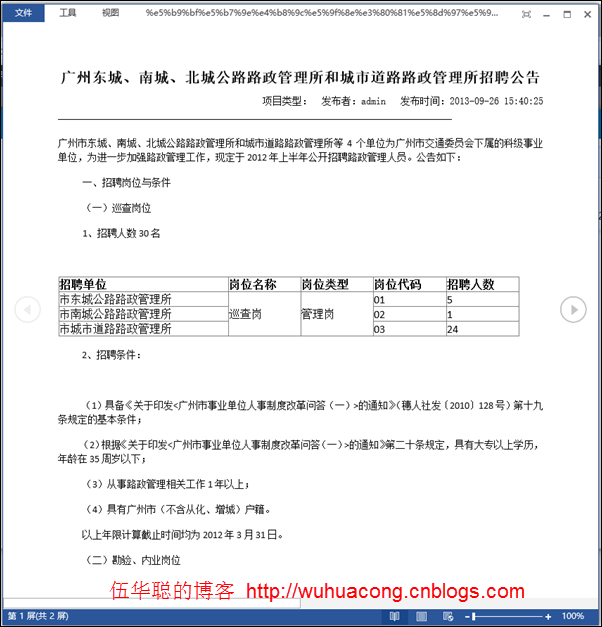
固定模板的做法比讓程式自由拼 HTML 更可控,成品的可塑性與版面也更漂亮,很適合用在格式要求嚴謹的業務文件上。
以上就是這次關於網頁內容打印預覽與另存為 Word 的實作經驗,希望對大家有幫助。