JS 打造 Fisheye 動感放大選單效果
編輯:關於JavaScript
本文為大家示範以 JS 實作的 Fisheye 動感放大選單,希望對學習中的朋友有所幫助。
這款 Fisheye Menu 是以 JS+CSS+XHTML 實作的動感放大選單,當游標移到圖示上時,圖示會被放大,整個選單帶有緩衝彈簧般的效果。玩 jQuery 的朋友應該看過不少類似效果,不過本款並未使用 jQuery,效果同樣精彩。
運行效果截圖如下:
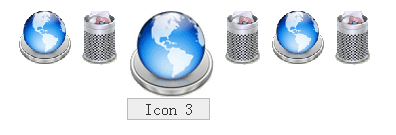
線上演示網址如下:
https://demo.jb51.net/js/2015/js-fisheye-style-menu-demo/
具體程式碼如下:
<!DOCTYPE html PUBLIC "-//W3C//DTD XHTML 1.0 Strict//EN" "https://www.w3.org/TR/xhtml1/DTD/xhtml1-strict.dtd">
<html xmlns="https://www.w3.org/1999/xhtml" xml:lang="en" lang="en">
<head>
<meta http-equiv="Content-Type" content="text/html; charset=utf-8" />
<title>Fisheye 動感放大的選單</title>
<style>
#fisheye_menu { list-style: none; padding: 0; margin: 10px; height: 81px; }
#fisheye_menu li { position: relative; display: block; float: left; }
#fisheye_menu span { position: absolute; top: 100%; left: 0; text-align: center; width: 79px; padding: 1px; margin: 0; border: solid 1px #bbb; color: #333; background: #eee; }
#fisheye_menu a { text-decoration: none; }
#fisheye_menu img { border: 0; vertical-align: top; }
</style>
<script type='text/javascript'>
var fisheyemenu = {
  startSize : 55,
  endSize : 88,
  imgType : ".gif",
  init : function () {
    var animElements = document.getElementById("fisheye_menu").getElementsByTagName("img");
    var titleElements = document.getElementById("fisheye_menu").getElementsByTagName("span");
    for(var j=0; j<titleElements.length; j++) { titleElements[j].style.display = 'none'; }
    for(var i=0; i<animElements.length; i++) {
      var y = animElements[i];
      y.style.width = fisheyemenu.startSize+'px';
      y.style.height = fisheyemenu.startSize+'px';
      fisheyemenu.imgSmall(y);
      animElements[i].onmouseover = changeSize;
      animElements[i].onmouseout = restoreSize;
    }
    function changeSize() {
      fisheyemenu.imgLarge(this);
      var x = this.parentNode.getElementsByTagName("span");
      x[0].style.display = 'block';
      if (!this.currentWidth) this.currentWidth = fisheyemenu.startSize;
      fisheyemenu.resizeAnimation(this,this.currentWidth,fisheyemenu.endSize,15,10,0.333);
    }
    function restoreSize() {
      var x = this.parentNode.getElementsByTagName("span");
      x[0].style.display = 'none';
      if (!this.currentWidth) return;
      fisheyemenu.resizeAnimation(this,this.currentWidth,fisheyemenu.startSize,15,10,0.5);
      fisheyemenu.imgSmall(this);
    }
  },
  resizeAnimation : function (elem,startWidth,endWidth,steps,intervals,powr) {
    if (elem.widthChangeMemInt) window.clearInterval(elem.widthChangeMemInt);
    var actStep = 0;
    elem.widthChangeMemInt = window.setInterval( function() {
      elem.currentWidth = fisheyemenu.easeInOut(startWidth,endWidth,steps,actStep,powr);
      elem.style.width = elem.currentWidth+"px";
      elem.style.height = elem.currentWidth+"px";
      actStep++;
      if (actStep > steps) window.clearInterval(elem.widthChangeMemInt);
    } ,intervals)
  },
  easeInOut : function (minValue,maxValue,totalSteps,actualStep,powr) {
    var delta = maxValue - minValue;
    var stepp = minValue+(Math.pow(((1 / totalSteps)*actualStep),powr)*delta);
    return Math.ceil(stepp)
  },
  imgSmall : function (obj) {
    imgSrc = obj.getAttribute("src");
    var typePos = imgSrc.indexOf(fisheyemenu.imgType, 0);
    var imgName = imgSrc.substr(0, typePos);
    obj.setAttribute("src", imgName+"_small"+fisheyemenu.imgType);
  },
  imgLarge : function (obj) {
    imgSrc = obj.getAttribute("src");
    var typePos = imgSrc.indexOf("_small", 0);
    var imgName = imgSrc.substr(0, typePos);
    obj.setAttribute("src", imgName+fisheyemenu.imgType);
  }
}
if ( typeof window.addEventListener != "undefined" ) window.addEventListener( "load", fisheyemenu.init, false );
else if ( typeof window.attachEvent != "undefined" ) window.attachEvent( "onload", fisheyemenu.init );
else {
  if ( window.onload != null ) {
    var oldOnload = window.onload;
    window.onload = function ( e ) { oldOnload( e ); fisheyemenu.init(); };
  } else window.onload = fisheyemenu.init;
}
</script>
</head>
<body>
<div>
<ul id="fisheye_menu">
<li><a href="#1"><img src="images/icon.gif" alt="" /><span>Icon 1</span></a></li>
<li><a href="#2"><img src="images/icon2.gif" alt="image description" /><span>Icon 2</span></a></li>
<li><a href="#3"><img src="images/icon.gif" alt="腳本下載" /><span>Icon 3</span></a></li>
<li><a href="#4"><img src="images/icon2.gif" alt="image description" /><span>Icon 4</span></a></li>
<li><a href="#5"><img src="images/icon.gif" alt="jb51.net" /><span>Icon 5</span></a></li>
<li><a href="#6"><img src="images/icon2.gif" alt="image description" /><span>Icon 6</span></a></li>
</ul>
</div>
</body>
</html>
希望本文所述能對大家的 JavaScript 程式設計有所幫助。
- 上一篇文章: 純 JavaScript 實作自動寄送郵件
- 下一篇文章: JavaScript 中 Math.random 如何產生指定範圍的隨機數