用 JavaScript 實作下班倒數計時(可桌面通知)
編輯:關於JavaScript
本文分享一個以 JavaScript 實作下班倒數計時的小工具,還能搭配 HTML5 桌面通知,供大家參考娛樂。
使用前提有兩點:1、非 IE 瀏覽器、較高版本的 Chrome,並已開啟 HTML5 桌面通知;2、需將此 HTML 放到本機 Web 伺服器上測試,直接雙擊執行無法彈出桌面通知。
製作過程中有兩點比較容易踩坑,順帶記錄一下:
1、parseInt("09") 回傳的是 0,正確做法是 parseInt("09", 10),明確指定基數為十進位;
2、false 與 "false" 的差別,readonly 屬性實際上只有 true 或 false 兩個值,若設為非空字串 "false",會被轉型為 true,導致無法編輯。
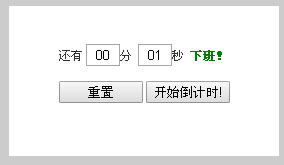
運行效果如下圖所示:



 <style type="text/css">
 body { color:#333; font-size:12px; background-color:#ccc; }
 #counterContainer { width:270px; height:150px; position:absolute; left:50%; top:50%; margin:-75px 0 0 -135px; border:1px solid #ccc; background-color:#fff; }
 #timeContainer, #toolBarContainer, #msgContainer { text-align:center; }
 #timeContainer { margin-top:38px; }
 .timeBox { width:30px; }
 #minute, #second { text-align:center; }
 .highLight { font-weight:bold; color:green; }
 #msg { visibility:hidden; padding-top:10px; }
 </style>

 <div id="counterContainer">
 <div id="timeContainer">
 還有 <input type="text" id="minute" class="timeBox" value="00">分
 <input type="text" id="second" class="timeBox" value="00">秒
 <span class="highLight">下班!</span>
 </div>
 <div id="toolBarContainer">
 <input type="button" id="setOrResetBt" value="設定" />
 <input type="button" id="startBt" value="開始倒數!" />
 </div>
 <div id="msgContainer"><span id="msg" class="highLight">可以下班了,哦耶~~</span></div>
 </div>

 <script type="text/javascript">
 var minuteLeft, secondLeft, totalSeconds, myInterval;
 var isCounting = false;
 var hasSetted = false;
 // 桌面通知
 function sendDesktopNotification(title, msg) {
 if (!window.webkitNotifications || (window.webkitNotifications.checkPermission() != 0)) {
 alert("你的瀏覽器不支援桌面通知或未開啟!");
 return;
 }
 var notificationMsgBox = window.webkitNotifications.createNotification("images/favicon.ico", title, msg);
 notificationMsgBox.show();
 }
 $(function () {
 // 將兩位字串轉成 00-59 格式
 function convertToStandardFormat(timeInput) {
 var val = $(timeInput).val();
 if (val.length == 0) { return; }
 else if (val.length == 1) {
 if (isNaN(val)) { $(timeInput).val('0'); }
 } else if (val.length == 2 || val.length == 3) {
 var intVal = parseInt(val, 10);
 if (isNaN(intVal) || intVal <= 0) { $(timeInput).val('00'); }
 else {
 var firstDigit = parseInt(val[0]);
 if (firstDigit > 5) { firstDigit = 0; }
 $(timeInput).val(firstDigit + val[1]);
 }
 }
 }
 $("#setOrResetBt").click(function () {
 if ($(this).val() === "設定") {
 if (parseInt($("#minute").val(), 10) == 0 && parseInt($("#second").val(), 10) == 0) {
 alert("請設定分、秒為 0 到 59 範圍內的數字!");
 return;
 }
 hasSetted = true;
 $("#minute").attr("readonly", true);
 $("#second").attr("readonly", true);
 minuteLeft = parseInt($("#minute").val(), 10);
 secondLeft = parseInt($("#second").val(), 10);
 totalSeconds = minuteLeft * 60 + secondLeft;
 $(this).val("重置");
 } else {
 clearInterval(myInterval);
 isCounting = false;
 hasSetted = false;
 $("#msg").css("visibility", "hidden");
 $("#minute").attr("readonly", false);
 $("#second").attr("readonly", false);
 $("#minute").val("00");
 $("#second").val("00");
 $(this).val("設定");
 }
 });
 $("#startBt").click(function () {
 if (!hasSetted) { alert("請先設定時間!"); return; }
 if (!isCounting) {
 myInterval = setInterval(function () {
 totalSeconds--;
 if (secondLeft == 0 && minuteLeft > 0) { minuteLeft--; secondLeft = 59; }
 else { secondLeft--; }
 $("#minute").val(minuteLeft > 9 ? minuteLeft : ('0' + minuteLeft));
 $("#second").val(secondLeft > 9 ? secondLeft : ('0' + secondLeft));
 if (totalSeconds == 0) {
 clearInterval(myInterval);
 $("#msg").css("visibility", "visible");
 sendDesktopNotification("下班了", "親,下班了!\nHappy Weekend!");
 }
 }, 1000);
 }
 isCounting = true;
 });
 });
 </script>
這個小工具很適合拿來練習計時器與桌面通知,也很容易擴展成一般的定時提醒。以上就是本文的完整內容,希望對大家有所幫助。
- 上一篇文章: JavaScript 中 JSON 物件與 JSON 字串相互轉換實例
- 下一篇文章: JavaScript 清空陣列元素的兩種方法比較