用 HTML5 Canvas 畫玫瑰線與心形曲線
編輯:HTML5教程
Canvas 搭配一點三角函式,就能畫出相當漂亮的數學曲線。這個範例提供三個按鈕,分別繪製玫瑰線(可調參數)、另一組對稱花形,以及一個心形圖案。
效果圖:
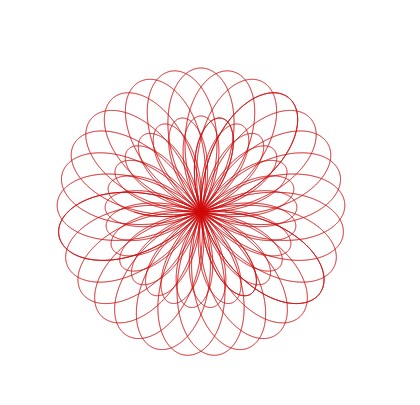
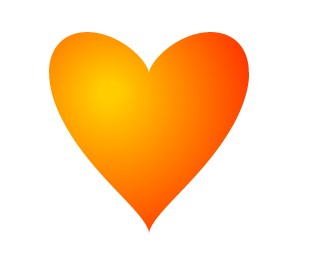
提示:把程式碼複製到一個 html 檔並存檔,直接用瀏覽器打開即可看到效果。
實現代碼
<!DOCTYPE html>
<html>
<head>
<meta charset = "utf-8">
<title>HTML5 Demo</title>
<style type="text/css">
#apDiv1 {
    position: absolute;
    width: 120px;
    height: 300px;
    z-index: 1;
    left: 840px;
    top: 80px;
}
</style>
</head>
<body>
<canvas id="canvas" width="800" height="600" style="border:1px solid #c3c3c3;">
你的瀏覽器不支援 canvas 元素。
</canvas>

<div id="apDiv1">
<form>
    玫瑰線方程式:r = a + b sin(m/n × x)
    <br>選擇參數:
    <br>m: <input type="number" name="m" min="2" max="29" value="29"/>
    <br>n: <input type="number" name="n" min="1" max="12" value="11"/>
    <br>a: <input type="number" name="a" min="0" max="5" value="1"/>
    <br>b: <input type="number" name="b" min="1" max="7" value="5"/>
    <br><input type="button" value=" 畫 圖 " onClick="draw();">
    <hr>
    <input type="button" value=" 畫 圖 2 " onClick="draw2();">
    <hr>
    <input type="button" value=" 心形圖 " onClick="draw3();">
</form>
</div>

<script type="text/javascript">
// 玫瑰線
function draw() {
    var ctx = document.getElementById('canvas').getContext('2d');
    ctx.save();
    ctx.translate(400, 300);              // 把原點移到畫布中央
    ctx.clearRect(-400, -300, 800, 600);
    ctx.strokeStyle = "#cc0000";

    var a = 0, b = 1, m = 6, n = 1;
    m = document.forms[0].m.value;
    n = document.forms[0].n.value;
    a = document.forms[0].a.value;
    b = document.forms[0].b.value;
    drawRose(ctx, a, b, m, n);
    ctx.restore();
}

function drawRose(ctx, a, b, m, n) {
    ctx.beginPath();
    var e = 0, c = 120;
    var k = 2 * Math.PI / 360;
    do {
        var r = a / b + Math.sin(m * e / n * k);
        r = r * c;
        var x = r * Math.cos(e * k);
        var y = r * Math.sin(e * k);
        e += 0.1;
        ctx.lineTo(x, y);
    } while (e <= 4320);
    ctx.stroke();
}

// 第二個圖形
function draw2() {
    var ctx = document.getElementById('canvas').getContext('2d');
    ctx.save();
    ctx.translate(400, 300);
    ctx.clearRect(-400, -300, 800, 600);
    ctx.strokeStyle = "#cc0000";
    ctx.beginPath();
    var e = 0, c = 150;
    var k = 2 * Math.PI / 360;
    do {
        var x = 150 * Math.cos(5 / 2 * e * k) + 50 * Math.cos(15 / 16 * 5 / 2 * e * k);
        var y = 150 * Math.sin(5 / 2 * e * k) - 50 * Math.sin(15 / 16 * 5 / 2 * e * k);
        e += 0.1;
        ctx.lineTo(x, y);
    } while (e <= 3600);
    ctx.stroke();
    ctx.restore();
}

// 心形
function draw3() {
    var ctx = document.getElementById('canvas').getContext('2d');
    ctx.save();
    ctx.translate(400, 300);
    ctx.clearRect(-400, -300, 800, 600);
    ctx.strokeStyle = "#ff0000";
    ctx.beginPath();

    var x = 1, y;
    do {
        y = -80 * (Math.sqrt(1 - x * x) + Math.pow(x * x, 1 / 3));
        x -= 0.001;
        ctx.lineTo(100 * x, y);
    } while (x >= -1);

    do {
        y = 80 * (Math.sqrt(1 - x * x) - Math.pow(x * x, 1 / 3));
        x += 0.001;
        ctx.lineTo(100 * x, y);
    } while (x <= 1);
    ctx.closePath();

    // 加上放射狀漸層
    var grad = ctx.createRadialGradient(-40, -60, 10, -40, -40, 200);
    grad.addColorStop(0, "#ffcc00");
    grad.addColorStop(1, "#ff0000");
    ctx.fillStyle = grad;
    ctx.fill();
    ctx.restore();
}

window.onload = function () { draw(); };
</script>
</body>
</html>
三個關鍵技巧
把原點搬到畫布中央:用 ctx.translate(400, 300) 之後,座標 (0, 0) 就落在 800×600 畫布的正中央,數學公式才能直接用負值畫出對稱圖形。用完以 save()/restore() 復原,避免影響下一次繪圖。
用角度換算成弧度:程式裡的 k = 2π/360 是「每度對應的弧度」,迴圈變數 e 因此可以直接用度數思考,最後再乘 k 轉成 Math.sin/Math.cos 需要的單位。
用密集折線模擬平滑曲線:Canvas 沒有「畫函式」的 API,做法就是把步長取得夠小(這裡是 0.1 或 0.001),用大量 lineTo 串成折線,視覺上就足夠平滑。心形那個圖案最後還用 createRadialGradient 做了從黃到紅的放射漸層,讓填色更有立體感。
小提醒:範例的 input type="number" 已無障礙與行動裝置友善的優勢,但表單缺少 label 對應,建議補上;另外 drawRose 的迴圈上限 4320 度是為了讓 m/n 這種分數比值能繞回原點,若改成整數比可以相應縮小,效能會更好。
- 上一篇文章: HTML5 Canvas 鋸齒邊框圖形實作範例
- 下一篇文章: 8 個令人驚豔的 HTML5 網頁應用