一、表單
1. 表單的作用
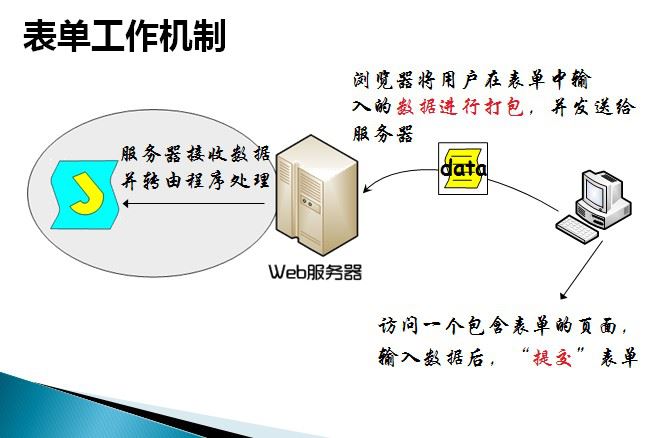
HTML 表單用於接收不同類型的用戶輸入,用戶提交表單時向伺服器傳輸數據,從而實現用戶與 Web 伺服器的互動。
2. 表單的工作機制
3. 表單定義(<form></form> 標籤)
HTML 表單是一個包含表單元素的區域,使用 <form> 標籤創建。表單能夠包含 input 元素,比如文本欄位、核取方塊、單選鈕、提交按鈕等;還可以包含 menus、textarea、fieldset、legend 和 label 元素。注意,<form> 元素是塊級元素,其前後會產生折行。
<form action="login.do" method="post"> <!--表單元素在這裡--> </form>
4. 表單屬性
action:規定提交表單時向何處發送數據。取值可以是:一個 URL(絕對/相對),一般指向伺服器端一個程式,接收並處理表單數據;使用 mailto 協議的 URL,將表單內容以電子郵件形式發送(較少見,因需用戶電腦正確設定郵件程式);或空值,表示提交給當前頁面。
method:定義瀏覽器將表單數據提交給伺服器的方式,最常用的是 get 與 post。get 會將各表單欄位及數據按 URL 參數格式附在 action 指定的 URL 後發送,受限於 URL 長度,傳送量一般在 1KB 以下;post 則將表單數據作為 HTTP 請求體的一部分發送,傳送量通常比 get 大。依 HTML 標準,若處理表單的程式不會改變伺服器上的數據(如查詢)應用 get,若會引起數據變化(如增刪改)則用 post。
target:規定在何處顯示 action 指定的 URL 所返回的結果,取值有 _blank(新視窗)、_self(相同框架,預設值)、_parent(父框架)、_top(整個視窗)與 framename(指定框架)。
title:設定滑鼠停留在表單上時,瀏覽器以小浮標顯示的文字。
enctype:規定發送到伺服器前應如何對表單數據編碼。預設值為 "application/x-www-form-urlencoded"(所有字元都會編碼,空格轉為 +,特殊符號轉為 ASCII HEX 值);"multipart/form-data" 則不對字元編碼,使用包含檔案上傳控件的表單時必須採用該值。
name:表單的名稱。注意與 id 的區別:name 是與伺服器溝通時使用的名稱,id 則是瀏覽器端使用的名稱,主要方便在 CSS 和 JavaScript 中選取。
二、表單元素
1. 單行文字方塊 <input type="text"/>
<input type = “text” name=“名稱”/>
主要屬性:size 指定寬度(以字元為單位,多數瀏覽器預設 20 個字元);value 指定預設值;maxlength 指定最大輸入長度;readonly 只讀(可獲得焦點但不能修改);disabled 禁用(不能獲得焦點,且提交時瀏覽器不會發送該欄位的值)。
2. 密碼框 <input type="password"/>
<input type=“password” name=“名稱”/>
3. 單選按鈕 <input type="radio"/>
使用 name 相同的一組單選按鈕,不同 radio 設定不同的 value,這樣取出指定 name 的值就能知道誰被選中。表單提交時,選中項的 value 和 name 會被打包發送。
<input type=“radio” name=“gender” value=“male”/> <input type=“radio” name=“gender” value=“female”/>
4. 核取方塊 <input type="checkbox"/>
使用 name 相同的一組核取方塊,提交時所有選中項的 value 和 name 會被打包發送。checked 屬性表示是否被選中,可寫成 <input type="checkbox" checked /> 或 <input type="checkbox" checked="checked" />(推薦)。
<input type =“checkbox” name=“language” value=“Java”/> <input type =“checkbox” name=“language” value=“C”/> <input type =“checkbox” name=“language” value=“C#”/>
5. 隱藏域 <input type="hidden"/>
隱藏域通常用於向伺服器提交不需要顯示給用戶的資訊。
<input type=“hidden” name=“隱藏域”/>
6. 檔案上傳 <input type="file"/>
使用 file 時,form 的 enctype 必須設為 multipart/form-data,method 屬性為 POST。
<input name="uploadedFile" id="uploadedFile" type="file" size="60" accept="text/*"/>
7. 下拉框 <select> 標籤
<select> 建立一個列表框,<option> 建立一個列表項,兩者共同提供在一組選項中選擇的方式。將某個 option 設為 <option selected> 即可設為選擇項;可用 optgroup 對選項分組(分組本身不會被選擇);加上 multiple 屬性可多選(按 CTRL 鍵選擇)。
<select name="country" size="10"> <optgroup label="Africa"> <option value="gam">Gambia</option> <option value="mad">Madagascar</option> <option value="nam">Namibia</option> </optgroup> <optgroup label="Europe"> <option value="fra">France</option> <option value="rus">Russia</option> <option value="uk">UK</option> </optgroup> <optgroup label="North America"> <option value="can">Canada</option> <option value="mex">Mexico</option> <option value="usa">USA</option> </optgroup> </select>
8. 多行文本 <textarea></textarea>
<textarea> 建立一個可輸入多行文字的方塊,沒有 value 屬性,初始內容寫在標籤之間;cols、rows 屬性表示列數與行數,不指定則採瀏覽器預設顯示。
<textarea name=“textareaContent” rows=“ 20“ cols=“50” > 多行文本框的初始顯示內容 </textarea>
9. <label></label> 標籤
在 <input> 前可以寫普通文字來修飾,但單擊文字時 input 並不會獲得焦點,而用 label 則可以。for 屬性指定要修飾的控件的 id,例如 <label for="txt1">內容</label>;accesskey 屬性是 label 的另一個屬性。注意:要為被修飾的控件設定一個唯一的 id。label 對 radio 與 checkbox 特別有用。
<input type="radio" name="sex" id="male" value="0" checked="checked" /><label for="male">男</label> <input type="radio" name="sex" id="fmale" value="1" /><label for="fmale">女</label> <input type="radio" name="sex" id="secret" value="2" /><label for="secret">保密</label>
10. <fieldset></fieldset> 標籤
fieldset 標籤將控件劃分為一個區域,看起來更規整。
<fieldset> <legend>愛好</legend> <input type="checkbox" value="籃球" /> <input type="checkbox" value="爬山" /> <input type="checkbox" value="閱讀" /> </fieldset>
11. 提交按鈕 <input type="submit"/>
當用戶單擊提交按鈕時,表單數據會提交給 <form> 標籤 action 屬性指定的伺服器處理程式。可透過 value 屬性修改按鈕的顯示文字。
<input type="submit" value="提交"/>
12. 重置按鈕 <input type="reset"/>
當用戶單擊重置按鈕時,表單中的值會被重置為初始值。提交表單時,重置按鈕的 name 和 value 不會提交給伺服器。
<input type=“reset” value=“重置按鈕"/>
13. 普通按鈕 <input type="button"/>
普通按鈕通常用於單擊執行一段腳本程式碼。
<input type="button" value="普通按鈕"/>
14. 圖像按鈕 <input type="image"/>
圖像按鈕的 src 屬性指定圖像來源,它沒有 value 屬性。圖像按鈕可代替 <input type="submit"/>,現在也可透過 CSS 直接將 submit 按鈕的外觀設為一張圖片。
<input type="image" src="bg.jpg" />
三、表單示例
以下示例以表單實現一個簡單的註冊頁面,使用表格佈局:
<!DOCTYPE HTML PUBLIC "-//W3C//DTD HTML 01 Transitional//EN" "https://wwwworg/TR/html4/loosedtd"> <html> <head> <title>注冊頁面</title> <style type="text/css"> table { width: 450px; border: 1px solid red; background-color: #FFCB29; border-collapse: collapse; } td { width: 200; height: 40px; border: 1px solid black; } span { background-color: red; } </style> </head> <body style="background-color: blue; background-image: url(/image/bearjpg); background-repeat: repeat;"> <form name="registerform" id="form1" action="" method="post"> <table align="center" cellspacing="0" cellpadding="0"> <tr> <td> 用戶名: </td> <td> <input type="text" /> </td> </tr> <tr> <td> 密碼: </td> <td> <input type="password" /> </td> </tr> <tr> <td> 確認密碼: </td> <td> <input type="password" /> </td> </tr> <tr> <td> 請選擇市: </td> <td> <select> <optgroup label="中國"> <option>甘肅省</option> <option>河南省</option> <option>上海市</option> </optgroup> <optgroup label="American"> <option>California</option> <option>Chicago</option> <option>New York</option> </optgroup> </select> </td> </tr> <tr> <td> 請選擇性別: </td> <td> <input type="radio" name="sex" id="male" value="0" checked="checked" /><label for="male">男</label> <input type="radio" name="sex" id="fmale" value="1" /><label for="fmale">女</label> <input type="radio" name="sex" id="secret" value="2" /><label for="secret">保密</label> </td> </tr> <tr> <td> 請選擇職業: </td> <td> <input type="radio" id="student" name="profession" /><label for="student">學生</label> <input type="radio" id="teacher" name="profession" /><label for="teacher">教師</label> <input type="radio" id="others" name="profession" /><label for="others">其他</label> </td> </tr> <tr> <td> 請選擇愛好: </td> <td> <fieldset> <legend>你的愛好</legend> <input type="checkbox" name="hobby" id="basketboll" checked="checked" /><label for="basketboll">打籃球</label> <input type="checkbox" name="hobby" id="run" /><label for="run">跑步</label> <input type="checkbox" name="hobby" id="read" /><label for="read">閱讀</label> <input type="checkbox" name="hobby" id="surfing" /><label for="surfing">上網</label> </fieldset> </td> </tr> <tr> <td> 備注: </td> <td> <textarea cols="30">這裡是備注內容</textarea> </td> </tr> <tr> <td> </td> <td> <input type="submit" value="提交" /> <input type="reset" value="重置" /> </td> </tr> </table> </form> </body> </html>
- 上一篇文章: HTML 表單提交方式教學:按鈕、一般按鈕與超鏈接
- 下一篇文章: HTML 大於號、小於號、空格、引號等常用轉義碼一覽表