jQuery 彈出層元件:可調尺寸、Ajax 內容與背景樣式
編輯:JavaScript綜合知識
這篇文章介紹一個功能完整的 jQuery 彈出層(ClassyLightbox),支援自訂寬度、以 Ajax 載入內容、多個自訂按鈕與回呼、可拖曳,以及多種背景遮罩樣式。
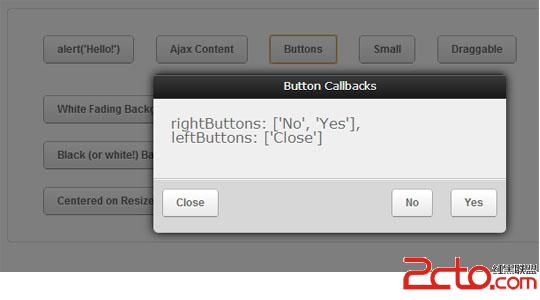 效果預覽
一、ไวใช้ต่างรา ต่างรางวัล
頁面中先放好各個觸發按鈕,每個按鈕示範一種設定組合:
<input id="alert"      type="button" value="alert('Hello!')" />
<input id="ajax"       type="button" value="Ajax Content" />
<input id="buttons"    type="button" value="Buttons" />
<input id="small"      type="button" value="Small" />
<input id="draggable"  type="button" value="Draggable" />

<input id="wbgf"  type="button" value="White Fading Background" />
<input id="bbgf"  type="button" value="Black Fading Background" />

<input id="bbg"   type="button" value="Black (or white!) Background" />
<input id="nobg"  type="button" value="No Background" />

<input id="center" type="button" value="Centered on Resize" />
二、初始化與各組設定
$(document).ready(function () {

  ClassyLightbox.init({
    override: true,
    background: 'white',
    centerOnResize: true,
    fade: true
  });

  // 最簡單:直接覆寫 window.alert
  $('#alert').click(function () {
    alert('Hello');
  });

  $('#hello').click(function () {
    alert('Hello there, my name is ClassyLightbox. Pleasure meeting you.');
  });

  // Ajax 內容
  $('#ajax').click(function () {
    ClassyLightbox.alert({
      width: '400px',
      title: 'Ajax Content',
      rightButtons: ['OK'],
      leftButtons: ['Close'],
      opened: function () {
        $('<div>').load('demo.html').appendTo('#lbContent');
      },
      onClick: function (button) {
        console.log(button);
      }
    });
  });

  // 多顆按鈕與點擊回呼
  $('#buttons').click(function () {
    ClassyLightbox.alert({
      width: '400px',
      title: 'Button Callbacks',
      rightButtons: ['No', 'Yes'],
      leftButtons: ['Close'],
      opened: function () {
        $('<div>').html("rightButtons: ['No', 'Yes']<br />leftButtons: ['Close']<br />")
                   .appendTo('#lbContent');
      },
      onClick: function (button) {
        if (button != 'Close') {
          $('#ClassyLightbox #lbContent').append('<br />Clicked ' + button);
        }
        console.log(button);
      }
    });
  });

  // 指定小尺寸
  $('#small').click(function () {
    ClassyLightbox.alert({
      width: '200px',
      title: '200px',
      rightButtons: ['OK'],
      opened: function () {
        $('<div>').html("I am Small.<br />width: '200px',").appendTo('#lbContent');
      },
      onClick: function (button) { console.log(button); }
    });
  });

  // 若載入了 jQuery UI,彈出層會自動變成可拖曳
  $('#draggable').click(function () {
    ClassyLightbox.alert({
      width: '400px',
      title: 'Drag Me Up Here!',
      rightButtons: ['Cool!'],
      opened: function () {
        $('<div>').html("If jQuery UI is loaded, all windows will become draggable automagically!")
                   .appendTo('#lbContent');
      },
      onClick: function (button) {
        console.log(button);
        if (button == 'Cool!') { ClassyLightbox.clear(); }
      }
    });
  });

  // 白色漸層背景
  $('#wbgf').click(function () {
    ClassyLightbox.destroy();
    ClassyLightbox.init({ override: true, background: 'white', centerOnResize: false, fade: true });
    alert("Hello World");
  });

  // 黑色漸層背景
  $('#bbgf').click(function () {
    ClassyLightbox.destroy();
    ClassyLightbox.init({ override: true, background: 'black', centerOnResize: false, fade: true });
    alert("Hello World");
  });

  // 隨機黑或白,且不使用漸層
  $('#bbg').click(function () {
    ClassyLightbox.destroy();
    ClassyLightbox.init({
      override: true,
      background: ((Math.ceil(Math.random() * 2)) == 2) ? 'white' : 'black',
      centerOnResize: false,
      fade: false
    });
    alert("My background doesn't have to fade in, it can be distracting at times.");
  });

  // 完全不要背景遮罩
  $('#nobg').click(function () {
    ClassyLightbox.destroy();
    ClassyLightbox.init({ override: true, background: 'none', centerOnResize: true, fade: false });
    alert("I have no background");
  });

  // 視窗縮放時保持置中
  $('#center').click(function () {
    ClassyLightbox.destroy();
    ClassyLightbox.init({ override: true, background: 'white', centerOnResize: true, fade: false });
    alert("Resize the window when I am open! I stay centered on resize.");
  });
});
三、各設定的作用
| 參數 | 說明 |
|---|---|
override | 是否覆寫原生的 window.alert,讓全站 alert 都走彈出層 |
background | 'white'/'black'/'none',控制遮罩顏色或不要遮罩 |
centerOnResize | 視窗尺寸變動時是否重新置中 |
fade | 遮罩是否以淡入方式出現 |
width/title | 單一彈出層的寬度與標題 |
leftButtons/rightButtons | 左右兩側的按鈕文字陣列 |
opened | 彈出後的回呼,常用來填入內容 |
onClick | 按鈕點擊回呼,參數是被點的按鈕文字 |
四、使用提醒
ClassyLightbox.destroy()是必要的收尾步驟:重新 init 之前先清掉舊的設定,否則多組參數會互相污染。- 原範例中
$('')是空的選擇器,實務上請改為$('<div>')明確建立元素,否則在部分 jQuery 版本會拋錯。 override: true會全域覆寫 alert,這對第三方套件或直接呼叫window.alert的程式也會生效,導入前請確認不會影響既有流程。- 若只需要基本的彈出層,現代專案建議直接用原生
<dialog>搭配showModal(),它已內建遮罩、焦點鎖定與 Esc 關閉,且不必額外載入 jQuery。