用 Ajax 實作彈跳式無刷新城市選擇
編輯:AJAX基礎知識
這是一個相當好用的全國城市多選效果:點「請選擇」按鈕彈出面板,分組切換城市、勾選後即時彙總到下方,按確定才寫回。
擴充資料的方式
要新增城市時,先加「組」:在 id 為 selectSub 的 <select> 下補一個 <option>,value 遞增;接著依既有格式在 selectSub 內補一個 <div>,id 屬性同步遞增。
要加二級副選項時更簡單:複製 selectSub 底下任一 <input>,貼到需要的位置即可。若想更進一步,配合後端動態語言,完全可以把城市資料從資料庫讀出來產生。
效果預覽
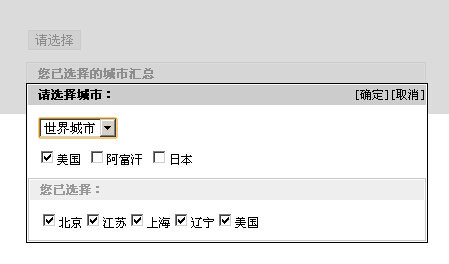
線上展示:https://demo.jb51.net/js/2015/js-ajax-dialog-cha-city-codes/
完整程式碼
<!DOCTYPE html PUBLIC "-//W3C//DTD XHTML 1.0 Transitional//EN"
  "https://www.w3.org/TR/xhtml1/DTD/xhtml1-transitional.dtd">
<html xmlns="https://www.w3.org/1999/xhtml">
<head>
<title>Ajax彈出式無刷新城市選擇特效</title>
<meta http-equiv="content-type" content="text/html;charset=gb2312">
<style type="text/css">
BODY { font-size:12px; padding-top:50px }
H2 { font-weight:bold; font-size:12px; margin:0; padding:0 }
.bton { border:1px solid #ccc; background:#ddd }
.cont { padding:10px }
#main { margin:0 auto; width:400px }
#selectItem {
  border:1px solid #000; margin-top:10px; z-index:2; background:#fff;
  overflow:hidden; width:400px; position:absolute; top:0;
}
#preview { border:1px solid #ccc; margin:1px }
#result { border:1px solid #ccc; margin-top:10px }
.tit { padding-left:10px; margin:1px; line-height:20px; height:20px }
.bgc_ccc { background:#ccc }
.bgc_eee { background:#eee }
.c_999 { color:#999 }
.pointer { cursor:pointer }
.left { float:left }
.right { float:right }
.cls { clear:both; font-size:0; overflow:hidden; height:0 }
#bg {
  display:none; z-index:1; background:#ccc; left:0; width:100%;
  position:absolute; top:0; opacity:0.7; filter:alpha(opacity=70);
}
.hidden { display:none }
.move { cursor:move }
</style>
</head>
<body>
<div id="main">
  <input class="bton pointer" onclick="openBg(1);openSelect(1)"
         type="button" value="請選擇" name="button">
  <div id="result">
    <div class="tit bgc_eee"><h2>您已選擇的城市匯總</h2></div>
    <div class="cont" id="makeSureItem"></div>
  </div>
</div>

<div id="bg"></div>

<div class="hidden" id="selectItem">
  <div class="tit bgc_ccc move" onmousedown="drag(event,this)">
    <h2 class="left">請選擇城市:</h2>
    <span class="pointer right" onclick="openBg(0);openSelect(0);">[取消]</span>
    <span class="pointer right" onclick="makeSure();">[確定]</span>
  </div>
  <div class="cls"></div>
  <div class="cont">
    <div id="selectSub">
      <select style="margin-bottom:10px" onchange="showSelect(this.value)" name="">
        <option value="0" selected>中國名城</option>
        <option value="1">魅力城市</option>
        <option value="2">東北三省</option>
        <option value="3">世界城市</option>
      </select>

      <div id="c00">
        <input onclick="addPreItem()" type="checkbox" value="北京" name="ck00">北京
        <input onclick="addPreItem()" type="checkbox" value="福建" name="ck00">福建
        <input onclick="addPreItem()" type="checkbox" value="四川" name="ck00">四川
        <input onclick="addPreItem()" type="checkbox" value="江蘇" name="ck00">江蘇
      </div>
      <div id="c01">
        <input onclick="addPreItem()" type="checkbox" value="上海" name="ck01">上海
        <input onclick="addPreItem()" type="checkbox" value="雲南" name="ck01">雲南
        <input onclick="addPreItem()" type="checkbox" value="貴州" name="ck01">貴州
      </div>
      <div id="c02">
        <input onclick="addPreItem()" type="checkbox" value="黑龍江" name="ck01">黑龍江
        <input onclick="addPreItem()" type="checkbox" value="吉林" name="ck01">吉林
        <input onclick="addPreItem()" type="checkbox" value="遼寧" name="ck01">遼寧
      </div>
      <div id="c03">
        <input onclick="addPreItem()" type="checkbox" value="美國" name="ck01">美國
        <input onclick="addPreItem()" type="checkbox" value="阿富汗" name="ck01">阿富汗
        <input onclick="addPreItem()" type="checkbox" value="日本" name="ck01">日本
      </div>
    </div>
  </div>
  <div id="preview">
    <div class="tit bgc_eee c_999"><h2>您已選擇:</h2></div>
    <div class="cont" id="previewItem"></div>
  </div>
</div>

<script type="text/javascript">
var grow = $("selectSub").getElementsByTagName("option").length; // 組數
var showGrow = 0;    // 已打開的組
var selectCount = 0; // 已選數量
showSelect(showGrow);

var items = $("selectSub").getElementsByTagName("input");

function $(o){
  return (typeof(o) == "string") ? document.getElementById(o) : o;
}

function openBg(state){
  if (state == 1) {
    $("bg").style.display = "block";
    var h = document.body.offsetHeight > document.documentElement.offsetHeight
          ? document.body.offsetHeight : document.documentElement.offsetHeight;
    $("bg").style.height = h + "px";
  } else {
    $("bg").style.display = "none";
  }
}

function openSelect(state){
  if (state == 1) {
    $("selectItem").style.display = "block";
    $("selectItem").style.left =
      ($("bg").offsetWidth - $("selectItem").offsetWidth) / 2 + "px";
    $("selectItem").style.top = document.body.scrollTop + 100 + "px";
  } else {
    $("selectItem").style.display = "none";
  }
}

function showSelect(id){
  for (var i = 0; i < grow; i++) { $("c0" + i).style.display = "none"; }
  $("c0" + id).style.display = "block";
  showGrow = id;
}

function addPreItem(){
  $("previewItem").innerHTML = "";
  for (var i = 0; i < items.length; i++) {
    if (items[i].checked == true) {
      $("previewItem").innerHTML +=
        "<input type='checkbox' checked='true' value='" + items[i].value +
        "' onclick='copyItem(\"previewItem\",\"previewItem\");same(this);'>" +
        items[i].value;
    }
  }
}

function makeSure(){
  openBg(0);
  openSelect(0);
  copyItem("previewItem", "makeSureItem");
}

function copyItem(id1, id2){
  var mes = "";
  var items2 = $(id1).getElementsByTagName("input");
  for (var i = 0; i < items2.length; i++) {
    if (items2[i].checked == true) {
      mes += "<input type='checkbox' checked='true' value='" + items2[i].value +
             "' onclick='copyItem(\"" + id2 + "\",\"" + id1 + "\");same(this);'>" +
             items2[i].value;
    }
  }
  $(id2).innerHTML = "";
  $(id2).innerHTML += mes;
}

// 讓兩邊的勾選狀態保持同步
function same(ck){
  for (var i = 0; i < items.length; i++) {
    if (ck.value == items[i].value) { items[i].checked = ck.checked; }
  }
}

// 讓彈出層可以被拖曳
var oDrag = "";
var ox, oy, nx, ny, dy, dx;

function drag(e, o){
  var e = e ? e : event;
  var mouseD = document.all ? 1 : 0;
  if (e.button == mouseD) {
    oDrag = o.parentNode;
    ox = e.clientX;
    oy = e.clientY;
  }
}

function dragPro(e){
  if (oDrag != "") {
    var e = e ? e : event;
    dx = parseInt($(oDrag).style.left);
    dy = parseInt($(oDrag).style.top);
    nx = e.clientX;
    ny = e.clientY;
    $(oDrag).style.left = (dx + (nx - ox)) + "px";
    $(oDrag).style.top  = (dy + (ny - oy)) + "px";
    ox = nx;
    oy = ny;
  }
}

document.onmouseup   = function(){ oDrag = ""; };
document.onmousemove = function(event){ dragPro(event); };
</script>
</body>
</html>
幾點觀察
這個範例的巧思在於「三處狀態同步」:原始清單、預覽區、確定後的匯總區,透過 copyItem 與 same 互相對齊,取消勾選任一處都會反映到全部。而 showSelect 只切換 <div> 的 display,切組不打任何請求,所以操作起來毫無延遲。
要留意的是,這份程式宣告的編碼是 gb2312,若沿用要確保伺服器端輸出一致,否則中文會亂。另外彈出層的定位用了 offsetWidth 硬算居中,在現代瀏覽器上以 position: fixed 加 transform 會更簡潔可靠。
- 上一篇文章: 帶即時提示的 Ajax 表單驗證範例
- 下一篇文章: 雙層(多層)Ajax 巢狀呼叫實例