簡介
此樣式基於bootstrap-3.3.0,樣式文件裡的源碼行數都是指的這個版本.CSS源文件放到了Content文件夾下的bootstrap.css
WPF樣式和CSS還是不太相同,所以有些內容實現上稍有出入,有些內容用法不太一樣,有些內容並沒有實現
但至少,一些概念,尺寸和取色,還是很好的借鑒
博客說明按Bootstrap官方文檔的順序來寫
App.xaml裡引用Bootstrap.xaml資源
<Application.Resources>
<ResourceDictionary>
<ResourceDictionary.MergedDictionaries>
<ResourceDictionary Source="pack://application:,,,/BootstrapWpfStyle;component/Styles/Bootstrap.xaml"/>
</ResourceDictionary.MergedDictionaries>
</ResourceDictionary>
</Application.Resources>
排版
標題
<Label>樣式 h1到h6
效果
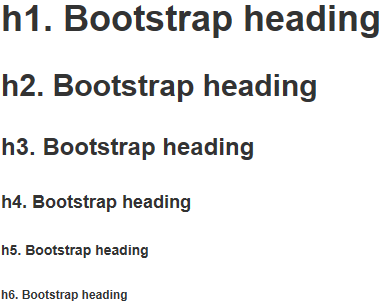
代碼
<Label Content="h1. Bootstrap heading" Style="{DynamicResource h1}"></Label>
<Label Content="h2. Bootstrap heading" Style="{DynamicResource h2}"></Label>
<Label Content="h3. Bootstrap heading" Style="{DynamicResource h3}"></Label>
<Label Content="h4. Bootstrap heading" Style="{DynamicResource h4}"></Label>
<Label Content="h5. Bootstrap heading" Style="{DynamicResource h5}"></Label>
<Label Content="h6. Bootstrap heading" Style="{DynamicResource h6}"></Label>
副標題
<Label>樣式 h1 small到h6 small.使用時 和標題放到一個<StackPanel>裡 方便對齊
效果
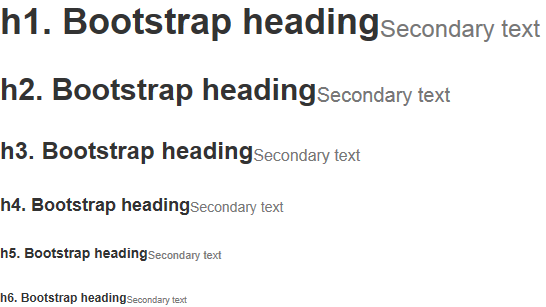
代碼
<StackPanel Orientation="Horizontal">
<Label Content="h1. Bootstrap heading" Style="{DynamicResource h1}"></Label>
<Label Content="Secondary text" Style="{DynamicResource h1 small}"></Label>
</StackPanel>
<StackPanel Orientation="Horizontal">
<Label Content="h2. Bootstrap heading" Style="{DynamicResource h2}"></Label>
<Label Content="Secondary text" Style="{DynamicResource h2 small}"></Label>
</StackPanel>
<StackPanel Orientation="Horizontal">
<Label Content="h3. Bootstrap heading" Style="{DynamicResource h3}"></Label>
<Label Content="Secondary text" Style="{DynamicResource h3 small}"></Label>
</StackPanel>
<StackPanel Orientation="Horizontal">
<Label Content="h4. Bootstrap heading" Style="{DynamicResource h4}"></Label>
<Label Content="Secondary text" Style="{DynamicResource h4 small}"></Label>
</StackPanel>
<StackPanel Orientation="Horizontal">
<Label Content="h5. Bootstrap heading" Style="{DynamicResource h5}"></Label>
<Label Content="Secondary text" Style="{DynamicResource h5 small}"></Label>
</StackPanel>
<StackPanel Orientation="Horizontal">
<Label Content="h6. Bootstrap heading" Style="{DynamicResource h6}"></Label>
<Label Content="Secondary text" Style="{DynamicResource h6 small}"></Label>
</StackPanel>
代碼
內聯代碼
<Label>樣式 code.使用時 和其他<Label>放到一個<StackPanel>裡
效果

代碼
<StackPanel Orientation="Horizontal">
<Label Content="內聯代碼:For example, "></Label>
<Label Content="<section>" Style="{DynamicResource code}"></Label>
<Label Content=" should be wrapped as inline."></Label>
</StackPanel>
用戶輸入
<Label>樣式 kbd.使用時 和其他<Label>放到一個<StackPanel>裡
效果

代碼
<StackPanel Orientation="Horizontal">
<Label Content="用戶輸入:To edit settings, press "></Label>
<Label Content="ctrl + ," Style="{DynamicResource kbd}"></Label>
</StackPanel>
代碼塊
<Label>樣式 pre
效果

代碼
<Label xml:space="preserve" Style="{DynamicResource pre}">代碼塊:
Foreground:#333
Background:#f5f5f5
BorderBrush:#ccc</Label>
輔助文本
<Label>樣式 help-block.注:輔助文本在Bootstrap表單樣式裡,原本的解釋:針對表單控件的“塊(block)”級輔助文本.我並沒有建一個表單窗體,所以就寫在了這裡
效果

代碼
<Label Content="輔助文本:上面為代碼塊" Style="{DynamicResource help-block}"></Label>
表格
<DataGrid>樣式 默認就這一組樣式,不用引用
效果
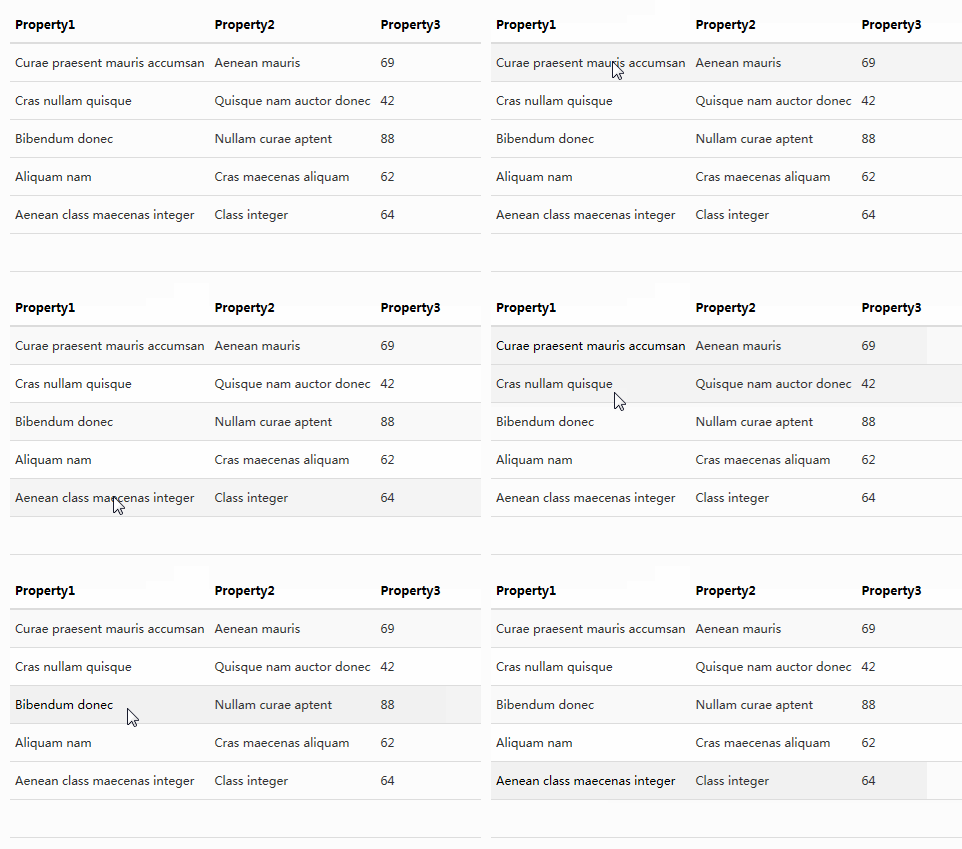
代碼
<DataGrid AutoGenerateColumns="False" DataContext="{Binding Source={StaticResource SampleDataSource}}" ItemsSource="{Binding Collection}">
<DataGrid.Columns>
<DataGridTextColumn Binding="{Binding Property1}" Header="Property1" ElementStyle="{StaticResource DataGridTextCenter}"/>
<DataGridTextColumn Binding="{Binding Property2}" Header="Property2" ElementStyle="{StaticResource DataGridTextCenter}"/>
<DataGridTextColumn Binding="{Binding Property3}" Header="Property3" ElementStyle="{StaticResource DataGridTextCenter}"/>
</DataGrid.Columns>
</DataGrid>
表單
WPF沒有表單的概念,所以說明就不按官方文檔的順序了
文本輸入框
<TextBox>樣式 控件尺寸只支持默認樣式
效果
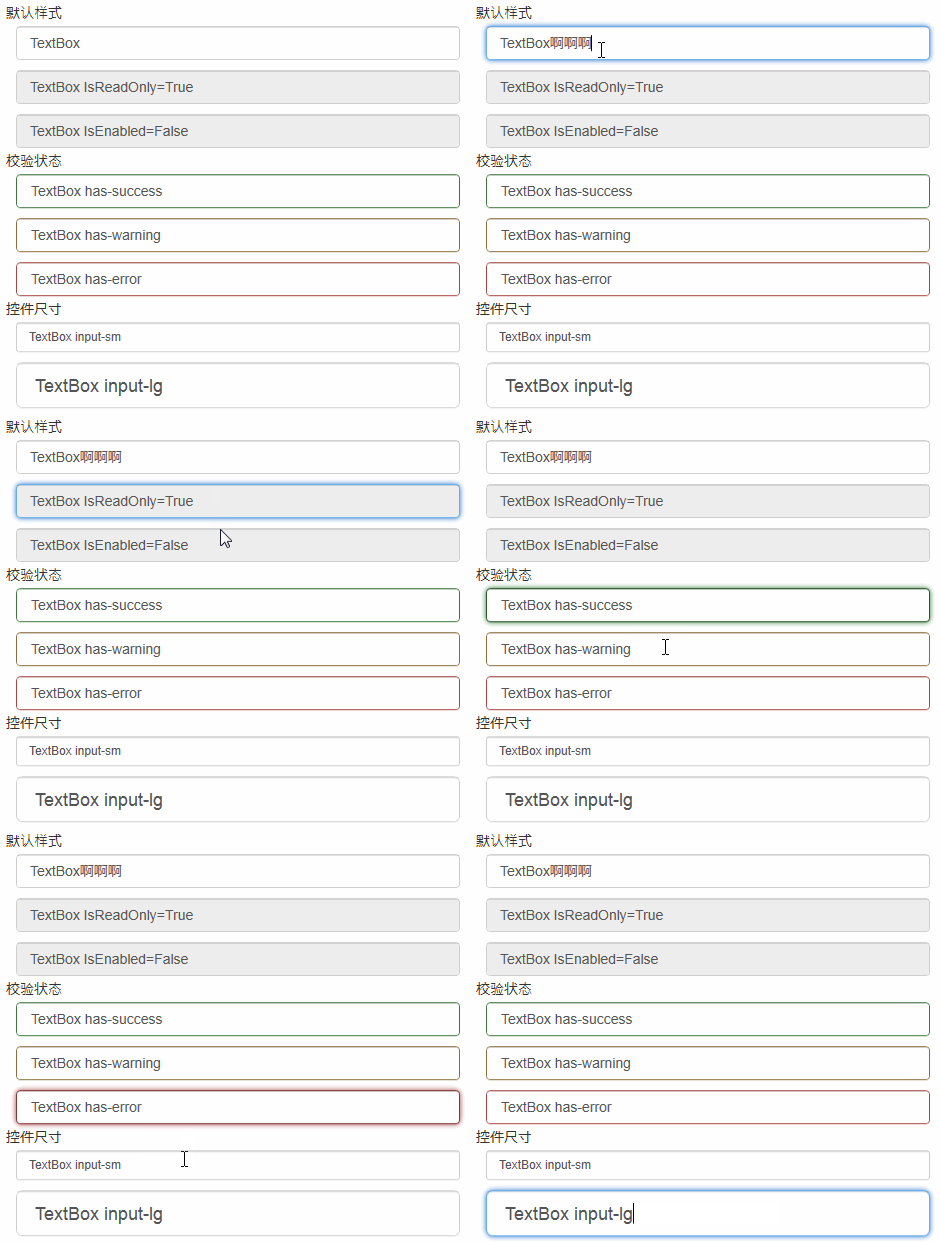
代碼
<TextBox Text="TextBox"/>
<TextBox Text="TextBox IsReadOnly=True" IsReadOnly="True"/>
<TextBox Text="TextBox IsEnabled=False" IsEnabled="False"/>
<TextBox Text="TextBox has-success" Style="{StaticResource has-success}"/>
<TextBox Text="TextBox has-warning" Style="{StaticResource has-warning}"/>
<TextBox Text="TextBox has-error" Style="{StaticResource has-error}"/>
<TextBox Text="TextBox input-sm" Style="{StaticResource input-sm}"/>
<TextBox Text="TextBox input-lg" Style="{StaticResource input-lg}"/>
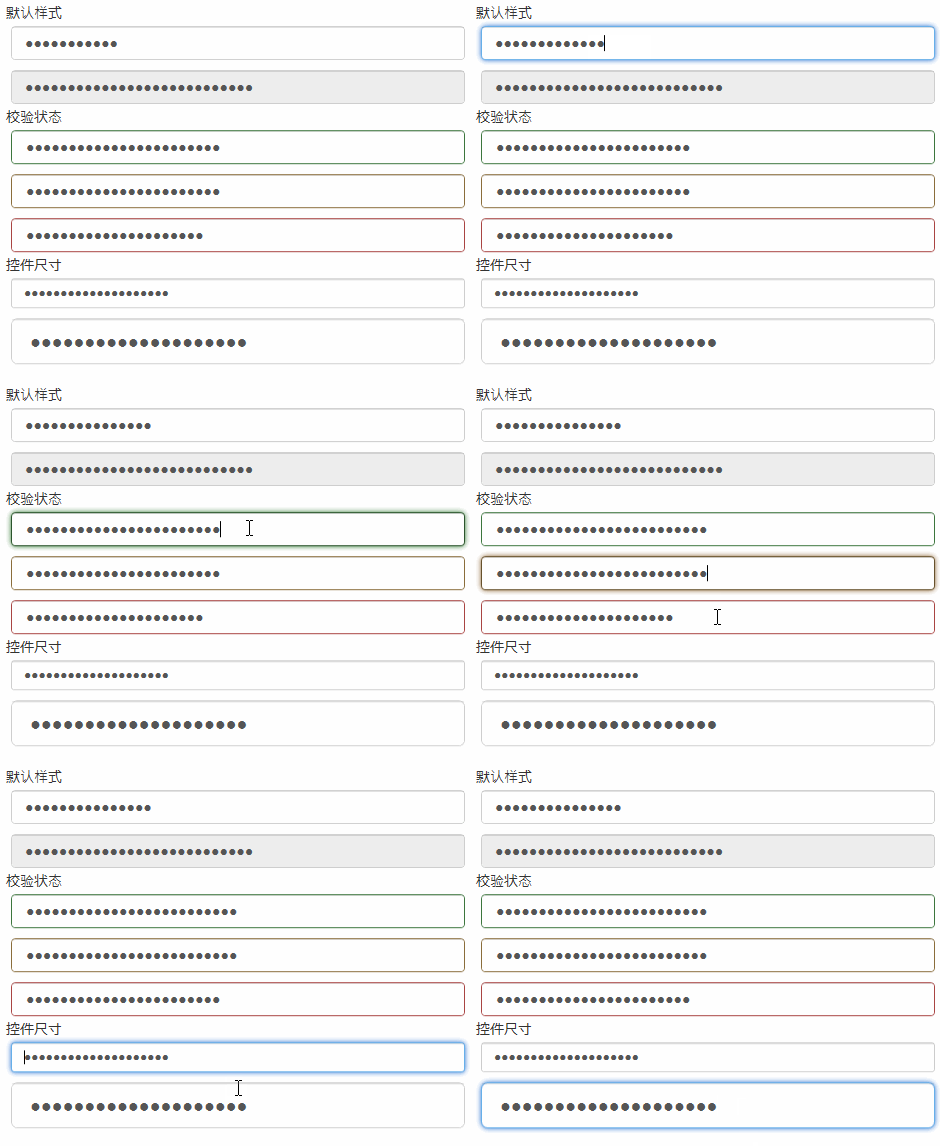
密碼框
<PasswordBox>樣式 控件尺寸只支持默認樣式
效果
代碼
<PasswordBox Password="PasswordBox"/>
<PasswordBox Password="PasswordBox IsEnabled=False" IsEnabled="False"/>
<PasswordBox Password="PasswordBox has-success" Style="{StaticResource has-success}"/>
<PasswordBox Password="PasswordBox has-warning" Style="{StaticResource has-warning}"/>
<PasswordBox Password="PasswordBox has-error" Style="{StaticResource has-error}"/>
<PasswordBox Password="PasswordBox input-sm" Style="{StaticResource input-sm}"/>
<PasswordBox Password="PasswordBox input-lg" Style="{StaticResource input-lg}"/>
<CheckBox>樣式 checkbox 和Bootstrap有些不同 自己寫的樣式
效果
代碼
<CheckBox Content="default"></CheckBox>
<CheckBox Content="checkbox has-success" Style="{DynamicResource checkbox has-success}" IsChecked="{x:Null}"></CheckBox>
<CheckBox Content="checkbox has-warning" Style="{DynamicResource checkbox has-warning}" IsChecked="False"></CheckBox>
<CheckBox Content="checkbox has-error" Style="{DynamicResource checkbox has-error}" IsChecked="True"></CheckBox>
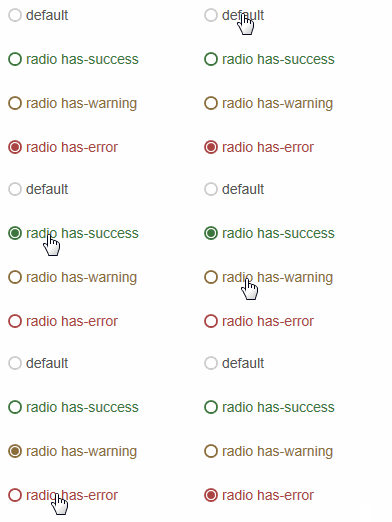
單選框
<RadioButton>樣式 radio 和Bootstrap有些不同 自己寫的樣式
效果
代碼
<RadioButton Content="default"></RadioButton>
<RadioButton Content="radio has-success" Style="{DynamicResource radio has-success}"></RadioButton>
<RadioButton Content="radio has-warning" Style="{DynamicResource radio has-warning}"></RadioButton>
<RadioButton Content="radio has-error" Style="{DynamicResource radio has-error}" IsChecked="True"></RadioButton>
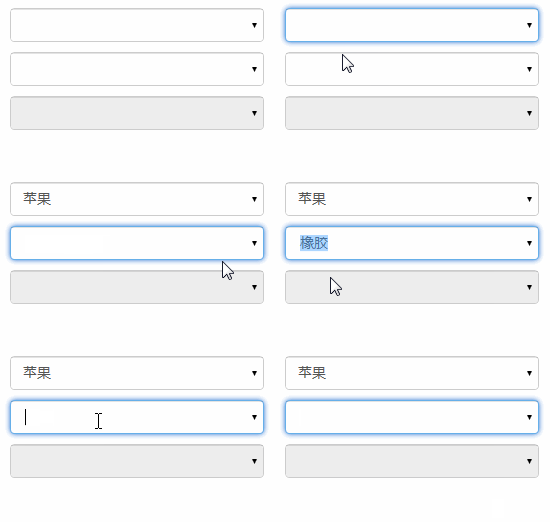
下拉框
<ComboBox>樣式 默認就這一組樣式,不用引用 gif截圖的原因,看不到下拉
效果
代碼
<ComboBox>
<ComboBoxItem>蘋果</ComboBoxItem>
<ComboBoxItem>橡膠</ComboBoxItem>
<ComboBoxItem>桔子</ComboBoxItem>
</ComboBox>
<ComboBox IsEditable="True">
<ComboBoxItem>蘋果</ComboBoxItem>
<ComboBoxItem>橡膠</ComboBoxItem>
<ComboBoxItem>桔子</ComboBoxItem>
</ComboBox>
<ComboBox IsEnabled="False">
<ComboBoxItem>蘋果</ComboBoxItem>
<ComboBoxItem>橡膠</ComboBoxItem>
<ComboBoxItem>桔子</ComboBoxItem>
</ComboBox>
按鈕
按鈕
<Button>樣式 btn
效果

代碼
<Button Content="default"></Button>
<Button Content="primary" Style="{DynamicResource btn-primary}"></Button>
<Button Content="success" Style="{DynamicResource btn-success}"></Button>
<Button Content="info" Style="{DynamicResource btn-info}"></Button>
<Button Content="warning" Style="{DynamicResource btn-warning}"></Button>
<Button Content="danger" Style="{DynamicResource btn-danger}"></Button>
切換按鈕
<ToggleButton>樣式 tbtn.Bootstrap中沒有切換按鈕,這裡做成和按鈕一樣,按下去的效果就是按鈕<Button>點擊的效果
效果

代碼
<ToggleButton Content="default"></ToggleButton>
<ToggleButton Content="primary" Style="{DynamicResource tbtn-primary}"></ToggleButton>
<ToggleButton Content="success" Style="{DynamicResource tbtn-success}"></ToggleButton>
<ToggleButton Content="info" Style="{DynamicResource tbtn-info}"></ToggleButton>
<ToggleButton Content="warning" Style="{DynamicResource tbtn-warning}"></ToggleButton>
<ToggleButton Content="danger" Style="{DynamicResource tbtn-danger}"></ToggleButton>
輔助類
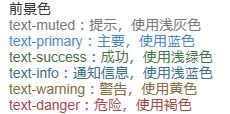
Contextual colors
<Label>樣式 text 語境
效果
代碼
<Label Content="text-muted:提示,使用淺灰色" Style="{DynamicResource text-muted}"></Label>
<Label Content="text-primary:主要,使用藍色" Style="{DynamicResource text-primary}"></Label>
<Label Content="text-success:成功,使用淺綠色" Style="{DynamicResource text-success}"></Label>
<Label Content="text-info:通知信息,使用淺藍色" Style="{DynamicResource text-info}"></Label>
<Label Content="text-warning:警告,使用黃色" Style="{DynamicResource text-warning}"></Label>
<Label Content="text-danger:危險,使用褐色" Style="{DynamicResource text-danger}"></Label>
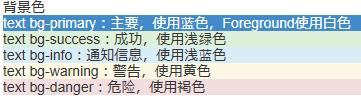
Contextual backgrounds
<Label>樣式 text bg 語境
效果
代碼
<Label Content="text bg-primary:主要,使用藍色,Foreground使用白色" Style="{DynamicResource text bg-primary}"></Label>
<Label Content="text bg-success:成功,使用淺綠色" Style="{DynamicResource text bg-success}"></Label>
<Label Content="text bg-info:通知信息,使用淺藍色" Style="{DynamicResource text bg-info}"></Label>
<Label Content="text bg-warning:警告,使用黃色" Style="{DynamicResource text bg-warning}"></Label>
<Label Content="text bg-danger:危險,使用褐色" Style="{DynamicResource text bg-danger}"></Label>
輸入框組
插件
<TextBox>樣式 input-group-addon 輸入框裡帶個<Label>,其實並不是插件,addon這個單詞,使用百度翻譯,翻譯成插件.<Label>裡顯示的內容綁定到Tag屬性
效果

代碼
<TextBox Text="左邊帶插件的輸入組" Tag="@" Style="{DynamicResource input-group-addon left}"></TextBox>
<TextBox Text="右邊帶插件的輸入組" Tag=".00" Style="{DynamicResource input-group-addon right}"></TextBox>
作為額外元素的按鈕
<TextBox>樣式 input-group-btn 輸入框裡帶個<Button>,<Button>裡顯示的內容綁定到Tag屬性
效果

代碼
xmal代碼:
<TextBox Text="左邊帶按鈕的輸入組" Tag="GO!" Style="{DynamicResource input-group-btn left}" Button.Click="InputGroupButton_Click"></TextBox>
<TextBox Text="右邊帶按鈕的輸入組" Style="{DynamicResource input-group-btn right}" Button.Click="InputGroupButton_Click">
<TextBox.Tag>
<Path Style="{DynamicResource InputGroupPathStyle}" Data="{DynamicResource PathDataSearch}"></Path>
</TextBox.Tag>
</TextBox>
後台代碼C#:
private void InputGroupButton_Click(object sender, RoutedEventArgs e)
{
MessageBox.Show(((TextBox)sender).Text);
}
進度條
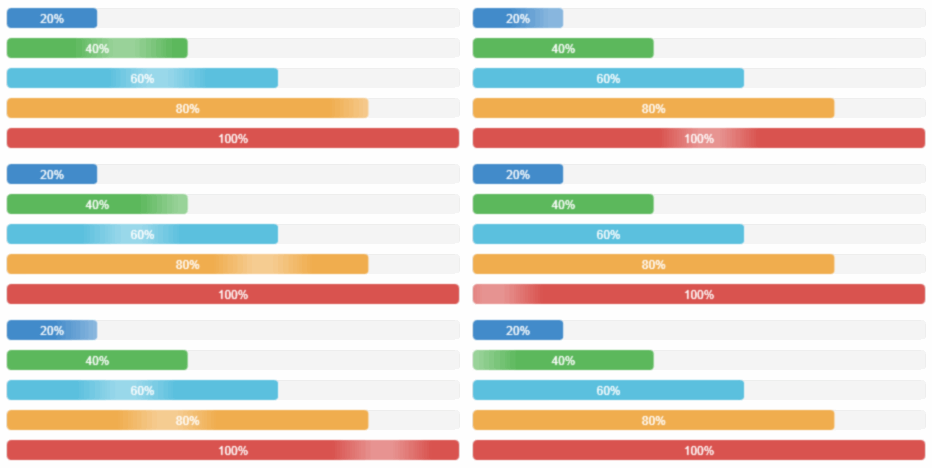
<ProgressBar>樣式 progress-bar
效果
代碼
<ProgressBar Value="20" Style="{DynamicResource progress-bar}"></ProgressBar>
<ProgressBar Value="40" Style="{DynamicResource progress-bar-success}"></ProgressBar>
<ProgressBar Value="60" Style="{DynamicResource progress-bar-info}"></ProgressBar>
<ProgressBar Value="80" Style="{DynamicResource progress-bar-warning}"></ProgressBar>
<ProgressBar Value="100" Style="{DynamicResource progress-bar-danger}"></ProgressBar>
面板
<ContentControl>樣式 panel
基本實例
效果

代碼
<ContentControl Style="{StaticResource panel-default}">
<ContentControl Style="{StaticResource panel-body}" Content="內容 Padding=15"/>
</ContentControl>
帶標題的面版
效果

代碼
<ContentControl Style="{StaticResource panel-default}">
<StackPanel>
<ContentControl Style="{StaticResource panel-heading-default}" Content="標題 Padding=15,10"/>
<ContentControl Style="{StaticResource panel-body}" Content="內容"/>
</StackPanel>
</ContentControl>
帶腳注的面版
效果

代碼
<ContentControl Style="{StaticResource panel-default}">
<StackPanel>
<ContentControl Style="{StaticResource panel-body}" Content="內容"/>
<ContentControl Style="{StaticResource panel-footer-default}" Content="腳標 Padding=15,10"/>
</StackPanel>
</ContentControl>
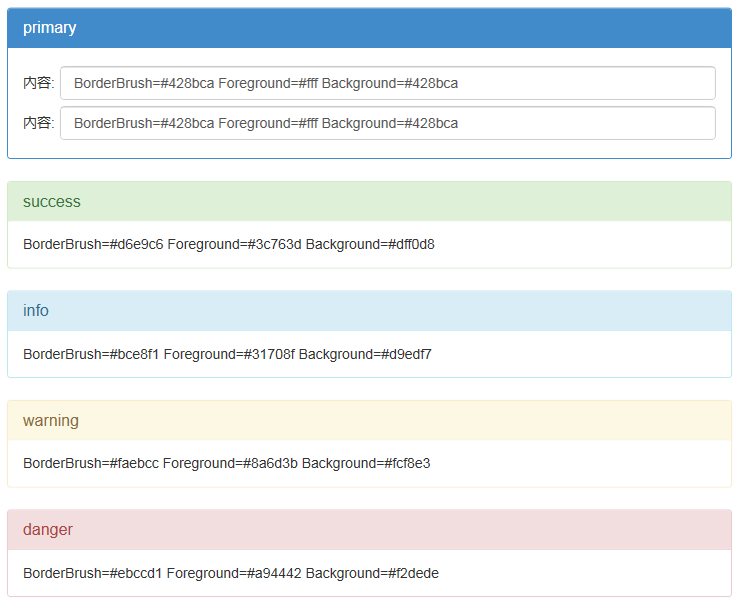
情境效果
效果
代碼
<ContentControl Style="{StaticResource panel-primary}">
<StackPanel>
<ContentControl Style="{StaticResource panel-heading-primary}" Content="primary"/>
<ContentControl Style="{StaticResource panel-body}">
<ContentControl.Content>
<Grid>
<Grid.ColumnDefinitions>
<ColumnDefinition Width="auto"></ColumnDefinition>
<ColumnDefinition></ColumnDefinition>
</Grid.ColumnDefinitions>
<Grid.RowDefinitions>
<RowDefinition Height="40"></RowDefinition>
<RowDefinition Height="40"></RowDefinition>
</Grid.RowDefinitions>
<Label Grid.Column="0" Grid.Row="0" Content="內容:" VerticalAlignment="Center"></Label>
<TextBox Grid.Column="1" Grid.Row="0" Margin="5,0,0,0" Text="BorderBrush=#428bca Foreground=#fff Background=#428bca"></TextBox>
<Label Grid.Column="0" Grid.Row="1" Content="內容:" VerticalAlignment="Center"></Label>
<TextBox Grid.Column="1" Grid.Row="1" Margin="5,0,0,0" Text="BorderBrush=#428bca Foreground=#fff Background=#428bca"></TextBox>
</Grid>
</ContentControl.Content>
</ContentControl>
</StackPanel>
</ContentControl>
<ContentControl Style="{StaticResource panel-success}">
<StackPanel>
<ContentControl Style="{StaticResource panel-heading-success}" Content="success"/>
<ContentControl Style="{StaticResource panel-body}" Content="BorderBrush=#d6e9c6 Foreground=#3c763d Background=#dff0d8"/>
</StackPanel>
</ContentControl>
<ContentControl Style="{StaticResource panel-info}">
<StackPanel>
<ContentControl Style="{StaticResource panel-heading-info}" Content="info"/>
<ContentControl Style="{StaticResource panel-body}" Content="BorderBrush=#bce8f1 Foreground=#31708f Background=#d9edf7"/>
</StackPanel>
</ContentControl>
<ContentControl Style="{StaticResource panel-warning}">
<StackPanel>
<ContentControl Style="{StaticResource panel-heading-warning}" Content="warning"/>
<ContentControl Style="{StaticResource panel-body}" Content="BorderBrush=#faebcc Foreground=#8a6d3b Background=#fcf8e3"/>
</StackPanel>
</ContentControl>
<ContentControl Style="{StaticResource panel-danger}">
<StackPanel>
<ContentControl Style="{StaticResource panel-heading-danger}" Content="danger"/>
<ContentControl Style="{StaticResource panel-body}" Content="BorderBrush=#ebccd1 Foreground=#a94442 Background=#f2dede"/>
</StackPanel>
</ContentControl>
源碼下載:http://xiazai.jb51.net/201612/yuanma/http://demo.jb51.net/js/2016/BootstrapWpfStyle