基於 Vue.js 實作一個會切換搜索引擎的搜尋框
編輯:關於JavaScript
本文改寫自 GitHub 上的一個練習專案,先讀懂別人的程式碼,再自己重寫一遍,是很好的學習方式。這個搜尋框有兩個組件:一個負責 logo 區塊(可切換不同搜索引擎),一個負責搜尋框本體(含自動補全與鍵盤操作)。原始碼用了 .vue 建置與 ES6、以 webpack 打包,本文則用較簡單的 .js 寫法呈現。
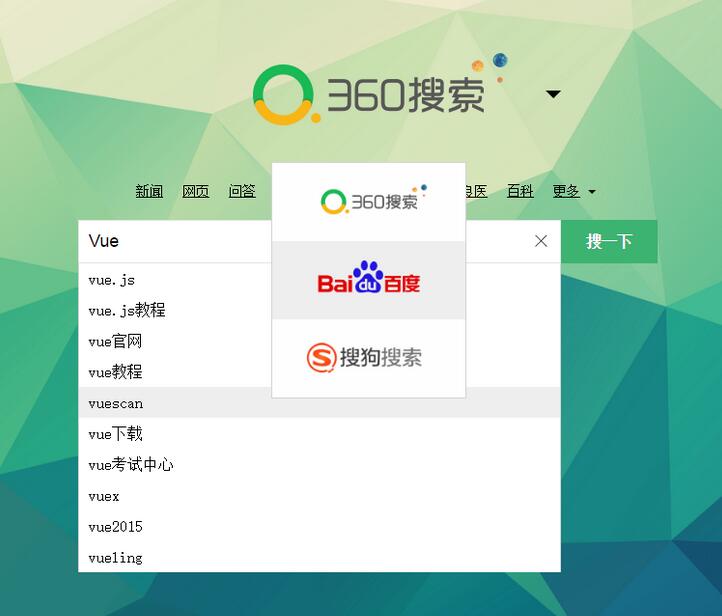
先看效果:
HTML
HTML 很簡單,就是引用兩個組件,之後別忘了還要實例化 #app:
<div id="app"> <logo-picture></logo-picture> <search-panel></search-panel> </div> //js還要實例#app var app = new Vue({ el: "#app" })
logo 組件
先用 <img :src="items[now].src" /> 顯示當前搜索引擎圖片,切換時會跟著換;後面的倒三角形點擊時切換下拉列表的顯示(toggleFlag)。下拉框若要有過渡效果,需包在 transition-group 中,並遍歷 li,且記得為每個元素指定唯一的 key。hover 效果則用資料驅動的思維,比較 index 與 hoverindex 是否相等來決定是否加 class:
Vue.component('logo-picture',{ template :' \ <div class="main-logo">\ <img :src="items[now].src" @click="toggleFlag"/>\ <span @click="toggleFlag" class="logoList-arrow"> </span>\ <transition-group tag="ul" v-show="flagShow" class="logoList">\ <li v-for="(item,index) in items" :key="index" @click="changeFlag(index)" @mouseover="flagHover(index)" :class="{selectback: index == hoverindex}">\ <img :src="item.src" />\ </li>\ </transition>\ </div>', data: function() { return { items: [{src:'../src/assets/360_logo.png'},{src:'../src/assets/baidu_logo.png'},{src:'../src/assets/sougou_logo.png'}], now: 0, flagShow: false, hoverindex: -1 } }, methods: { //顯示隱藏圖片列表 toggleFlag: function() { this.flagShow = !this.flagShow; }, //改變搜索引擎 changeFlag: function(index) { this.now = index; this.flagShow = false; bus.$emit("change",index); }, //li hover flagHover: function(index) { this.hoverindex = index; } } });
搜尋框組件
input 因需雙向綁定,用 v-model="search",並綁定鍵盤事件 @keyup:按 Enter 搜尋、上下鍵選取建議清單。搜尋主要用 $http.jsonp,並搭配 ES6 的 Promise .then() 回呼:
Vue.component('search-panel',{ template:'\ <div class="search-input">\ <input v-model="search" @keyup="get($event)" @keydown.enter="searchInput()" @keydown.down="selectDown()" @keydown.up.prevent="selectUp()"/>\ <span @click="clearInput()" class="search-reset">×</span>\ <button @click="searchInput()" class="search-btn">搜一下</button>\ <div class="search-select">\ <transition-group tag="ul" mode="out-in">\ <li v-for="(value,index) in myData" :class="{selectback:index==now}" :key="index" @click="searchThis" @mouseover="selectHover(index)" class="search-select-option search-select-list">\ {{value}}\ </li>\ </transition-group>\ </div>\ </div>', data: function() { return { search: '', myData: [], flag: 0, now: -1, logoData: [ { 'name': "360搜索", searchSrc: "https://www.so.com/s?ie=utf-8&shb=1&src=360sou_newhome&q=" }, { 'name': "百度搜索", searchSrc: "https://www.baidu.com/s?ie=utf-8&f=8&rsv_bp=0&rsv_idx=1&tn=baidu&wd=" }, { 'name': "搜狗搜索", searchSrc: "https://www.sogou.com/web?query=" } ] } }, methods: { get: function(event) { if(event.keyCode == 38 || event.keyCode == 40){ //向上向下 return ; } this.$http.jsonp('https://sug.so.360.cn/suggest?word=' + this.search + '&encodein=utf-8&encodeout=utf-8').then(function(res) { this.myData = res.data.s; }, function() { }); }, //清除內容 clearInput: function() { this.search = ''; this.get(); }, //搜索 searchInput: function() { alert(this.flag) window.open(this.logoData[this.flag].searchSrc+this.search); }, //搜索的內容 searchThis: function(index) { this.search = this.myData[index]; this.searchInput(); }, //li hover selectHover: function(index) { this.search = this.myData[index]; this.now = index; }, //向下 selectDown: function() { this.now++; if(this.now == this.myData.length) { this.now = 0; } this.search = this.myData[this.now]; }, //向上 selectUp: function() { this.now--; if(this.now == -1) { this.now = this.myData.length - 1; } this.search = this.myData[this.now]; } }, created: function() { //通信 var self = this; bus.$on('change',function(index) { self.flag = index; }) } })
兩個兄弟組件的通訊
logo-picture 切換搜索引擎後,search-panel 要換成對應的引擎。由於兩者並非父子關係,需新建一個空的 Vue 物件作為中繼:
var bus = new Vue(); //logo-picture裡觸發事件,並傳遞參數 bus.$emit("change",index); //search-panel裡監聽事件是否發生 var self = this; bus.$on('change',function(index) { self.flag = index; })
這裡要注意 this 的指向問題:$on 內的 this 指向 bus,因此需先保存 this(self)才能正確引用 search-panel。透過這個空 bus 物件,兩個互不隸屬的組件就能順利溝通。
- 上一篇文章: 用 Vue.js 做一個簡單 ToDoList:前期準備(一)
- 下一篇文章: 利用 vue-router 實現二級菜單的內容轉換