輪播看久了會膩,其中一個低成本的變化方式,是讓每次切換的 easing 函式隨機挑一個。滑入、彈跳、加速減速輪流上場,同一組圖片也能有不一樣的節奏。本文以 Slides 這個 jQuery 輪播插件為例,示範怎麼做到這件事。
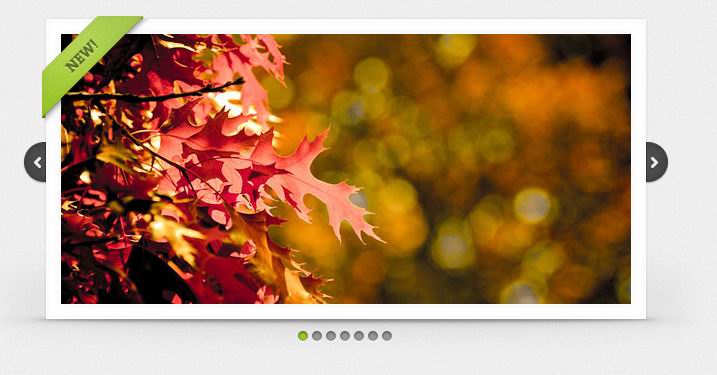
一、運行效果
二、完整程式碼
<!DOCTYPE html>
<html lang="en">
<head>
   <meta charset="utf-8">
   <title>Slides, A Slideshow Plugin for jQuery</title>
   <link rel="stylesheet" href="css/global.css">
   <script src="https://ajax.googleapis.com/ajax/libs/jquery/1.5.1/jquery.min.js"></script>
   <script src="https://gsgd.co.uk/sandbox/jquery/easing/jquery.easing.1.3.js"></script>
   <script src="js/slides.min.jquery.js"></script>
   <script>
     $(function(){
       var easings = [];
       var row = 0;
       for(var x in jQuery.easing){
             if (x != 'linear' && x != 'swing') {
               easings[row++] = x;
             }
       }

       $('#slides').slides({
             preload: true,
             preloadImage: 'img/loading.gif',
             play: 5000,
             pause: 2500,
             slideEasing: "swing",
             slideSpeed : 2000,
             hoverPause: true,
             animationComplete: function(current) {
               var index = Math.floor(Math.random() * easings.length);
               jQuery.easing.def = easings[index];
             }
       });
     });
   </script>
</head>
<body>
   <div id="container">
     <div id="example">
             <img src="img/new-ribbon.png" width="112" height="112" alt="New Ribbon" id="ribbon">
             <div id="slides">
               <div class="slides_container">
                 <a href="https://www.flickr.com/photos/jliba/4665625073/" title="145.365 - Happy Bokeh Thursday! | Flickr - Photo Sharing!" target="_blank"><img src="https://slidesjs.com/examples/standard/img/slide-1.jpg" width="570" height="270" alt="Slide 1"></a>
                 <a href="https://www.flickr.com/photos/stephangeyer/3020487807/" title="Taxi | Flickr - Photo Sharing!" target="_blank"><img src="https://slidesjs.com/examples/standard/img/slide-2.jpg" width="570" height="270" alt="Slide 2"></a>
                 <a href="https://www.flickr.com/photos/childofwar/2984345060/" title="Happy Bokeh raining Day | Flickr - Photo Sharing!" target="_blank"><img src="https://slidesjs.com/examples/standard/img/slide-3.jpg" width="570" height="270" alt="Slide 3"></a>
                 <a href="https://www.flickr.com/photos/b-tal/117037943/" title="We Eat Light | Flickr - Photo Sharing!" target="_blank"><img src="https://slidesjs.com/examples/standard/img/slide-4.jpg" width="570" height="270" alt="Slide 4"></a>
                 <a href="https://www.flickr.com/photos/bu7amd/3447416780/" title="“I must go down to the sea again, to the lonely sea and the sky; and all I ask is a tall ship and a star to steer her by.” | Flickr - Photo Sharing!" target="_blank"><img src="https://slidesjs.com/examples/standard/img/slide-5.jpg" width="570" height="270" alt="Slide 5"></a>
                 <a href="https://www.flickr.com/photos/streetpreacher/2078765853/" title="twelve.inch | Flickr - Photo Sharing!" target="_blank"><img src="https://slidesjs.com/examples/standard/img/slide-6.jpg" width="570" height="270" alt="Slide 6"></a>
                 <a href="https://www.flickr.com/photos/aftab/3152515428/" title="Save my love for loneliness | Flickr - Photo Sharing!" target="_blank"><img src="https://slidesjs.com/examples/standard/img/slide-7.jpg" width="570" height="270" alt="Slide 7"></a>
               </div>
               <a href="#" class="prev"><img src="img/arrow-prev.png" width="24" height="43" alt="Arrow Prev"></a>
               <a href="#" class="next"><img src="img/arrow-next.png" width="24" height="43" alt="Arrow Next"></a>
             </div>
             <img src="img/example-frame.png" width="739" height="341" alt="Example Frame" id="frame">
     </div>
     <div id="footer">
       <p>For full instructions go to <a href="https://slidesjs.com" target="_blank">https://slidesjs.com</a>.</p>
       <p>Slider design by Orman Clark at <a href="https://www.premiumpixels.com/" target="_blank">Premium Pixels</a>. You can donwload the source PSD at <a href="https://www.premiumpixels.com/clean-simple-image-slider-psd/" target="_blank">Premium Pixels</a></p>
       <p>© 2010 <a href="https://nathansearles.com" target="_blank">Nathan Searles</a>. All rights reserved. Slides is licensed under the <a href="https://www.apache.org/licenses/LICENSE-2.0" target="_blank">Apache license</a>.</p>
     </div>
   </div>
</body>
</html>
隨機 easing 怎麼運作
關鍵只有兩段。開場時先用 for...in 走訪 jQuery.easing 上的所有屬性,把 linear 與 swing 這兩個太基本的效果排除後,其餘名稱全部收進 easings 陣列——這些名稱來自 jQuery Easing 插件,有 easeOutBounce、easeInOutExpo、easeOutElastic 等三十多種。
接著在 animationComplete 回呼裡,每次動畫結束就隨機挑一個名稱,指派給 jQuery.easing.def。這個 def 是 jQuery 動畫的預設 easing,改動它之後,下一次切換就會採用新的函式,於是每一輪的節奏都不一樣。
參數怎麼調
play: 5000 是每張停留五秒,pause: 2500 則是滑鼠移入後暫停 autoplay 的緩衝時間;slideSpeed: 2000 動畫兩秒,配合 hoverPause: true 讓使用者 hover 時自動暫停。preload 與 preloadImage 會在圖片載入前顯示 loading 動圖,避免切換時出現空白。
值得注意的是初始的 slideEasing: "swing":第一次切換用的是 swing,之後才由 animationComplete 接手隨機化。若希望從第一次就隨機,把它改為 easings[0] 即可。
幾點提醒
範例中的 jQuery 與 easing 都從 http 載入,在現今的網站上會被瀏覽器判定為混合內容而阻擋,請一律改用 https 的 CDN,並鎖定版本。 Slides 這個插件本身已多年未更新,若要在新專案實作輪播,Swiper、Embla 或原生 CSS scroll-snap 都是更合適的選擇;隨機 easing 這個點子則可以用 Swiper 的 effect 與自訂 transition 延續。
最後要提醒的是,eoasing 變化太多反而會讓人分心。焦點圖的主要任務是傳達資訊,動畫只是輔助。若使用者的系統開啟了「減少動態效果」(prefers-reduced-motion),應該直接關閉切換動畫改為瞬間切換,這在實務上比任何花俏的效果都重要。
以上就是本文的完整說明,希望對你的 jQuery 開發有所幫助。