仿天貓風格的 jQuery 遮罩彈出對話框實作教學
編輯:JQuery特效代碼
在天貓購物時,點擊刪除或登入按鈕後常會彈出一個置中的對話框,同時整頁變暗且無法操作,必須先處理對話框才能繼續。這個效果的原理並不複雜:一層半透明遮罩加上一層置中提示框,再用 z-index 決定誰在上面。
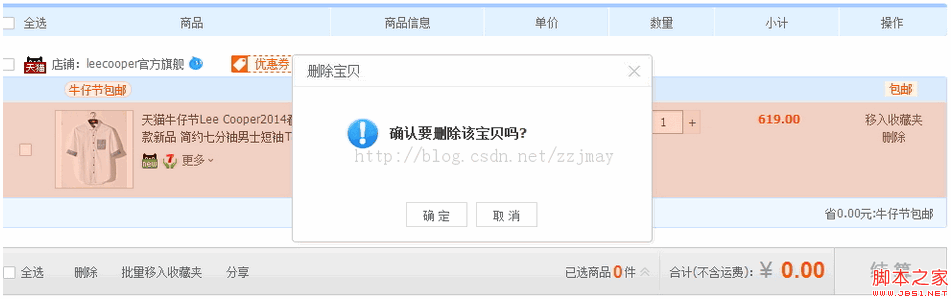
一、HTML 結構(delete.html)
<!DOCTYPE html>
<html>
<head>
<title>遮罩彈出窗口</title>
<meta http-equiv="content-type" content="text/html; charset=UTF-8">
<link rel="stylesheet" type="text/css" href="../css/delete.css">
<script type="text/javascript" src="../js/jquery-1.10.2.js"></script>
<script type="text/javascript" src="../js/delete.js"></script>
</head>
<body>
<div class="divShow">
<input type="checkbox" id="chexkBox1">
<a href="#">這是一條可以刪除的記錄</a>
<input id="button1" type="button" value="刪除" class="btn">
</div>

<div class="mask"></div>

<div class="dialog">
<div class="title">
<img alt="點擊可以關閉" src="../images/delete.gif" width="30px" height="30px">
刪除時提示
</div>
<div class="content">
<img alt="" src="../images/delete.gif" width="60px" height="60px">
<span>你真的要刪除這條記錄嗎?</span>
</div>
<div class="bottom">
<input type="button" id="ok" value="確定" class="btn">
<input type="button" id="noOk" value="取消" class="btn">
</div>
</div>
</body>
</html>
示範中只放了一條記錄,若要模擬多筆,把 divShow 複製多份並改用 class 選擇即可。
二、CSS 樣式(delete.css)
*{ margin:0px; padding:0px; }

.divShow{
  line-height:32px; height:32px; background-color:#eee;
  width:280px; padding-left:10px;
}

.dialog{
  width:360px; border:1px #666 solid;
  position:absolute; display:none;
  z-index:101;   /* 確保永遠在最上層 */
}
.dialog .title{ background:#fbaf15; padding:10px; color:#fff; font-weight:bold; }
.dialog .title img{ float:right; }
.dialog .content{ background:#fff; padding:25px; height:60px; }
.dialog .content img{ float:left; }
.dialog .content span{ float:left; padding:10px; }
.dialog .bottom{ text-align:right; padding:10px 10px 10px 0; background:#eee; }

.mask{
  width:100%; height:100%; background:#000;
  position:absolute; top:0px; left:0px;
  display:none; z-index:100;
}

.btn{ border:#666 1px solid; width:65px; }
z-index 是這裡的靈魂。遮罩設 100、對話框設 101,數值只要「夠大且遞增」就能保證對話框永遠浮在遮罩之上。兩層預設都是 display:none,由 jQuery 負責切換。
三、JavaScript 邏輯(delete.js)
$(function(){
    $("#button1").click(function(){
        $(".mask").css("opacity", "0.3").show();
        showDialog();
        $(".dialog").show();
    });

    /* 依視窗與捲動位置計算置中座標 */
    function showDialog(){
        var objw = $(window);
        var objc = $(".dialog");
        var brsw = objw.width();
        var brsh = objw.height();
        var sclL = objw.scrollLeft();
        var sclT = objw.scrollTop();
        var curw = objc.width();
        var curh = objc.height();

        var left = sclL + (brsw - curw) / 2;
        var top  = sclT + (brsh - curh) / 2;
        objc.css({ "left": left, "top": top });
    }

    // 視窗尺寸改變時重新置中
    $(window).resize(function(){
        if(!$(".dialog").is(":visible")) return;
        showDialog();
    });

    // 點擊右上角關閉圖示
    $(".title img").click(function(){
        $(".dialog").hide();
        $(".mask").hide();
    });

    // 取消
    $("#noOk").click(function(){
        $(".dialog").hide();
        $(".mask").hide();
    });

    // 確定:勾選者才真的刪除
    $("#ok").click(function(){
        $(".dialog").hide();
        $(".mask").hide();
        if($("input:checked").length != 0){
            $(".divShow").remove();
        }
    });
});
整個元件的核心其實只有 showDialog():它同時讀取視窗可視寬高與目前的捲動量,加上捲動偏移才能得到「視覺上的正中央」。少了 scrollLeft/scrollTop 這一步,頁面捲動後對話框就會跑到看不見的位置去。
兩個實務上的修正建議
第一,範例用 position:absolute 搭配手動計算座標,在長頁面中捲動時對話框會跟著內容跑掉。改成 position:fixed 就能自動固定在視窗上,也不需要再監聽 resize 重新計算,程式碼可少一半。若必須支援 IE6,才需要回頭用手動計算並搭配 expression 這種老寫法。
第二,$("input:checked") 是全域選擇,頁面上若有其他勾選元素會誤判。既然要刪除特定記錄,應該把範圍限定在該筆記錄的容器內,例如 $(".divShow").find("input:checked")。
另外,彈出對話框時最好一併把焦點移到「確定」按鈕上,並在關閉後還原,鍵盤使用者才能順暢操作;同時讓遮罩層可點擊關閉,也是降低誤操作風險的常見設計。
- 上一篇文章: jQuery 取得核取方塊選中值的兩種做法與批次操作
- 下一篇文章: 用 jQuery 限制輸入框只能填數字(純數字驗證碼實作)