用 jQuery 打造購物車全選與刪除的互動範例
編輯:JQuery特效代碼
本文示範如何以 jQuery 實作類似購物車的清單操作,包含表頭全選、單行勾選連動,以及刪除勾選項目等常見互動。
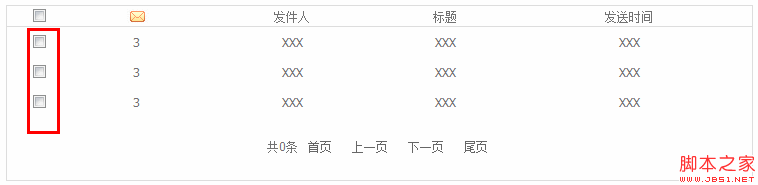
頁面結構
先建立一個包含收件箱、已發送、發信息等頁籤的清單區塊,表格首列放置全選核取方塊,其後每一列各有一個核取方塊:
<table>
  <tr id="titletr">
    <td class="firsttr"><input type="checkbox" id="allcheckbox" /></td>
    <td class="firsttr">發件人</td>
    <td class="firsttr">標題</td>
    <td class="firsttr">發送時間</td>
  </tr>
  <tr>
    <td><input type="checkbox" /></td>
    <td>XXX</td><td>XXX</td><td>XXX</td>
  </tr>
  <!-- 其餘資料列依此類推 -->
</table>
操作按鈕則放在表格上方:
<p class="markbtn">
  <a href="javascript:void(0)" class="deletebtn">刪除</a>
  <a href="javascript:void(0)">標記已讀</a>
  <a href="javascript:void(0)">標記未讀</a>
</p>
核心腳本
刪除勾選的列:
$(".markbtn .deletebtn").click(function () {
  $(".table_box tr").each(function () {
    if ($(this).find("input").attr("checked") && $(this).index() != 0) {
      $(this).remove();
    }
  });
});
表頭全選與取消全選:
$("#allcheckbox").click(function () {
  if ($(this).attr("checked")) {
    $(".table_box td input").attr("checked", "checked");
  } else {
    $(".table_box td input").attr("checked", "");
  }
});
單行勾選時,同步檢查是否已全部勾選,進而決定表頭核取方塊的狀態:
$(".table_box input").not("#allcheckbox").click(function () {
  $(".table_box input").not("#allcheckbox").each(function () {
    if ($(".table_box input[type='checkbox']:checked").not("#allcheckbox").length == $(".table_box tr").not("#titletr").length) {
      $("#allcheckbox").attr("checked", "checked");
    } else {
      $("#allcheckbox").attr("checked", "");
    }
  });
});
透過以上三段邏輯,即可完成全選連動與批次刪除的購物車式互動。
- 上一篇文章: 檔案編碼不一致導致 jQuery 失效的排查與解法
- 下一篇文章: jQuery 表格欄位動態隱藏與顯示的實作探討