彈出層是網站常見的互動元件,登入框、提示訊息、圖片預覽都會用到。本文示範一個以 jQuery 手寫的彈出視窗:支援四種內容載入方式、可傳入寬高與樣式名稱,並附帶半透明遮罩與淡入動畫。
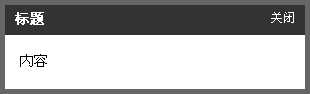
設計思路
水平居中的算法很直接:left 等於視窗寬度除以二,再減去自身寬度除以二。垂直方向若要求真正置中,需要同時考慮滾動距離與視窗高度,這裡簡化為「目前 scrollTop 加上 50px」,讓視窗穩定停留在可視區域上方。
函式設計上有兩個細節值得注意:一是每次觸發前先判斷兩個層是否已經 append 到 body,否則重複點擊會不断堆疊節點;二是提供 cssName 參數,讓呼叫端可以針對不同場景套用不同樣式。
函式共五個參數:title(標題)、content(內容)、width、height、cssName(內容區樣式名)。其中 content 再以「前綴+冒號」的方式決定載入型態,共有 url、text、id、iframe 四種。
一、彈出層的 HTML 結構
<div id="floatBoxBg">
  <div id="floatBox" class="floatBox">
    <div class="title"><h4>標題</h4><span>關閉</span></div>
    <div class="content">內容</div>
  </div>
</div>
二、對應的 CSS
#floatBoxBg {
    display: none;
    width: 100%;
    height: 100%;
    background: #000;
    position: absolute;
    top: 0;
    left: 0;
}
.floatBox {
    border: #0C7FDA 5px solid;
    width: 300px;
    position: absolute;
    top: 50px;
    left: 40%;
    z-index: 1000;
}
.floatBox .title { height: 23px; padding: 7px 10px 0; color: #fff;
    background: url(../images/dialog_bg.gif) repeat-x 0 0; }
.floatBox .title h4 { float: left; padding: 0; margin: 0;
    font-size: 14px; line-height: 16px; }
.floatBox .title span { float: right; cursor: pointer; }
.floatBox .content { padding: 20px 15px; background: #fff; }
三、核心 JavaScript
var dialogFirst = true;

function dialog(title, content, width, height, cssName) {
    // 只建立一次節點,避免重複 append
    if (dialogFirst === true) {
        var temp_float = '<div id="floatBoxBg" style="height:' + $(document).height()
            + 'px;filter:alpha(opacity=0);opacity:0;"></div>'
            + '<div id="floatBox" class="floatBox">'
            + '<div class="title"><h4></h4><span>X</span></div>'
            + '<div class="content"></div></div>';
        $("body").append(temp_float);
        dialogFirst = false;
    }

    // 點擊右上角關閉視窗
    $("#floatBox .title span").click(function () {
        $("#floatBoxBg").animate({ opacity: "0" }, "normal", function () {
            $(this).hide();
        });
        $("#floatBox").animate({
            top: ($(document).scrollTop() - 50) + "px"
        }, "normal", function () {
            $(this).hide();
        });
    });

    $("#floatBox .title h4").html(title);

    // 以冒號切出型態與實際內容
    var contentType = content.substring(0, content.indexOf(":"));
    content = content.substring(content.indexOf(":") + 1);

    switch (contentType) {
        case "url":   // 以 Ajax 抓取目標頁面的 HTML
            var arr = content.split("?");
            $.ajax({
                type: arr[0],
                url: arr[1],
                data: arr[2],
                error: function () { $("#floatBox .content").html("error..."); },
                success: function (html) { $("#floatBox .content").html(html); }
            });
            break;
        case "text":  // 直接寫入字串
            $("#floatBox .content").html(content);
            break;
        case "id":    // 搬移頁面上某個 id 的內容
            $("#floatBox .content").html($("#" + content).html());
            break;
        case "iframe": // 以框架載入
            $("#floatBox .content").html('<iframe src="' + content
                + '" width="100%" height="' + (parseInt(height) - 70)
                + 'px" scrolling="auto" frameborder="0"></iframe>');
    }

    $("#floatBoxBg").show().animate({ opacity: "0.5" }, "normal");
    $("#floatBox").attr("class", "floatBox " + cssName);
    $("#floatBox").css({
        display: "block",
        left: ($(document).width() / 2 - parseInt(width) / 2) + "px",
        top: ($(document).scrollTop() + 50) + "px",
        width: width,
        height: height
    });
}
四、參數說明
title:彈出層標題,必填純文字。
content:彈出層內容,格式為「型態:內容」,支援 url:(以 GET 或 POST 抓取某頁面的 HTML,該頁面只需包含 body 內的片段)、text:(直接寫入字串)、id:(顯示頁面上某元素的內容)、iframe:(以框架載入目標網址)。
width:彈出層寬度,必填,接受 CSS 數值如 200px。
height:彈出層高度,同上,亦可使用 auto。
cssName:附加到 #floatBox 上的樣式名稱,用來客製內容區外觀。
五、呼叫方式
dialog(title, content, width, height, cssName);

// 實際例子
dialog("會員登入", "url:get:/login.php", "320px", "240px", "loginBox");
dialog("提示訊息", "text:填寫資料後送出即可", "260px", "auto", "");
這套寫法的優點是零依賴於後端框架、結構清楚;缺點是遮罩高度以 absolute 定位,頁面捲動時需要額外處理。若要在正式專案使用,建議改用 position: fixed 搭配各家成熟的 dialog 元件。