學習JavaScript鼠標響應事件
編輯:關於JavaScript
本文為大家分享了一個簡單的鼠標模擬案例,供大家參考,具體實現內容如下
如何實現捕抓鼠標事件,當鼠標滑動時,獲取當前鼠標的坐標,接著在一個透明區域裡綁定捕抓的位移,這樣就能在模擬的透明區域裡實現鼠標滑動的模型。
效果圖:
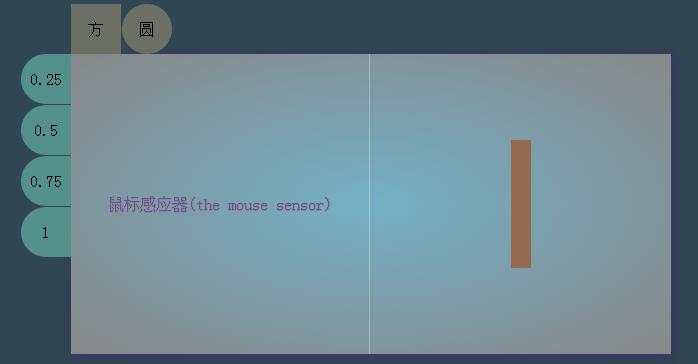
HTML代碼:
<!DOCTYPE html>
<html >
 <head>
 <meta charset="UTF-8">
 <title> the mouse </title>
 <link rel="stylesheet" href="css/new.css">
 </head>
 <body>
 <div class="main">
 <div class="content">
 <div class="content-nav-top">
  <span onclick = 'koringz.createclick1(0)'>默認</span>
  <span onclick = 'koringz.createclick1(50)'>圓</span>
 </div>
 <div class="content-nav-left">
  <span onclick = 'koringz.createclick2 (0.25) '>0.25</span>
  <span onclick = 'koringz.createclick2 (0.5) '>0.5</span>
  <span onclick = 'koringz.createclick2 (0.75)'>0.75</span>
  <span onclick = 'koringz.createclick2 (1) '>1</span>
 </div>
 <div class="box">鼠標感應器(the mouse sensor)</div>
 <div class="block">
  <div class='block_case'></div>
 </div>
 </div>
 </div>
 <script type="text/javascript" src="js/demo.min/demo.min.js"></script>
 </body>
</html>
CSS代碼:
* {
 margin: 0;
 padding: 0;
 box-sizing: border-box;
}
body {
 position: absolute;
 text-align: center;
 height: 100%;
 width: 100%;
}
.main{
 position: relative;
 margin: 0 auto;
 height: 100%;
 background-color: rgb(48, 70, 82)
}
.main .content{
 position:absolute;
 display: inline-block;
 top:50%;
 left:50%;
 margin-left: -300px;
 margin-top: -150px;
 width: 600px;
 height: 300px;
 line-height: 300px;
 /*overflow: hidden;*/
 background: radial-gradient(ellipse farthest-corner, rgb(115, 176, 198) 0%, #888 100%);
 background: -webkit-radial-gradient(ellipse farthest-corner, rgb(115, 176, 198) 0%, #888 100%);
 box-shadow: 2px 3px 8px rgba(67, 50, 124 ,.6),0px 0px 8px rgba(67, 50, 124 ,.6);
}
.main .content .content-nav-top{
 display: none;
 position: absolute;
 margin-top: -50px;
 height: 50px;
 width: 300px;
}
.main .content .content-nav-top >span{
 display: block;
 float: left;
 font-size: 16px;
 font-weight: normal;
 margin-right:1px;
 width: 50px;
 height: 50px;
 line-height: 50px;
 background-color: rgba(251, 214, 146,.3);
 box-shadow: 0px 4px 13px rgb(222,222,222,1);
 cursor: pointer;
}
.main .content .content-nav-top >span:nth-child(1){
 border-radius:0 ;
}
.main .content .content-nav-top >span:nth-child(2){
 border-radius:50% ;
}
.main .content .content-nav-top >span:nth-child(3){
 border-radius:0;
}
.main .content .content-nav-top >span:nth-child(4){
 border-radius: 50% ;
}
.main .content .content-nav-left{
 display: none;
 position: absolute;
 margin-left: -50px;
 width: 50px;
 height: 300px;
}
.main .content .content-nav-left >span{
 display: block;
 font-size: 16px;
 font-weight: normal;
 margin-bottom:1px;
 width: 50px;
 height: 50px;
 line-height: 50px;
 background-color: rgb(85, 145, 140);
 box-shadow: 0px 4px 13px rgb(222,222,222,1);
 border-radius:50% 0 0 50% ;
 cursor: pointer;
}
.box{
 position: relative;
 float: left;
 width: 49.9%;
 height: 100%;
 border-right-style: solid;
 border-right-width: 1px;
 border-right-color: rgba(211,211,211,.5);
 color:rgb(99, 84, 168);
 text-shadow: 0px 1px 0px #888,1px 0px 0px #888,0px 0px 1px #888;
 }
.block{
 float: right;
 width: 50%;
 height: 100%;
}
JS代碼:
var koringz = (function(){
 var x,
 y,
 getmain,
 getcontent,
 getbox,
 getblock,
 getblock_case,
 getnav_top,
 block_case_margin_top,
 block_case_margin_left,
 block_casetostring1,
 block_casetostring2,
 block_casesubstring1,
 block_casesubstring2,
 istouch;
 getmain = document.querySelector('.main');
 getcontent = getmain.querySelector('.content');
 getbox = getcontent.querySelector('.box');
 getblock = getcontent.querySelector('.block');
 getblock_case = getblock.querySelector('.block_case');
 getnav_top = getcontent.querySelector('.content-nav-top');
 getnav_left = getcontent.querySelector('.content-nav-left');
 function get_box() {
 w_getbox_distance = getbox.offsetWidth;
 h_getbox_distance = getbox.offsetHeight;
 istouch = 'ontouchstart' in window;
 getbox.addEventListener(istouch?'touchmove':'mousemove',mouseevent,false);
 getbox.addEventListener(istouch?'touchmove':'mousemove',nav,false)
 }
 function nav () {
 return new_nav();
 }
 var new_nav = function () {
 getnav_top.style.display = 'block';
 getnav_left.style.display = 'block';
 }
 function move_box() {
 getblock_case.style.width = '0px';
 getblock_case.style.height = '0px';
 block_case_margin_left = getblock_case.style.marginLeft = getblock.offsetWidth/2 + 'px';//子節點
 block_case_margin_top = getblock_case.style.marginTop = getblock.offsetHeight/2 + 'px';
 block_casetostring1 = block_case_margin_left.toString();//值轉化為字符串
 block_casetostring2 = block_case_margin_top.toString();
 block_casesubstring1 = block_casetostring1.substring(0,3);
 block_casesubstring2 = block_casetostring2.substring(0,3);
 }
 var mouseevent = function () {
 mouseEvent(event);
 }
 function mouseEvent(e){
 var zore = 0,
  val = 1;
 if(istouch){
  x = e.touches[zore].pageX;
  y = e.touches[zore].pageY;
  e.preventDefault();
 }
 else if(!istouch){
  x = w_getbox_distance/2 != undefined ? e.offsetX:e.layerX;
  y = h_getbox_distance/2 != undefined ? e.offsetY:e.layerY;
 }
 if(val = true){
  getblock_case.style.width = x + 'px';//獲得了mouse劃過的位置
  getblock_case.style.height = y + 'px';
  getblock_case.style.marginLeft = (block_casesubstring1-x/2) +'px';
  getblock_case.style.marginTop = (block_casesubstring2-y/2) +'px';
  getblock_case.style.backgroundColor = "rgba(147, 106, 77,1)";
 }
 }
 (function (){
  window.onload = function(){
  move_box();
  get_box()
  }
 })()
 var click =function () {
 this.borderradius = function(num) {
  if(typeof num == 'number'){
  if(num == 0){
   getblock_case.style.borderRadius = num;
  }
  else if(num > 0){
   getblock_case.style.borderRadius = num +'%';
  }
  else{
   return false;
  }
  }
 }
 this.opacitas = function (num) {
  if(typeof num == 'number'){
  getblock_case.style.opacity = num;
  }
  else{
  return false;
  }
 }
 }
 var Click = new click();
 return {
 createclick1 :Click.borderradius,
 createclick2 :Click.opacitas
 }
})()
這裡的鼠標箭頭也可換成自己喜歡的圖標,模擬鼠標區域的顏色也可自由變換,模擬區域的效果也可是點狀的,也可以是線狀的,動畫效果等等,這個自由發揮吧。
以上就是針對JavaScript鼠標響應事件進行的詳細介紹,希望對大家的學習有所幫助。
小編推薦
熱門推薦