微信小程序把常用的媒體操作都包成了 wx. 開頭的 API,從選圖、拍照、錄音,到背景音樂播放、影片播放、檔案預覽,幾乎都有現成介面。本文把這幾類 API 依功能整理成一份可查閱的清單,並附上最代表性的範例程式碼。
一、圖片
wx.chooseImage(OBJECT):從相簿挑選或使用相機拍照。常用參數包含 count(數量,預設 9)、sizeType(original 原圖 / compressed 壓縮圖)、sourceType(album 相簿 / camera 相機)。
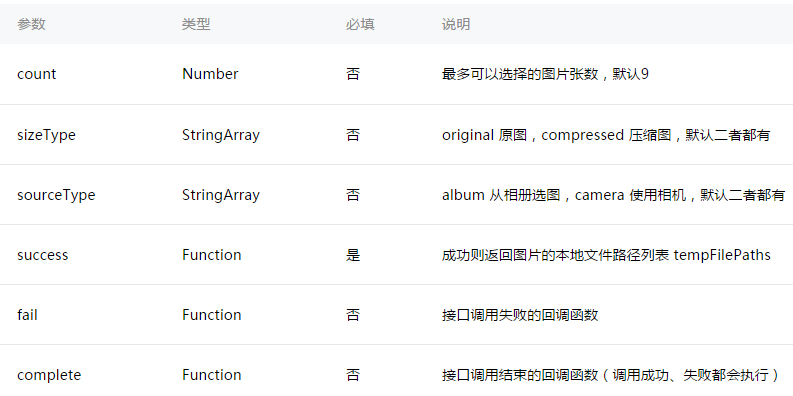
wx.chooseImage({
  count: 1,                                  // 預設 9
  sizeType: ['original', 'compressed'],      // 原圖或壓縮圖
  sourceType: ['album', 'camera'],           // 相簿或相機
  success: function (res) {
    // tempFilePaths 是臨時路徑清單,可直接當 img 的 src
    var tempFilePaths = res.tempFilePaths
  }
})
wx.previewImage(OBJECT):預覽圖片,傳入 current(目前顯示的圖片連結)與 urls(待預覽的連結清單)。
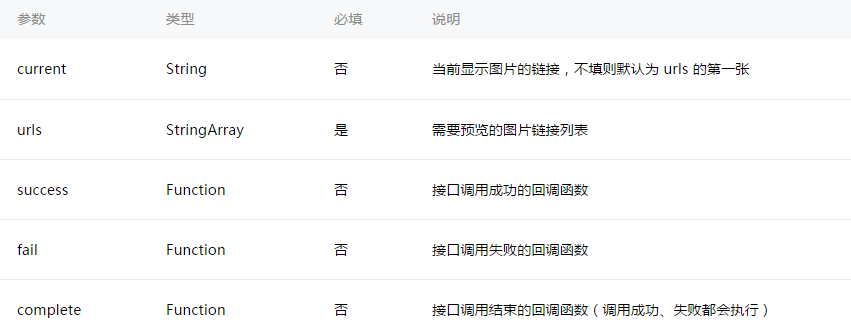
wx.previewImage({
  current: '',   // 目前顯示的圖片 http 連結
  urls: []       // 需要預覽的圖片 http 連結清單
})
wx.getImageInfo(OBJECT):取得圖片資訊,成功回呼會帶回 width 與 height。
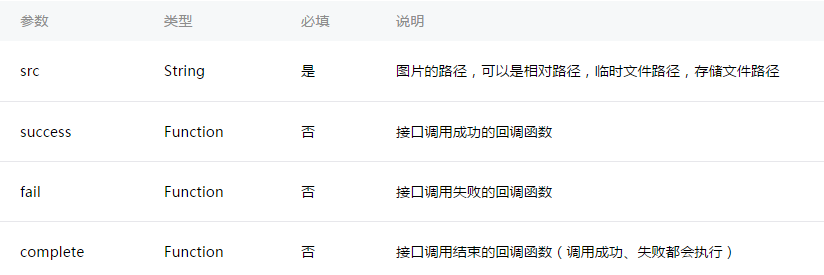
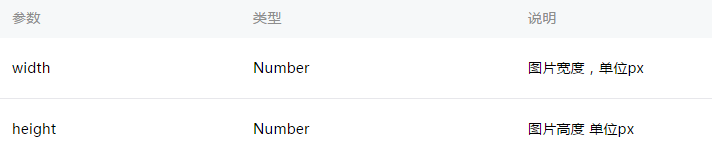
wx.getImageInfo({
  src: 'images/a.jpg',
  success: function (res) {
    console.log(res.width)
    console.log(res.height)
  }
})

// 常見組合:先選圖,再讀尺寸
wx.chooseImage({
  success: function (res) {
    wx.getImageInfo({
      src: res.tempFilePaths[0],
      success: function (res) {
        console.log(res.width)
        console.log(res.height)
      }
    })
  }
})
關於臨時路徑
這幾個 API 回傳的都是臨時路徑,只在小程式「本次啟動期間」有效。要跨啟動保留,必須另外呼叫 wx.saveFile 存成本地檔案,下次啟動才讀得到。
二、錄音
wx.startRecord(OBJECT):開始錄音。主動呼叫 wx.stopRecord() 或錄音超過 1 分鐘時會自動結束,並回傳錄音檔的臨時路徑。
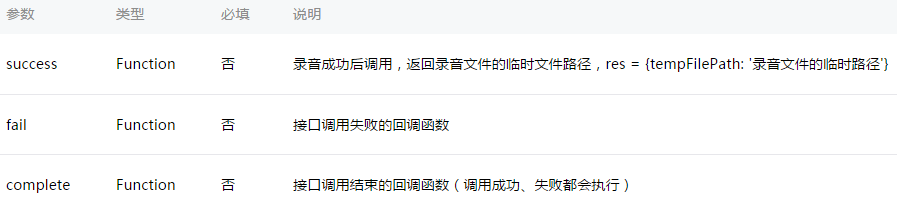
wx.startRecord({
  success: function(res) {
    var tempFilePath = res.tempFilePath
  },
  fail: function(res) {
    // 錄音失敗(多半是權限被拒)
  }
})

setTimeout(function() {
  wx.stopRecord()   // 主動結束錄音
}, 10000)
三、語音播放控制
wx.playVoice(OBJECT):播放語音。同時只允許一個語音在播,新的一則會中斷前一則。
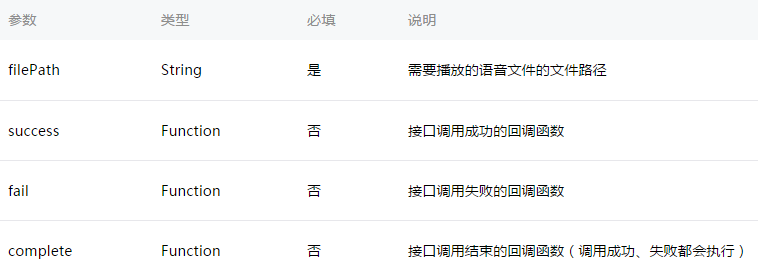
wx.startRecord({
  success: function(res) {
    var tempFilePath = res.tempFilePath
    wx.playVoice({
      filePath: tempFilePath,
      complete: function(){ }
    })
  }
})
wx.pauseVoice():暫停播放。再次播放同一個檔案會從暫停處續播;想從頭開始得先呼叫 wx.stopVoice()。
wx.startRecord({
  success: function(res) {
    var tempFilePath = res.tempFilePath
    wx.playVoice({ filePath: tempFilePath })
    setTimeout(function() {
      wx.pauseVoice()          // 5 秒後暫停
    }, 5000)
  }
})
wx.stopVoice():結束播放。
wx.startRecord({
  success: function(res) {
    var tempFilePath = res.tempFilePath
    wx.playVoice({ filePath: tempFilePath })
    setTimeout(function(){ wx.stopVoice() }, 5000)
  }
})
四、背景音樂控制
背景音樂與語音是兩套獨立的 API,背景音樂可以在離開頁面後繼續播放,適合做播放器。
wx.getBackgroundAudioPlayerState(OBJECT):取得播放狀態,回呼帶回 status、dataUrl、currentPosition、duration、downloadPercent。
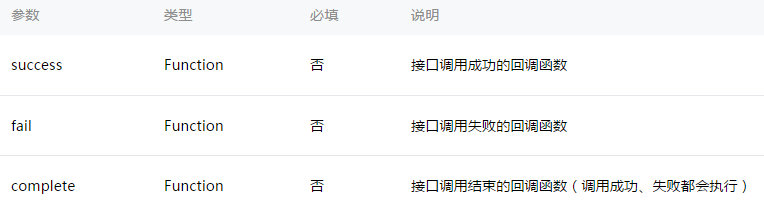
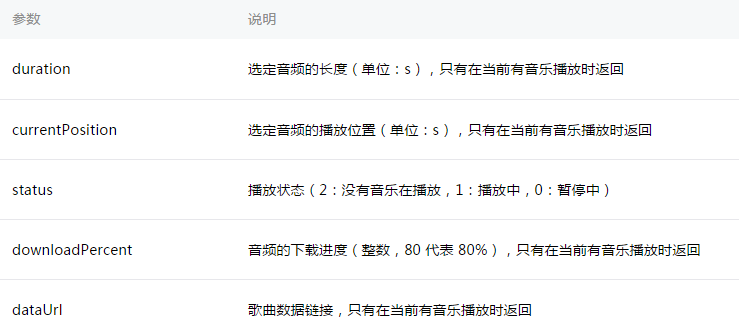
wx.getBackgroundAudioPlayerState({
  success: function(res) {
    var status          = res.status
    var dataUrl         = res.dataUrl
    var currentPosition = res.currentPosition
    var duration        = res.duration
    var downloadPercent = res.downloadPercent
  }
})
wx.playBackgroundAudio(OBJECT):播放音樂,同時只能有一首在播。參數包含 dataUrl、title、coverImgUrl。
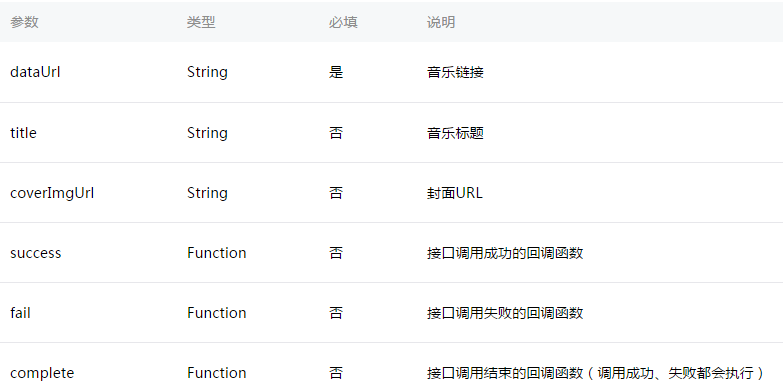
wx.playBackgroundAudio({ dataUrl: '', title: '', coverImgUrl: '' })
wx.pauseBackgroundAudio():暫停播放。
wx.pauseBackgroundAudio()
wx.seekBackgroundAudio(OBJECT):控制播放進度,傳入 position(秒)。
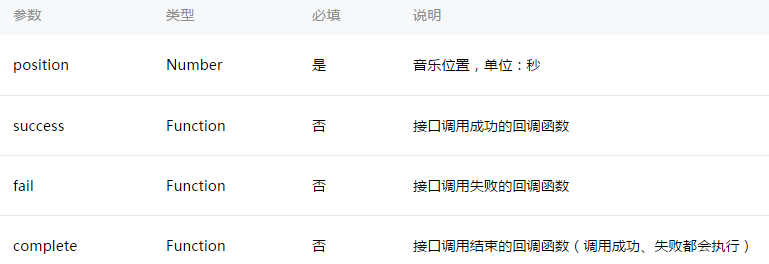
wx.seekBackgroundAudio({ position: 30 })
wx.stopBackgroundAudio():停止播放。
wx.stopBackgroundAudio()
三個監聽事件:wx.onBackgroundAudioPlay(CALLBACK) 監聽播放、wx.onBackgroundAudioPause(CALLBACK) 監聽暫停、wx.onBackgroundAudioStop(CALLBACK) 監聽停止。
五、檔案
wx.saveFile(OBJECT):把臨時檔案存成本地檔案,回呼帶回 savedFilePath。
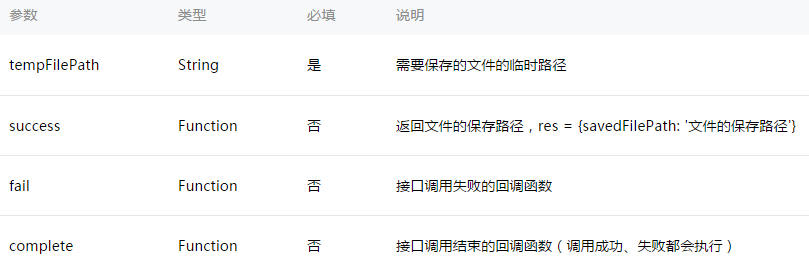
wx.startRecord({
  success: function(res) {
    var tempFilePath = res.tempFilePath
    wx.saveFile({
      tempFilePath: tempFilePath,
      success: function(res) {
        var savedFilePath = res.savedFilePath
      }
    })
  }
})
wx.getSavedFileList(OBJECT):取得已存檔案清單,回呼的 fileList 是陣列。
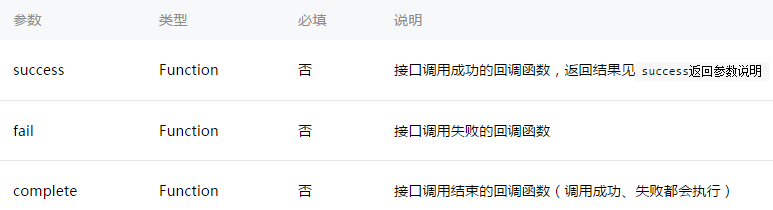
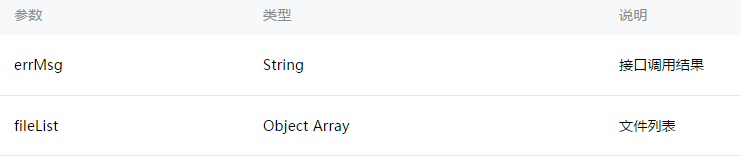
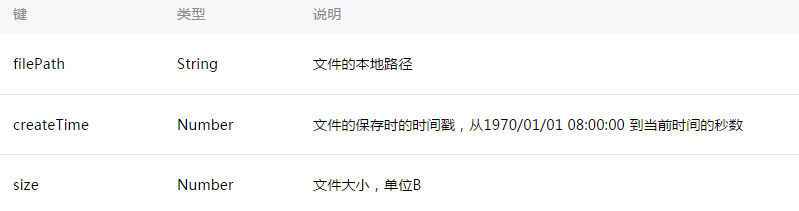
wx.getSavedFileList({
  success: function(res) { console.log(res.fileList) }
})
wx.getSavedFileInfo(OBJECT):取得單一檔案資訊,例如 size 與 createTime。
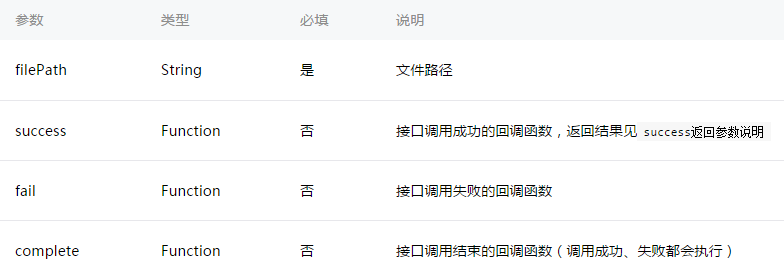
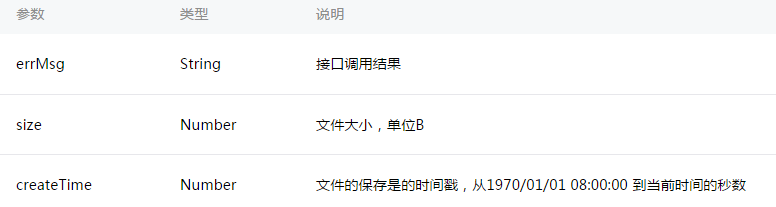
wx.getSavedFileInfo({
  filePath: 'wxfile://somefile',   // 示意用,非真實路徑
  success: function(res) {
    console.log(res.size)
    console.log(res.createTime)
  }
})
wx.removeSavedFile(OBJECT):刪除本地已存的檔案。
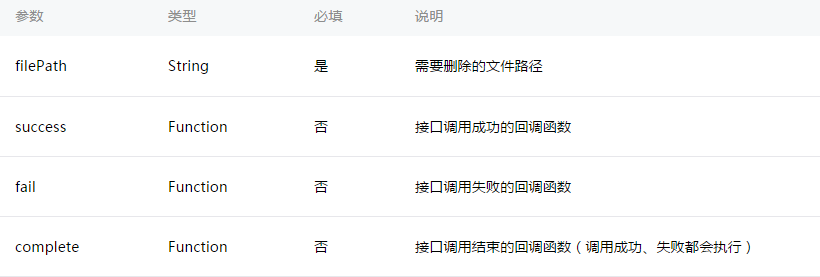
wx.getSavedFileList({
  success: function(res) {
    if (res.fileList.length > 0){
      wx.removeSavedFile({
        filePath: res.fileList[0].filePath,
        complete: function(res) { console.log(res) }
      })
    }
  }
})
wx.openDocument(OBJECT):開新頁面打開文件,支援 doc、xls、ppt、pdf、docx、xlsx、pptx。
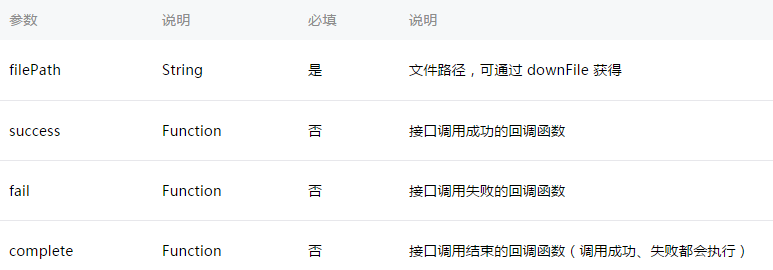
wx.downloadFile({
  url: 'https://example.com/somefile.pdf',
  success: function (res) {
    var filePath = res.tempFilePath
    wx.openDocument({
      filePath: filePath,
      success: function (res) { console.log('打開文檔成功') }
    })
  }
})
六、影片
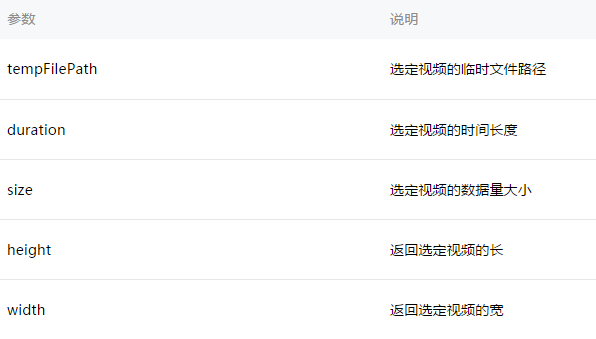
wx.chooseVideo(OBJECT):錄影或從相簿挑選影片,回傳臨時路徑。
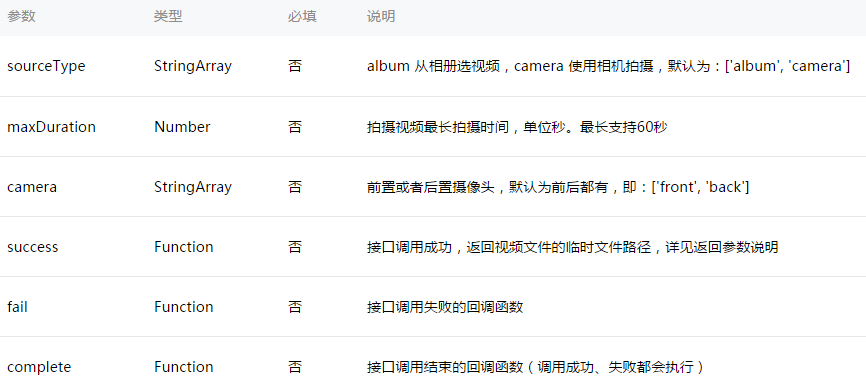
<view class="container">
  <video src="{{src}}"></video>
  <button bindtap="bindButtonTap">獲取視頻</button>
</view>
Page({
  bindButtonTap: function() {
    var that = this
    wx.chooseVideo({
      sourceType: ['album','camera'],
      maxDuration: 60,
      camera: ['front','back'],
      success: function(res) {
        that.setData({ src: res.tempFilePath })
      }
    })
  }
})
七、audio 元件控制
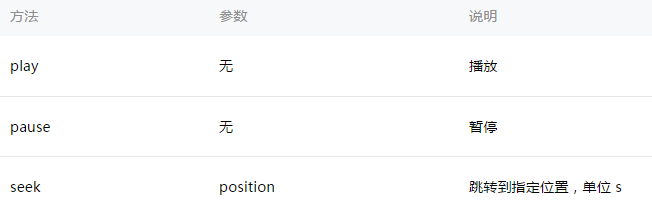
wx.createAudioContext(audioId) 會建立並回傳 audioContext 物件,它透過 audioId 與畫面上的 <audio> 元件綁定,之後就能用 play()、pause()、seek() 等方法操作。
<!-- audio.wxml -->
<audio src="{{src}}" id="myAudio" ></audio>
<button type="primary" bindtap="audioPlay">播放</button>
<button type="primary" bindtap="audioPause">暫停</button>
<button type="primary" bindtap="audio14">跳到 14 秒</button>
<button type="primary" bindtap="audioStart">回到開頭</button>
// audio.js
Page({
  onReady: function (e) {
    // 用 wx.createAudioContext 取得 audio 上下文
    this.audioCtx = wx.createAudioContext('myAudio')
  },
  data: {
    src: 'https://ws.stream.qqmusic.qq.com/M500001VfvsJ21xFqb.mp3?guid=ffffffff82def4af4b12b3cd9337d5e7&uin=346897220&vkey=6292F51E1E384E06DCBDC9AB7C49FD713D632D313AC4858BACB8DDD29067D3C601481D36E62053BF8DFEAF74C0A5CCFADD6471160CAF3E6A&fromtag=46',
  },
  audioPlay:  function () { this.audioCtx.play() },
  audioPause: function () { this.audioCtx.pause() },
  audio14:    function () { this.audioCtx.seek(14) },
  audioStart: function () { this.audioCtx.seek(0) }
})
注意上下文要在 onReady 之後才建立,因為此時元件已經完成掛載;在 onLoad 裡建立會拿不到節點。
八、video 元件控制與彈幕
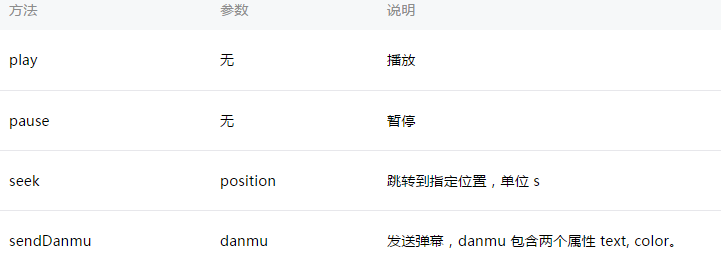
wx.createVideoContext(videoId) 回傳 videoContext,透過它同樣可以控制播放、暫停、跳轉,還能送出彈幕。
<view class="section tc">
  <video id="myVideo"
         src="https://wxsnsdy.tc.qq.com/105/20210/snsdyvideodownload?filekey=30280201010421301f0201690402534804102ca905ce620b1241b726bc41dcff44e00204012882540400&bizid=1023&hy=SH&fileparam=302c020101042530230204136ffd93020457e3c4ff02024ef202031e8d7f02030f42400204045a320a0201000400"
         enable-danmu danmu-btn controls></video>
  <view class="btn-area">
    <input bindblur="bindInputBlur"/>
    <button bindtap="bindSendDanmu">發送彈幕</button>
  </view>
</view>
function getRandomColor () {
  let rgb = []
  for (let i = 0 ; i < 3; ++i){
    let color = Math.floor(Math.random() * 256).toString(16)
    color = color.length == 1 ? '0' + color : color
    rgb.push(color)
  }
  return '#' + rgb.join('')
}

Page({
  onReady: function (res) {
    this.videoContext = wx.createVideoContext('myVideo')
  },
  inputValue: '',
  bindInputBlur: function(e) {
    this.inputValue = e.detail.value
  },
  bindSendDanmu: function () {
    this.videoContext.sendDanmu({
      text: this.inputValue,
      color: getRandomColor()
    })
  }
})
實作上的三個提醒
第一,錄音、相機這類隱私權限務必在 fail 回呼裡處理使用者拒絕的情況,並引導到設定頁開啟,否則功能會靜默失效。
第二,背景音樂這組 API 在後續版本已被 wx.getBackgroundAudioManager() 取代,新專案建議直接用 Manager 版本,舊 API 僅供維護老專案參考。
第三,所有媒體檔案都有本機儲存空間上限,大量存檔前應先檢查 wx.getSavedFileList() 的結果並適時清理,避免超出配額導致存檔失敗。
以上就是微信小程序圖片、錄音、語音、音樂、影片與檔案相關 API 的完整整理,可以當成開發時的查閱清單使用。