前面已介紹過兩篇以 MVC4 + EasyUI 建構 Web 開發框架的筆記,本篇接著整理界面層最常遇到的操作:各類控件的賦值、取值與清空,供需要的朋友參考。
先盤點界面會用到哪些控件
一個典型的 Web 界面通常會出現:單行文本框、多行文本框、密碼框、下拉列表 Combobox、日期選擇器、數值輸入框、單選鈕、複選框、表格 DataGrid、樹狀控件、佈局容器、彈跳式對話框、提示訊息與列表控件。它們的 API 各不相同,下面逐一說明。
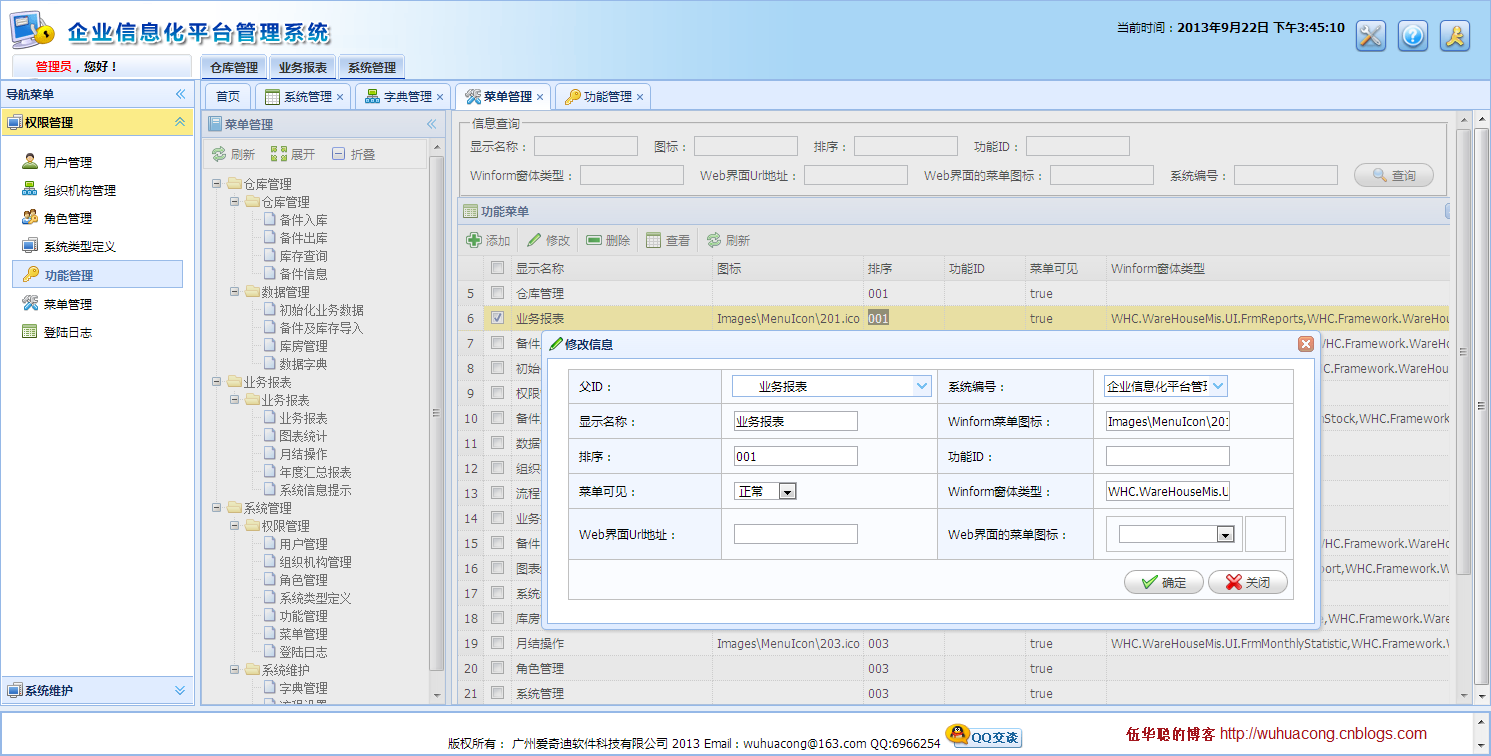
1. 單行文本框
使用 easyui-validatebox 樣式即可,本質上就是 type="text" 的 input。

<input class="easyui-validatebox" type="text" id="Name" name="Name" />
或者直接寫原生樣式:
<input type="text" ID="txtLoginName" name="txtLoginName" style="width:100px" />
賦值與取值都用 val():
$("#Name").val(info.Name);
var name = $("#Name").val();
若控件是 Label 這類標籤,則改用 text():
$("#Name").text(info.Name);
easyui-validatebox 幾個常用 data-options:
//必輸項:
<input class="easyui-validatebox" type="text" name="name" data-options="required:true"></input>

//格式的驗證:
<input class="easyui-validatebox" type="text" name="email" data-options="validType:'email'"></input>
<input class="easyui-validatebox" type="text" name="email" data-options="required:true,validType:'url'"></input>

//長度范圍的驗證:
<input class="easyui-validatebox" data-options="validType:'length[1,3]'">
2. 多行文本框
樣式同樣可用 easyui-validatebox,或直接寫 textarea。
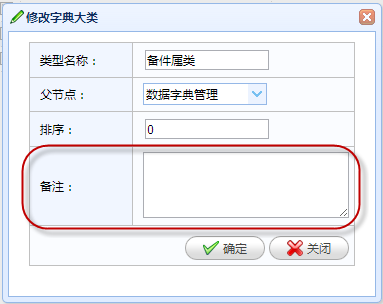
<textarea id="type_Remark" class="easyui-validatebox" required="true" style="height:100px;"></textarea>
<textarea style="height:60px;width:200px" id="type_Remark" name="Remark"></textarea>
取值賦值與單行框一致:
$("#type_Remark").val(json.Remark);
var text = $("#type_Remark").val();
3. 密碼文本框
與一般文本框相同,只是輸入時遮蔽顯示。
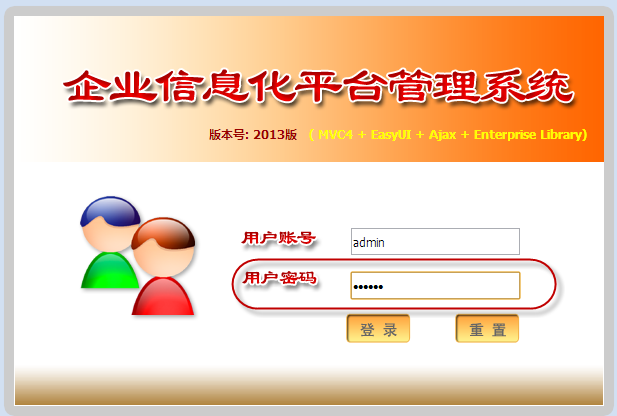
<input type="password" name="password" style="width:260px;"></input>
var password = '123';
$("#Password").val(password)
$("#btnLogin").click(function () {
    var postData = {
        UserName: $("#UserName").val(),
        Password: $("#Password").val(),
        Code: $("#Code").val()
    };
提醒:密碼欄位在送出前應以 HTTPS 傳輸,且切勿把密碼寫進前端程式碼或暫存在 localStorage。
4. 下拉列表 Combobox
EasyUI 的 ComboBox 兼具「可輸入」與「可從清單挑選」兩種能力,比原生 select 靈活。
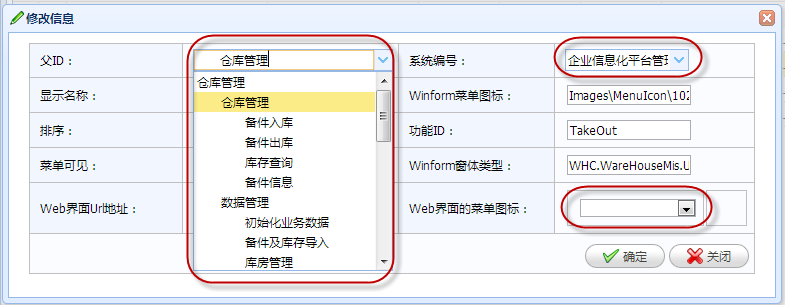
<input class="easyui-combobox" type="text" id="type_PID1" name="PID" />
綁定資料來源:
$('#type_PID1').combobox({
    url: '/DictType/GetDictJson',
    valueField: 'Value',
    textField: 'Text'
});
設定選中值與取值:
$("#type_PID1").combobox('setValue', json.PID);
var systemType = $("#txtSystemType_ID").combobox('getValue');
若改用標準 select,也能實現下拉選擇,但彈性不如 combobox:
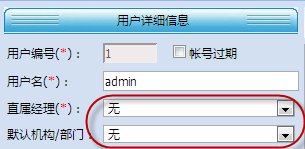
<select id="txtPID" style="width: 100%" > </select>
5. 日期輸入控件
以 class="easyui-datebox" 標識,點擊後彈出日曆面板,可取代 My97DatePicker。
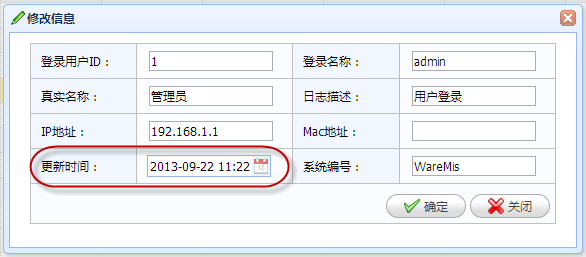
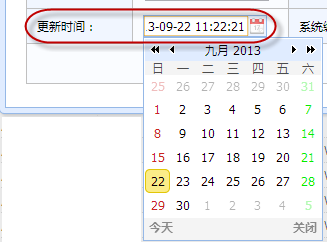
<input class="easyui-datebox" type="text" ID="txtLastUpdated" name="txtLastUpdated" style="width:100px" />
注意 datebox 必須用 combobox 式的 API,不能直接用 val():
$("#LastUpdated").datebox('setValue', info.LastUpdated);
var lastupate = $("#txtLastUpdated").datebox('getValue');
6. 數值輸入控件
easyui-numberbox 外觀是文本框,但只接受數值,並可設定上下限與小數位數。
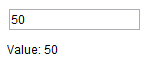
<input class="easyui-numberbox" data-options="min:10,max:90,precision:2,required:true">
若希望有上下箭頭可調,改用 numberspinner:
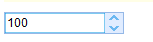
<input class="easyui-numberspinner" data-options="min:10,max:100,required:true" style="width:80px;"></input>
$('#nn').numberbox('setValue', 206.12);
$('#ss').numberspinner('setValue', 8234725);
var v = $('#nn').numberbox('getValue');
var v2 = $('#ss').numberspinner('getValue');
7. 單選鈕 Radio
在多個选项中挑一個。
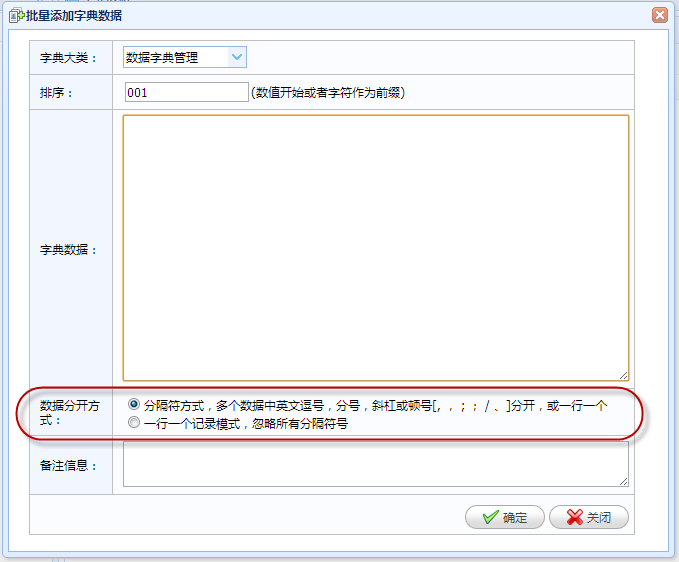
<tr>
<th><label>數據分開方式:</label></th>
<td>
<input name="SplitType" type="radio" class="easyui-validatebox" checked="checked" required="true" value="Split">分隔符方式,多個數據中英文逗號,分號,斜槓或頓號[, , ; ; / 、]分開,或一行一個 <br />
<input name="SplitType" type="radio" class="easyui-validatebox" required="true" value="Line">一行一個記錄模式,忽略所有分隔符號
</td>
</tr>
賦值要用 prop 而非 attr(jQuery 1.6 之後兩者語意已分離):
$('input:radio[name="SplitType"][value="Split"]').prop('checked', true);
var checked = $("input[name='SplitType']:checked").val();
也可以用 combo 包成下拉式單選:
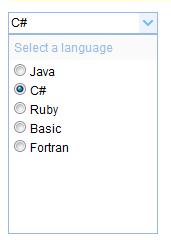
<select id="cc" style="width:150px"></select>
<div id="sp">
<div style="color:#99BBE8;background:#fafafa;padding:5px;">Select a language</div>
<input type="radio" name="lang" value="01"><span>Java</span><br/>
<input type="radio" name="lang" value="02"><span>C#</span><br/>
<input type="radio" name="lang" value="03"><span>Ruby</span><br/>
<input type="radio" name="lang" value="04"><span>Basic</span><br/>
<input type="radio" name="lang" value="05"><span>Fortran</span>
</div>
<script type="text/javascript">
$(function(){
    $('#cc').combo({ required:true, editable:false });
    $('#sp').appendTo($('#cc').combo('panel'));
    $('#sp input').click(function(){
        var v = $(this).val();
        var s = $(this).next('span').text();
        $('#cc').combo('setValue', v).combo('setText', s).combo('hidePanel');
    });
});
</script>
8. 複選框
可勾零項到多項。
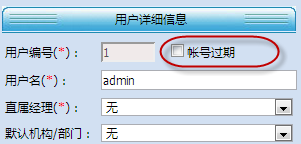
<input id="chkIsExpire" type="checkbox" >帳號過期
這裡有個實務上很容易踩到的坑:複選框未勾選時瀏覽器根本不會送出該欄位,因此以 serializeArray() 序列化表單時,未勾選的項目會完全消失,後端收到的資料中沒有這個 key。要嘛後端把「缺鍵」當成 false 處理,要嘛就改用 select 來表達二態:
var postData = $("#ffEdit").serializeArray();
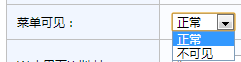
<select id="Visible1" name="Visible">
<option value="true" selected>正常</option>
<option value="false">不可見</option>
</select>
$("#Visible1").prop('checked', info.Visible);
var visible = $("#txtVisible").val();
9. 表格控件 DataGrid
把 table 的 class 設為 easyui-datagrid 即可,可純用 HTML 宣告:
<table class="easyui-datagrid" title="Basic DataGrid" style="width:700px;height:250px" data-options="singleSelect:true,collapsible:true,url:'../datagrid/datagrid_data1.json'">
<thead>
<tr>
<th data-options="field:'itemid',width:80">Item ID</th>
<th data-options="field:'productid',width:100">Product</th>
<th data-options="field:'listprice',width:80,align:'right'">List Price</th>
<th data-options="field:'unitcost',width:80,align:'right'">Unit Cost</th>
<th data-options="field:'attr1',width:250">Attribute</th>
<th data-options="field:'status',width:60,align:'center'">Status</th>
</tr>
</thead>
</table>
但實務上建議只寫一個空的 table,把欄位定義全部移到 JS 初始化中,以避免重複初始化的問題:
<table id="grid" style="width: 1024px" title="用戶操作" iconcls="icon-view"> </table>
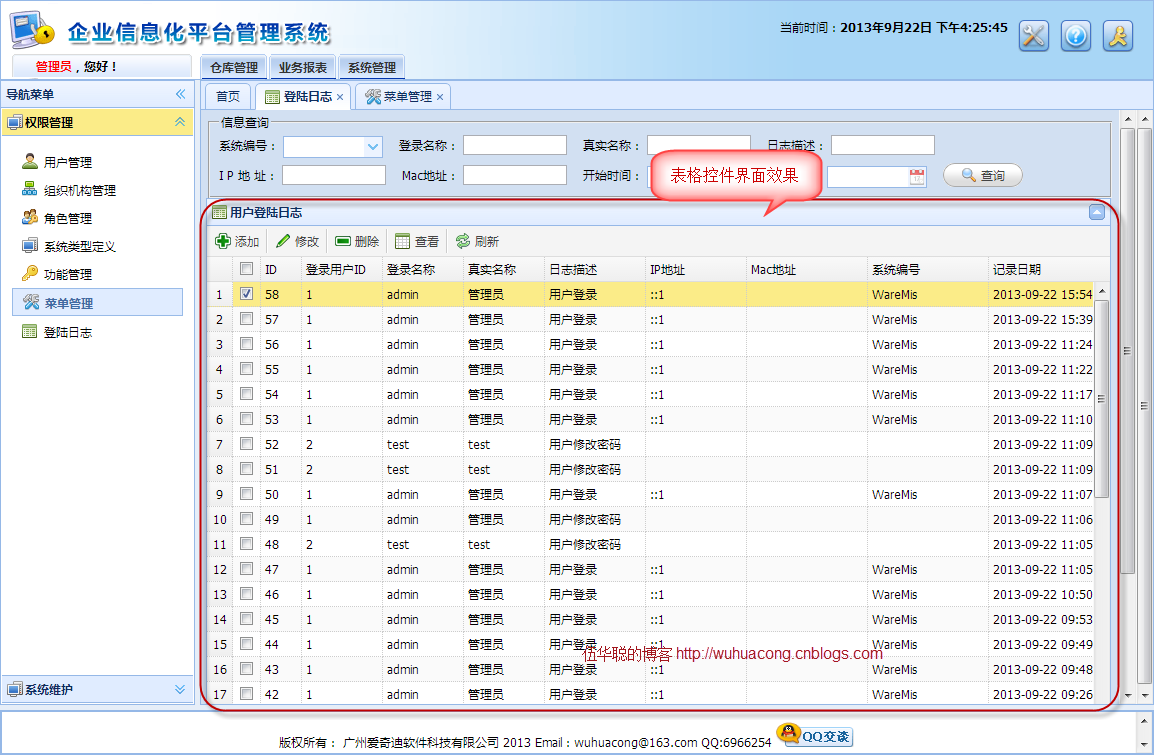
//實現對DataGird控件的綁定操作
function InitGrid(queryData) {
    $('#grid').datagrid({
        url: '/Menu/FindWithPager',   //指向後台的Action來獲取當前菜單的信息的Json格式的數據
        title: '功能菜單',
        iconCls: 'icon-view',
        height: 650,
        width: function () { return document.body.clientWidth * 0.9 }, //寬度自適應
        nowrap: true,
        autoRowHeight: false,
        striped: true,
        collapsible: true,
        pagination: true,
        pageSize: 100,
        pageList: [50,100,200],
        rownumbers: true,
        sortOrder: 'asc',
        remoteSort: false,
        idField: 'ID',
        queryParams: queryData,       //異步查詢的參數
        columns: [[{
            field: 'ck', checkbox: true
        },{
            title: '顯示名稱', field: 'Name', width: 200
        },{
            title: '圖標', field: 'Icon', width: 150
        },{
            title: '排序', field: 'Seq', width: 80
        },{
            title: '功能ID', field: 'FunctionId', width: 80
        },{
            title: '菜單可見', field: 'Visible', width: 80
        },{
            title: 'Winform窗體類型', field: 'WinformType', width: 400
        },{
            title: 'Web界面Url地址', field: 'Url', width: 200
        },{
            title: 'Web界面的菜單圖標', field: 'WebIcon', width: 120
        },{
            title: '系統編號', field: 'SystemType_ID', width: 80
        }]],
        toolbar: [{
            id: 'btnAdd', text: '添加', iconCls: 'icon-add',
            handler: function () { ShowAddDialog(); }
        }, '-', {
            id: 'btnEdit', text: '修改', iconCls: 'icon-edit',
            handler: function () { ShowEditOrViewDialog(); }
        }, '-', {
            id: 'btnDelete', text: '刪除', iconCls: 'icon-remove',
            handler: function () { Delete(); }
        }, '-', {
            id: 'btnView', text: '查看', iconCls: 'icon-table',
            handler: function () { ShowEditOrViewDialog("view"); }
        }, '-', {
            id: 'btnReload', text: '刷新', iconCls: 'icon-reload',
            handler: function () { $("#grid").datagrid("reload"); }
        }],
        onDblClickRow: function (rowIndex, rowData) {
            $('#grid').datagrid('uncheckAll');
            $('#grid').datagrid('checkRow', rowIndex);
            ShowEditOrViewDialog();
        }
    });
}
查詢按鈕的綁定。這裡有個值得學的細節:所有欄位名稱都加上 WHC_ 前綴,避免與 URL 這類 Request 內建關鍵字相撞。
function BindSearchEvent() {
    $("#btnSearch").click(function () {
        //取值方式:$("#id").combobox('getValue')、$("#id").datebox('getValue')、$("#id").val()
        var queryData = {
            WHC_ID: $("#txtID").val(),
            WHC_Name: $("#txtName").val(),
            WHC_Icon: $("#txtIcon").val(),
            WHC_Seq: $("#txtSeq").val(),
            WHC_FunctionId: $("#txtFunctionId").val(),
            WHC_Visible: $("#txtVisible").val(),
            WHC_WinformType: $("#txtWinformType").val(),
            WHC_Url: $("#txtUrl").val(),
            WHC_WebIcon: $("#txtWebIcon").val(),
            WHC_SystemType_ID: $("#txtSystemType_ID").val()
        }
        InitGrid(queryData);
        return false;
    });
}
後端依這些參數呼叫控制器中的分頁方法 FindWithPager 取得資料,再綁定到 grid。
在儲存格裡放圖示或連結
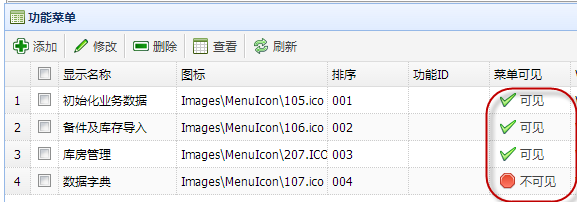
做法是替該欄加上 formatter 回呼:
columns: [[{
    field: 'ck', checkbox: true
},{
    title: '顯示名稱', field: 'Name', width: 200
},{
    title: '圖標', field: 'Icon', width: 150
},{
    title: '排序', field: 'Seq', width: 80
},{
    title: '功能ID', field: 'FunctionId', width: 80
},{
    title: '菜單可見', field: 'Visible', width: 80,
    formatter: function (val, rowdata, index) {
        if (val) {
            return '<a class="grid_visible" href="javascript:void(0)" >' + val + '</a>';
        } else {
            return '<a class="grid_unvisible" href="javascript:void(0)" >' + val + '</a>';
        }
    }
},{
    title: 'Winform窗體類型', field: 'WinformType', width: 400
},{
    title: 'Web界面Url地址', field: 'Url', width: 200
},{
    title: 'Web界面的菜單圖標', field: 'WebIcon', width: 120
},{
    title: '系統編號', field: 'SystemType_ID', width: 80
}]],
圖示按鈕的樣式必須等資料載入完成後才能套用,因此要放在 onLoadSuccess 中處理:
onLoadSuccess: function () {
    $(".grid_visible").linkbutton({ text: '可見', plain: true, iconCls: 'icon-ok' });
    $(".grid_unvisible").linkbutton({ text: '不可見', plain: true, iconCls: 'icon-stop' });
},
若圖片顯示不完整,把 autoRowHeight 設為 true 讓列高自動調整即可。
autoRowHeight: true
補充一個安全提醒:formatter 回傳的是 HTML 字串,若 val 來自使用者輸入,必須先做轉义,否則會形成 XSS。EasyUI 的 formatter 不會自動幫你消毒。
10. 樹形控件
EasyUI 雖然有 Tree,但專案裡我更偏好 zTree——這是一個免費的 jQuery 樹控件,API 穩定、效能佳。
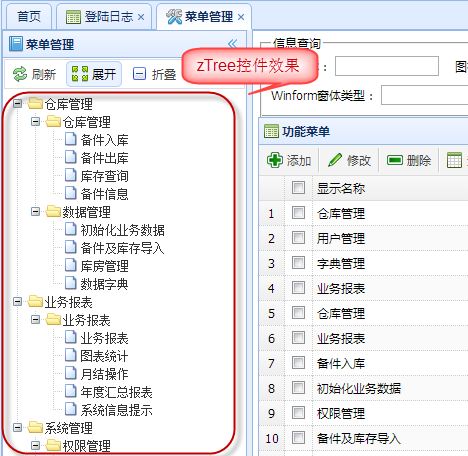
<link href="~/Content/JQueryTools/JQueryTree/css/zTreeStyle/zTreeStyle.css" rel="stylesheet" type="text/css" />
<script src="~/Content/JQueryTools/JQueryTree/js/jquery.ztree.core-3.5.min.js" type="text/javascript"></script>
<script type="text/javascript">
<!--
var setting = {
    data: { simpleData: { enable: true } },
    callback: { onClick: onClick, onDblClick: onDblClick }
}

//重新加載樹形結構(異步)
function reloadTree() {
    $("#loading").show();
    $.getJSON("/DictType/GetTreeJson?r=" + Math.random(), function (json) {
        $.fn.zTree.init($("#treeDemo"), setting, json);
        $.fn.zTree.getZTreeObj("treeDemo").expandAll(true);
        var treeObj = $.fn.zTree.getZTreeObj("treeDemo");
        var treeNodes = treeObj.getNodes();
        if (treeNodes != null) {
            loadTypeData(treeNodes[0].id);
        }
    });
    $("#loading").fadeOut(500);
}

//樹單擊節點操作
function onClick(event, treeId, treeNode, clickFlag) {
    var id = treeNode.id;
    loadTypeData(id);
}

//樹雙擊節點操作
function onDblClick(event, treeId, treeNode) {
    var id = treeNode.id;
    loadTypeData(id);
    ShowDictType('edit');
}
11. 佈局控件
EasyUI 用 DIV 分區,靠 data-options 中的 region 屬性標示該區屬於東西南北哪個方位。
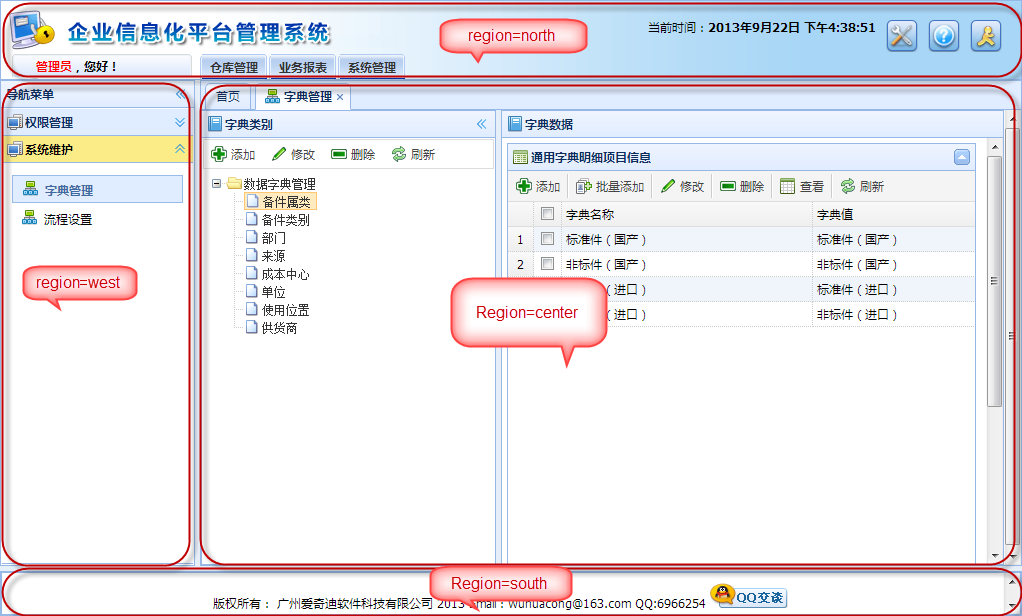
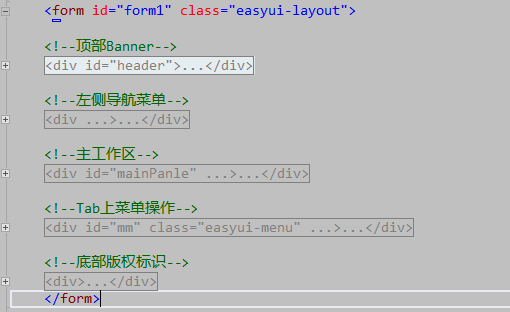
<!--主工作區-->
<div id="mainPanle" region="center" title="" style="overflow:hidden;">
<div id="tabs" class="easyui-tabs" fit="true" border="false" > </div>
</div>
字典管理頁面則是典型東西分欄,左樹右表:
<div class="easyui-layout" style="width:700px;height:700px;" fit="true">
<div data-options="region:'west',split:true,title:'字典類別',iconCls:'icon-book'" style="width: 300px; padding: 1px;">
<div style="padding: 1px; border: 1px solid #ddd;">
.......................</div>
<div>
<ul id="treeDemo" class="ztree"> </ul>
</div>
</div>
<div id="tb" data-options="region:'center',title:'字典數據',iconCls:'icon-book'" style="padding:5px;height:auto">
<!-------------------------------詳細信息展示表格----------------------------------->
<table id="grid" style="width: 940px" title="用戶操作" iconcls="icon-view"></table>
</div>
</div>
12. 彈出式對話框
對話框的 DOM 通常在頁面載入時就已寫好並初始化,之後只需依條件切換顯示即可,EasyUI 會自動加上遮罩層。
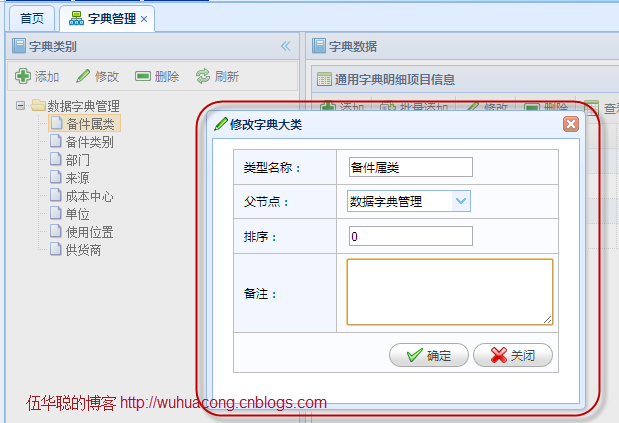
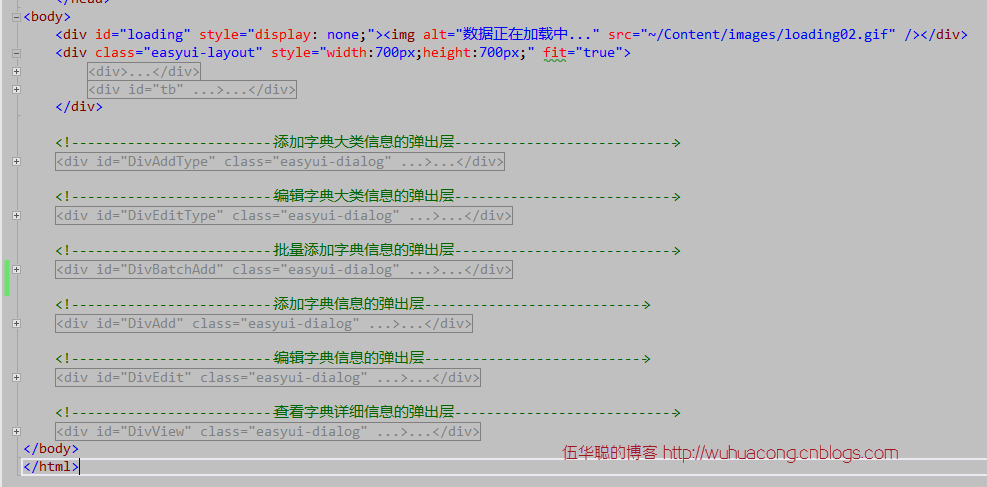
13. 提示訊息
純 JavaScript 的 alert 在 EasyUI 界面中會顯得格格不入,改用 messager 類即可與整體風格一致。
$.messager.alert("提示", "修改成功");
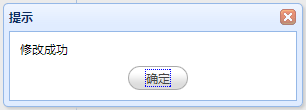
需要不同圖示時,第三個參數可指定 error、info、question、warning:
<script>
function alert1(){ $.messager.alert('My Title','Here is a message!'); }
function alert2(){ $.messager.alert('My Title','Here is a error message!','error'); }
function alert3(){ $.messager.alert('My Title','Here is a info message!','info'); }
function alert4(){ $.messager.alert('My Title','Here is a question message!','question'); }
function alert5(){ $.messager.alert('My Title','Here is a warning message!','warning'); }
</script>
刪除這類破壞性操作,則用 confirm 包一層。順帶一個實務細節:刪除完成後要記得清除既有勾選,否則下次開對話框還會看到上次的選取狀態。
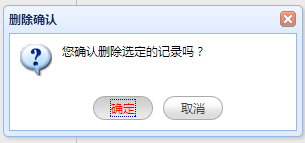
$.messager.confirm("刪除確認", "您確認刪除選定的記錄嗎?", function (deleteAction) {
    if (deleteAction) {
        $.get("/DictData/DeletebyIds", postData, function (data) {
            if (data == "true") {
                $.messager.alert("提示", "刪除選定的記錄成功");
                $("#grid").datagrid("reload");
                //當刪除完成之後,第二次刪除的時候還記得上次的信息,這樣是不可以的
                rows.length = "";                        //第一種方法
                $("#grid").datagrid("clearSelections");  //第二種方法
            } else {
                $.messager.alert("提示", data);
            }
        });
    }
});
寫在最後
以上就是這個框架裡常用到的界面控件與相關程式碼。有些較少用的控件本篇未涵蓋,歡迎補充討論。
另外提醒幾點與框架無關但實際上線後會遇到的問題:EasyUI 1.x 系列已多年停止維護,與新版 jQuery 有相容性風險;在 formatter 中拼接 HTML 時務必消毒使用者輸入;所有 AJAX 呼叫都應有錯誤處理,範例中的 $.get 只處理了成功路徑,一旦請求失敗使用者會得不到任何回饋。
希望這份整理能作為 MVC + EasyUI 框架界面開發的參考,也歡迎多多指教。
相關文章
-
Ajax 與 EasyUI 情境下的 JSON-lib 資料處理 EasyUI 中 checkbox 的幾個常見操作整理 jQuery EasyUI 常用組件入門:表單、DataGrid 與可編輯表格 EasyUI Datagrid 自訂操作按鈕欄位 jQuery EasyUI 入門:特色與快速使用 解決 EasyUI DataGrid 操作欄按鈕圖示不顯示 EasyUI Dialog 行內按鈕布局實例 jQuery EasyUI 格式化列的注意事項:函數必須放在主頁面 給 jQuery EasyUI 表單控件綁定額外事件的兩種寫法 easyui-datagrid 開發實踐總結:加載、合併、變色與行內編輯