附加屬性(Attached Property)
有極少數 XAML 元素存在這樣一種情況:它自身的屬性在大多數時候,反而是拿去「別的元素」身上宣告與使用,而本身幾乎用不到。這些在其他元素上宣告、使用的屬性,我們稱之為附加屬性。一般來說,附加屬性是用來在父元素中定位其他元素布局的。
Grid 與 DockPanel 就是典型的例子:Grid 透過附加屬性指定子元素所在的特定列與行,而 DockPanel 則透過附加屬性指定子元素應停靠於面板中的哪個位置。
提示:我們可以在所有由 DependencyObject 派生的元素上設定附加屬性。而 DependencyObject 又源自 UIElement,因此絕大多數的 XAML 元素都能使用附加屬性。
既然附加屬性是「宣告在另一個元素上」,卻又屬於所參照的那個元素,那麼它在 XAML 中的宣告語法就是:屬性提供元素名.屬性名。舉例來說,Grid 擁有 Row 與 Column 兩個附加屬性。如果我們要把某個元素放進 Grid 的特定區域,就能在該元素上使用 Grid.Row 與 Grid.Column 這兩個附加屬性來指定確切的行與列。以下程式碼說明了上述做法:
01 <Page XMLns="https://schemas.microsoft.com/winfx/2006/xaml/presentation"
02 WindowTitle="GridSample">
03 <Grid VerticalAlignment="Top" HorizontalAlignment="Left" ShowGridLines="True"
04 Width="250" Height="100">
05 <Grid.ColumnDefinitions>
06 <ColumnDefinition />
07 <ColumnDefinition />
08 <ColumnDefinition />
09 </Grid.ColumnDefinitions>
10 <Grid.RowDefinitions>
11 <RowDefinition />
12 <RowDefinition />
13 <RowDefinition />
14 <RowDefinition />
15 </Grid.RowDefinitions>
16
17 <TextBlock FontSize="20" FontWeight="Bold" Grid.ColumnSpan="3" Grid.Row="0">
18 2005 Products Shipped
19 </TextBlock>
20 <TextBlock FontSize="12" FontWeight="Bold" Grid.Row="1" Grid.Column="0">
21 Quarter 1
22 </TextBlock>
23 <TextBlock FontSize="12" FontWeight="Bold" Grid.Row="1" Grid.Column="1">
24 Quarter 2
25 </TextBlock>
26 <TextBlock FontSize="12" FontWeight="Bold" Grid.Row="1" Grid.Column="2">
27 Quarter 3
28 </TextBlock>
29 <TextBlock Grid.Row="2" Grid.Column="0">50000</TextBlock>
30 <TextBlock Grid.Row="2" Grid.Column="1">100000</TextBlock>
31 <TextBlock Grid.Row="2" Grid.Column="2">150000</TextBlock>
32 <TextBlock FontSize="16" FontWeight="Bold" Grid.ColumnSpan="3" Grid.Row="3">
33 Total Units: 300000
34 </TextBlock>
35 </Grid>
36 </Page>
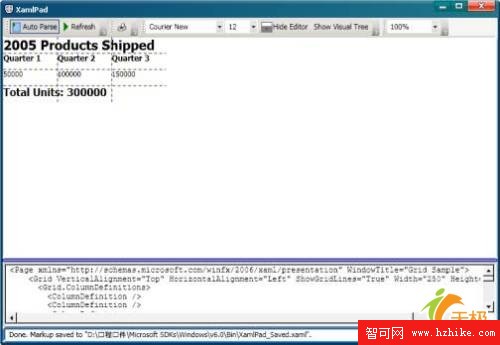
最終的呈現效果如下:
綁定屬性(Binding)
在 ASP.NET 中,我們通常使用 <%# 資料表達式 %> 這樣的語法,在伺服器控制項屬性與資料源之間建立綁定。那麼,要在 WPF 中為某個 XAML 元素的屬性與資料源建立綁定,又該如何實現呢?為此我們引入了「綁定屬性」這個新概念。我們可以在一個元素中使用綁定屬性去參照原本屬於其他元素的屬性值:含有綁定屬性的元素稱為「目標元素」,而被參照的那個元素則稱為「來源元素」。請注意,綁定屬性必須與目標元素的「從屬屬性」相互關聯。
我們在目標元素中以綁定屬性連結來源元素的相應屬性值;一旦來源元素的屬性值在程式運行時發生變化,目標元素中從屬屬性的值也會同步改變。也就是說,綁定屬性會自動偵測所綁定的值是否變動,並立即把變化反映到從屬屬性上。回想學習 C# 時,我們常用下面的程式碼來說明賦值的意義:
37 int a = 1;
38 int b;
39 b = a;
其中變數 a 就像前述的來源元素,值為 1;變數 b 則像目標元素,透過「b = a」把值 1「綁定」到 b,使 b 此時也等於 1。但它與 WPF 實際的綁定語法不同之處在於:當 a 的值改變後,b 的值並不會跟著變,仍舊是 1。
而 WPF 的綁定語法會依來源元素的屬性值變化做出同步響應,這種關聯是持續存在的。在 XAML 中,我們以 Binding 關鍵字來維繫兩者的一致性。
Binding 元素的語法如下:
01 <Binding ElementName[元素名]="…" Path[屬性名]="…"/>
我們用 Binding 關鍵字來標示這是一段綁定表達式語法,採用這種語法時,會在執行階段即時解析,以取得來源元素的當前值。
前面我們曾做過一個範例:點擊按鈕多少次,就把次數呈現在按鈕文字上。現在改用綁定屬性來擴充它。我們可以為頁面加上一個 TextBox 元素,讓文字方塊中的文字與某個 TextBlock 元素的文字保持一致——也就是把 TextBox 的 Text 屬性與 TextBlock 的 Text 屬性綁定,如此一來,當你點擊按鈕時,兩處文字會同時改變,並顯示變動的次數。
01 <Window
02 XMLns="https://schemas.microsoft.com/winfx/2006/xaml/presentation"
03 XMLns:x="https://schemas.microsoft.com/winfx/2006/xaml"
04 x:Class="SDKSample.Window1"
05 Width="460"
06 Height="200"
07 Title="BindDPtoDP">
08
09 <DockPanel Background="White">
10
11 <Button Click="btnChangeSource" Width="150" Height="30"
12 DockPanel.Dock="Top">Change Source Property</Button>
13
14 <TextBlock Name="Text1" DockPanel.Dock="Top" FontSize="12"
15 Height="30" Foreground="Green">
16 <TextBlock.Text>
17 Click the Button to Change this Initial Text Value in this Source Element
18 </TextBlock.Text>
19 </TextBlock>
20
21 <TextBox DockPanel.Dock="Top" Height="30" Foreground="Blue">
22 <TextBox.Text>
23 <Binding ElementName="Text1" Path="Text"/>
24 </TextBox.Text>
25 </TextBox>
26
27 </DockPanel>
28
29 </Window>
在第 23 行可以看到,我們在 <TextBox.Text> 這個從屬屬性中,使用綁定表達式語法綁定了 TextBlock 元素的 Text 屬性。
對應的程式碼後置檔案如下:
01 using System;
02 using System.ComponentModel;
03 using System.Windows;
04 using System.Windows.Controls;
05 using System.Windows.Documents;
06 using System.Windows.Data;
07 using System.Windows.Media;
08
09 namespace SDKSample
10 {
11 /// <summary>
12 /// Window1: This is the class that encapsulates the code
13 /// "behind" the Window1.xaml page.
14 /// </summary>
15 public partial class Window1 : Window
16 {
17 static int iCount = 0;
18
19 void btnChangeSource(object sender, RoutedEventArgs e)
20 {
21 iCount++;
22 Text1.Text = string.Format("New Text. Count={0}", iCount);
23 }
24 }
25 }
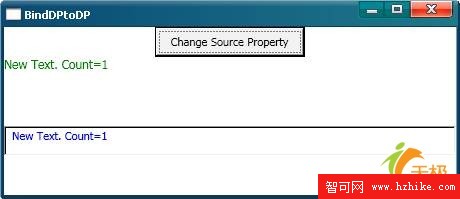
效果如圖所示:只要你點擊按鈕,TextBox 元素的 Text 屬性值與 TextBlock 元素的 Text 屬性值都會同步變化。
- 上一篇文章: XAML:為開發者與設計者搭起共通的橋樑
- 下一篇文章: XAML 開發入門:核心語法與四大原則