Bootstrap 原生的表格只提供了樣式,並沒有操作列,要做出一個能新增、修改、刪除的表格,通常得自己拼湊。網路上相關資源不少,但多半零散、JS 與 CSS 交代不齊,跑起來常少一塊。作者花了約一個月的時間把表格封裝成三個版本,這裡把樣式與程式碼都分享出來。
版本一:自建可編輯表格
樣式
表格本體:
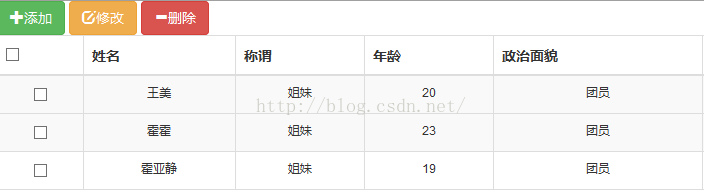
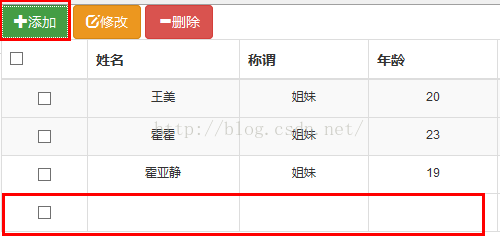
按下「添加」後,會插入一列空白資料列:
按下「修改」後,被勾選的那一列會進入可編輯狀態,點一下儲存格即可直接改值:

程式碼
@using DatatableDemo.Models
@using ITOO.FreshNewReport.ViewModel
@{
    Layout = "~/Views/Shared/_Layout.cshtml";
}
<!DOCTYPE html>
<html>
<head>
<title>Bootstrap 實例 - 表格</title>
<link href="../../BootStrap/StuPersonInfo/bootstrap.min.css" rel="stylesheet" />
<script src="../../BootStrap/StuPersonInfo/bootstrap.min.js"></script>
<script src="../../BootStrap/StuPersonInfo/jquery.min.js"></script>
@*表格JS*@
<link href="../../BootStrap/bootstrap-3.3.5-dist/css/bootstrap.css" rel="stylesheet" />
<meta charset="utf-8">
<meta name="viewport" content="width=device-width, initial-scale=1.0">
<link href="../../BootStrap/datagrid/css/bootstrap-table.min.css" rel="stylesheet" />
<link href="../../BootStrap/datagrid/js/jquery.min.js"></script>
<script src="../../BootStrap/datagrid/js/jquery.base64.js"></script>
<script src="../../BootStrap/datagrid/js/bootstrap-table.js"></script>
<script src="../../BootStrap/datagrid/js/bootstrap-table-export.js"></script>
<script type="text/javascript">
$(document).ready(function () {
    //批量刪除:把被勾選的列淡出隱藏
    $("#btnDel").click(function () {
        $(":checked").parent().parent().fadeOut("show");
    });
    //滑鼠移入移出的底色變化
    $("tr").mousemove(function () {
        $(this).css("background", "#F0F0F0");
    });
    $("tr").mouseout(function () {
        $(this).css("background", "#fff");
    });
    //全選
    $("#checkAll").click(function () {
        if ($("#checkAll").attr("checked") == false) {
            $("input[name='checkbox']").each(function () { $(this).attr("checked", true); });
        } else {
            $("input[name='checkbox']").each(function () { $(this).attr("checked", false); });
        }
    });
});
</script>
<script>
//動態插入一列空白資料
function append() {
    var strAppend = '<tr><td><input type="checkbox" editable="false" name="checkbox"></td><td></td><td></td><td></td><td></td><td></td><td></td><td></td></tr>';
    $("#AddFamily tbody").append(strAppend).editableTableWidget();
}
</script>
<style>
table { border-collapse: collapse; border: 1px solid #FFFFFF; }
table td { text-align: center; height: 30px; font-size: 12px; line-height: 30px; border: 1px solid #efecec; }
</style>
<script src="../../JS/TableJs.js"></script>
</head>
<body>
<div class="heading">
  <button id="build" type="button" class="btn btn-success" onclick="append()">
    <span class="glyphicon glyphicon-plus"></span>添加
  </button>
  <button id="btnEdit" type="button" class="btn btn-warning">
    <span class="glyphicon glyphicon-edit"></span>修改
  </button>
  <button id="btnDel" type="button" class="btn btn-danger">
    <span class="glyphicon glyphicon-minus"></span>刪除
  </button>
</div>
<div class="widget-content padded clearfix">
<table id="AddFamily" class="table table-bordered table-striped" style="margin: 0 auto">
  <thead>
    <tr>
      <th><input id="checkAll" type="checkbox"></th>
      <th>姓名</th><th>稱謂</th><th>年齡</th>
      <th>政治面貌</th><th>電話號碼</th><th>工作單位</th><th>家庭住址</th>
    </tr>
  </thead>
  <tbody id="mainbody">
  @foreach (FamilyInfoViewModel enStuFam in ViewData["DataList"] as List<FamilyInfoViewModel>)
  {
    <tr>
      <td><input name="checkbox" type="checkbox"></td>
      <td data-field="Name">@enStuFam.Name</td>
      <td data-field="RelationShip">@enStuFam.RelationShip</td>
      <td data-field="Age">@enStuFam.Age</td>
      <td>@enStuFam.PoliticalStatus</td>
      <td>@enStuFam.TelNum</td>
      <td>@enStuFam.WorkUnit</td>
      <td>@enStuFam.Address</td>
    </tr>
  }
  </tbody>
</table>
</div>
<script>
$(function () {
    $('#btnEdit').click(edit);
    $('#cells, #rows').keyup(function (e) {
        if (e.keyCode === 13) { /* 此處可加入存回資料庫的程式 */ }
    });
});
//把被勾選的整列轉成可編輯狀態
function edit(index) {
    $(":checked").parent().parent().editableTableWidget();
}
/*global $, window*/
$.fn.editableTableWidget = function (options) {
    'use strict';
    return $(this).each(function () {
        var buildDefaultOptions = function () {
            var opts = $.extend({}, $.fn.editableTableWidget.defaultOptions);
            opts.editor = opts.editor.clone();
            return opts;
        }, activeOptions = $.extend(buildDefaultOptions(), options),
        ARROW_LEFT = 37, ARROW_UP = 38, ARROW_RIGHT = 39, ARROW_DOWN = 40,
        ENTER = 13, ESC = 27, TAB = 9,
        element = $(this),
        editor = activeOptions.editor.css('position', 'absolute').hide().appendTo(element.parent()),
        active,
        showEditor = function (select) {
            active = element.find('td:focus');
            if (active.length) {
                editor.val(active.text())
                    .removeClass('error').show()
                    .offset(active.offset())
                    .css(active.css(activeOptions.cloneProperties))
                    .width(active.width()).height(active.height()).focus();
                if (select) { editor.select(); }
            }
        },
        setActiveText = function () {
            var text = editor.val(), evt = $.Event('change'), originalContent;
            if (active.text() === text || editor.hasClass('error')) { return true; }
            originalContent = active.html();
            active.text(text).trigger(evt, text);
            if (evt.result === false) { active.html(originalContent); }
        },
        movement = function (element, keycode) {
            if (keycode === ARROW_RIGHT) { return element.next('td'); }
            else if (keycode === ARROW_LEFT) { return element.prev('td'); }
            else if (keycode === ARROW_UP) { return element.parent().prev().children().eq(element.index()); }
            else if (keycode === ARROW_DOWN) { return element.parent().next().children().eq(element.index()); }
            return [];
        };
        editor.blur(function () { setActiveText(); editor.hide(); })
            .keydown(function (e) {
                if (e.which === ENTER) { setActiveText(); editor.hide(); active.focus(); e.preventDefault(); e.stopPropagation(); }
                else if (e.which === ESC) { editor.val(active.text()); editor.hide(); active.focus(); e.preventDefault(); e.stopPropagation(); }
                else if (e.which === TAB) { active.focus(); }
                else if (this.selectionEnd - this.selectionStart === this.value.length) {
                    var possibleMove = movement(active, e.which);
                    if (possibleMove.length > 0) { possibleMove.focus(); e.preventDefault(); e.stopPropagation(); }
                }
            })
            .on('input paste', function () {
                var evt = $.Event('validate');
                active.trigger(evt, editor.val());
                if (evt.result === false) { editor.addClass('error'); } else { editor.removeClass('error'); }
            });
        element.on('click keypress dblclick', showEditor)
            .css('cursor', 'pointer')
            .keydown(function (e) {
                var prevent = true, possibleMove = movement($(e.target), e.which);
                if (possibleMove.length > 0) { possibleMove.focus(); }
                else if (e.which === ENTER) { showEditor(false); }
                else if (e.which === 17 || e.which === 91 || e.which === 93) { showEditor(true); prevent = false; }
                else { prevent = false; }
                if (prevent) { e.stopPropagation(); e.preventDefault(); }
            });
        element.find('td').prop('tabindex', 1);
        $(window).on('resize', function () {
            if (editor.is(':visible')) {
                editor.offset(active.offset()).width(active.width()).height(active.height());
            }
        });
    });
};
$.fn.editableTableWidget.defaultOptions = {
    cloneProperties: ['padding', 'padding-top', 'padding-bottom', 'padding-left', 'padding-right',
        'text-align', 'font', 'font-size', 'font-family', 'font-weight',
        'border', 'border-top', 'border-bottom', 'border-left', 'border-right'],
    editor: $('<input>')
};
</script>
</body>
</html>
這個版本的核心思路是:把 editableTableWidget 這個 jQuery 外掛套在特定的 tr 上,讓該列的所有 td 都取得 tabindex,並在點擊時浮出一個 input 覆蓋在儲存格上,編輯完成後再把值寫回去,同時支援方向鍵在儲存格之間移動。
版本二:DataTables 可編輯表格
樣式
整體版面:

新增/修改的呈現:

程式碼
這個版本建立在 Se7en 這套 Bootstrap 後台模板上,樣式與外掛檔很多,這裡只列出重點:先引入模板的 CSS 與 JS(bootstrap.min.css、font-awesome.css、style.css、datatables.css 等,以及 jquery.min.js、jquery.dataTables.min.js、datatable-editable.js 等),主體結構如下:
<div class="modal-shiftfix">
<div class="container-fluid main-content">
  <div class="page-title"><h1>Editable DataTables</h1></div>
  <div class="row">
  <div class="col-lg-12">
  <div class="widget-container fluid-height clearfix">
    <div class="heading">
      <i class="icon-table"></i>DataTable with Sorting
      <a class="btn btn-sm btn-primary-outline pull-right" href="#" id="add-row">
        <i class="icon-plus"></i>Add row
      </a>
    </div>
    <div class="widget-content padded clearfix">
    <table class="table table-bordered table-striped" id="datatable-editable">
      <thead>
        <tr>
          <th>姓名</th><th>稱謂</th><th>年齡</th><th>政治面貌</th>
          <th>電話號碼</th><th>工作單位</th><th class="hidden-xs">家庭住址</th>
          <th width="60"></th><th width="75"></th>
        </tr>
      </thead>
      <tbody>
      @foreach (FamilyInfoViewModel enStuFam in ViewData["DataList"] as List<FamilyInfoViewModel>)
      {
        <tr>
          <td>@enStuFam.Name</td>
          <td>@enStuFam.RelationShip</td>
          <td>@enStuFam.Age</td>
          <td>@enStuFam.PoliticalStatus</td>
          <td>@enStuFam.TelNum</td>
          <td>@enStuFam.WorkUnit</td>
          <td>@enStuFam.Address</td>
          <td><a class="edit-row" href="#">Edit</a></td>
          <td><a class="delete-row" href="#">Delete</a></td>
        </tr>
      }
      </tbody>
    </table>
    </div>
  </div>
  </div>
  </div>
</div>
</div>
與版本一相比,這個版本把「修改」「刪除」直接放進每一列的兩個操作欄,語意更清楚,也不需要勾選框,改動交給 datatable-editable.js 處理。
版本三:卡片式表格(bootstrap-table)
樣式
卡片式檢視,在窄螢幕上比傳統表格友善得多:

新增/修改則跳到獨立頁面處理:

View 程式碼
<div class="container-fluid main-content">
<div class="row"><div class="col-lg-12">
<div class="widget-container fluid-height clearfix">
  <div class="heading">
    <span class="ui-button">
      <a class="btn btn-success glyphicon glyphicon-plus" href="../AddEduInfo/AddEduInfo">添加</a>
    </span>
    <span class="ui-button">
      <a class="btn btn-warning glyphicon glyphicon-edit" href="../AddEduInfo/AddEduInfo">修改</a>
    </span>
    <span>
      <button type="button" class="btn btn-danger glyphicon glyphicon-minus"
              data-toggle="modal" data-target="#myModal">刪除</button>
    </span>
  </div>
  <table id="events-table" class="table" data-toggle="table"
         data-card-view="true" data-url="/StuPersonInfo/ShowEducation">
    <thead>
      <tr class="info">
        <th data-field="state" data-checkbox="true"></th>
        <th data-field="StartDate" data-sortable="true">開始日期</th>
        <th data-field="EndDate" data-sortable="true">結束日期</th>
        <th data-field="SchoolName" data-sortable="true">畢業學校</th>
        <th data-field="TeacherName" data-visible="true">證明教師</th>
      </tr>
    </thead>
  </table>
</div></div></div></div>
這裡靠 data-toggle="table" 與 data-url 兩個宣告式屬性,就能讓表格自動向後端要資料,data-card-view="true" 則是卡片檢視的開關。
Controller 程式碼
#region ShowEducation() 顯示教育經歷
/// <summary>
/// 顯示教育經歷
/// </summary>
/// <returns>教育經歷 Json</returns>
public JsonResult ShowEducation()
{
    //取得 WCF 介面
    IEduInfoService EduServiceShow = ServiceFactory.GetEduInfoService();
    //從快取中取出身份證號
    string IdentityCardID = (String)MemcacheHelper.Get("IdentityCardID");
    //呼叫 WCF 查詢
    List<EduExperienceViewModel> listEduInfo = EduServiceShow.QueryEduInfo(IdentityCardID);
    return Json(listEduInfo, JsonRequestBehavior.AllowGet);
}
#endregion
三個版本怎麼選
1. 資料量不大、想完全自己掌控 → 版本一。
2. 需要排序、分頁、行內編輯的傳統後台 → 版本二。
3. 需要支援手機瀏覽 → 版本三,卡片檢視在行動裝置上的閱讀體驗明顯更好。
以上就是三個版本的做法分享,若有任何疑問歡迎留言,我會盡快回覆。
- 上一篇文章: Bootstrap 模態彈窗(Modal)使用要點整理
- 下一篇文章: Bootstrap Tooltip 提示框使用重點整理
相關文章
-
jQuery 實作可編輯表格並即時產生 JSON 資料 用 bootstrap-table 實作表格的查詢、分頁與排序 bootstrap-table 表格客戶端分頁實例 bootstrap-table 插件入門 Demo 實作 Bootstrap Fileinput 搭配 Bootstrap Table 實作 Excel 匯入全流程 bootstrap-table 進階:借助 x-editable 實現單擊單元格就地編輯 打造可編輯並匯出 Excel 的 Table 表格插件 jQuery 學習筆記(二):打造可隨點隨編的表格 基於 PHP + jQuery 實現可編輯表格的完整代碼 用 jQuery(非 HTML5)實作可編輯表格