用 JavaScript 做一個彈出層:從基礎版到加上遮罩
編輯:關於JavaScript
閱讀本文需要具備基本的 HTML、CSS 與 JavaScript 基礎。
設計思路
彈出層的原理單純到令人意外:先把要顯示的內容隱藏起來,等某個條件被觸發(例如點擊按鈕),再把它顯示出來。剩下的全是細節。
第一版:最基礎的彈出層
<!DOCTYPE html>
<html>
<head>
<title>Window 物件</title>
<meta charset="utf-8">
</head>
<body>
<a href="https://www.baidu.com">百度一下</a>
<button type="button" id="open">打開彈出層</button>

<div style="display: none; background: lightblue; border:1px solid green;" id="toast">
  <!-- 設定 display 為 none 以隱藏內容 -->
  <p>這裡是彈出層內容</p>
  <button type="button" id="close">關閉彈出層</button>
</div>

<script type="text/javascript">
var toast = document.getElementById("toast");

document.getElementById("open").onclick = function () {
  // 點擊時顯示隱藏內容
  toast.style.display = "block";
  toast.style.position = "fixed";
  var winWidth     = window.innerWidth;
  var winHeight    = window.innerHeight;
  var targetWidth  = toast.offsetWidth;
  var targetHeight = toast.offsetHeight;
  toast.style.top  = (winHeight - targetHeight) / 2 + "px";
  toast.style.left = (winWidth  - targetWidth)  / 2 + "px";
};

document.getElementById("close").onclick = function () {
  // 將顯示的內容再次隱藏
  toast.style.display = "none";
};
</script>
</body>
</html>
顯示效果:
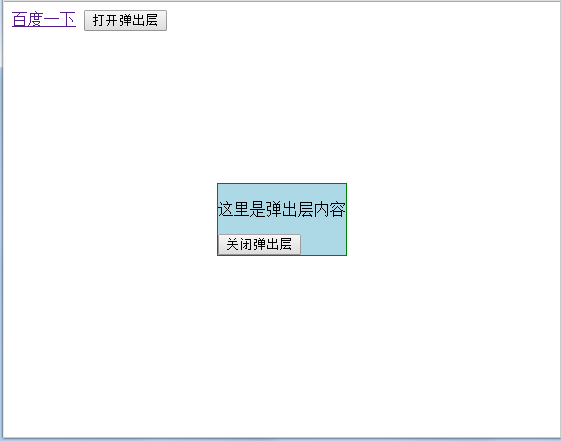
水平與垂直居中的算法很直覺:視窗尺寸減去元素尺寸再除以二。這裡有個順序上的關鍵——必須先設 display 為 block,才讀得到 offsetWidth/offsetHeight,因為 display:none 的元素尺寸一律回報 0。
問題:背景還是可以互動
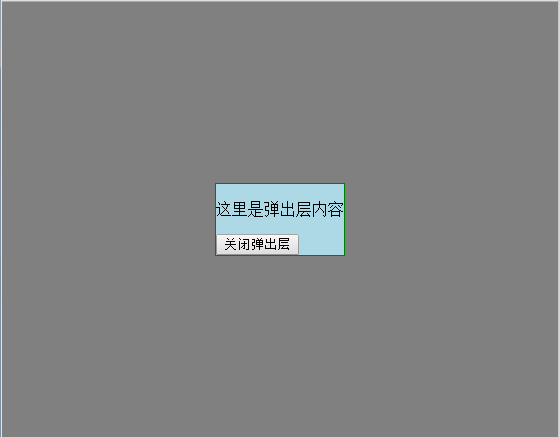
仔細測一下會發現,彈出層出現後,背景那個「百度一下」連結仍然點得動。使用者可能在不經意間就離開了頁面。解法是加一層遮罩,把整個背景蓋住。
第二版:加上遮罩層
<!DOCTYPE html>
<html>
<head>
<title>Window 物件</title>
<meta charset="utf-8">
</head>
<body>
<a href="https://www.baidu.com">百度一下</a>
<button type="button" id="open">打開彈出層</button>

<div id="cover" style="display: none; position: fixed; width: 100%; height: 100%;
                          top:0px; left:0px; background: gray;">
  <!-- 通過遮罩層遮住背景 -->
  <div style="background: lightblue; border:1px solid green;" id="toast">
    <p>這裡是彈出層內容</p>
    <button type="button" id="close">關閉彈出層</button>
  </div>
</div>

<script type="text/javascript">
var toast = document.getElementById("toast");
var cover = document.getElementById("cover");

document.getElementById("open").onclick = function () {
  cover.style.display = "block";
  toast.style.position = "fixed";
  var winWidth     = window.innerWidth;
  var winHeight    = window.innerHeight;
  var targetWidth  = toast.offsetWidth;
  var targetHeight = toast.offsetHeight;
  toast.style.top  = (winHeight - targetHeight) / 2 + "px";
  toast.style.left = (winWidth  - targetWidth)  / 2 + "px";
};

document.getElementById("close").onclick = function () {
  cover.style.display = "none";
};
</script>
</body>
</html>
再測一次,背景已經被完整隔絕:
還可以再更好的地方
以上是「能動」的版本,但要變成「好用」的元件,還有幾件事該補:
- 點擊遮罩關閉。監聽 cover 的 click,並用
event.target === cover確認點的是遮罩本身而非彈出層。 - Esc 鍵關閉。在 document 上監聽 keydown,判斷
event.key === 'Escape'。 - 用 CSS class 取代 inline style。把 display、定位、居中全部寫進樣式表,JS 只負責切換 class,關注點才分得乾淨。居中也建議改用 flexbox 或
transform: translate(-50%, -50%),不必再手算像素。 - 鎖住背景捲動。彈出時將
document.body.style.overflow = 'hidden',關閉時還原,否則手機上會出現「背景在動、彈窗不動」的怪異感。 - 鍵盤無障礙。加上
role="dialog"與aria-modal="true",並把焦點移入彈出層,關閉後歸還給原本的觸發元素。若要更嚴謹,可實作 focus trap 讓 Tab 不跑到背景去。
最後,原生 <dialog> 元素已經是現代瀏覽器的標準選項。它自帶遮罩(::backdrop)、Esc 關閉與焦點管理,用 showModal() 就能開啟:
<dialog id="myDialog">
  <p>這裡是彈出層內容</p>
  <button onclick="document.getElementById('myDialog').close()">關閉</button>
</dialog>

<script>
document.getElementById('myDialog').showModal();
</script>
自己手刻一遍能徹底理解原理,但實際專案中,<dialog> 或成熟元件庫會省下大量邊角處理的功夫。