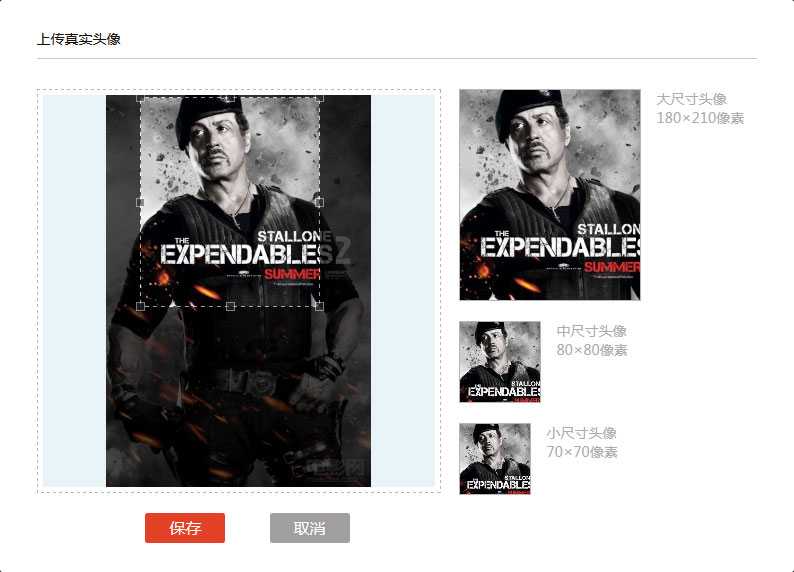
社群網站的「上傳頭像 → 框選 → 預覽多種尺寸」流程,早期多半靠 Flash 完成。既然有現成插件,為什麼還要自己寫?因為動手做一遍,才真的懂拖拽與座標換算。以下是完整實作。
最終效果
一、整體思路
1. 先把圖片 A 上傳到伺服器(可用插件,也可純 JS 實作)。
2. 上傳後把圖片顯示在頁面上。由於尺寸不一,需用 CSS 按比例縮放。
3. 讓使用者用矩形選框框出想要的範圍。
4. 用 JS 取得選框的左上角座標與寬高,按比例換算回原圖尺寸後送到後端。
5. 後端依參數裁切產生圖片 B 回傳前台,並刪除原圖 A 節省空間。
二、版面分層:遮罩的關鍵
左半部由一張圖片加一個選區組成,中間還有一層半透明遮罩。但遮罩若直接蓋上去,選區也會被壓暗,就沒有「框出來的那塊是亮的」的效果。
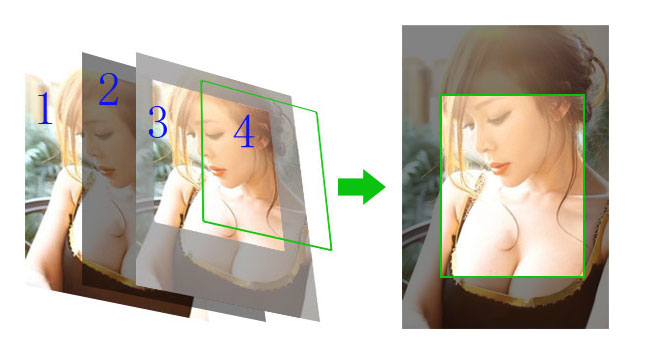
實際結構由下往上是四層:
1. 圖片層(底圖)
2. 遮罩層
3. 選區層(一個 div,絕對定位,overflow:hidden)
4. 圖片層(與第 1 層完全相同,絕對定位)
第 1 層與第 4 層用同一張圖、同樣的尺寸與 left/top;第 3 層裁掉超出自己的部分,於是選區內看起來是「未被遮住的亮區」。
三、拖拽選區
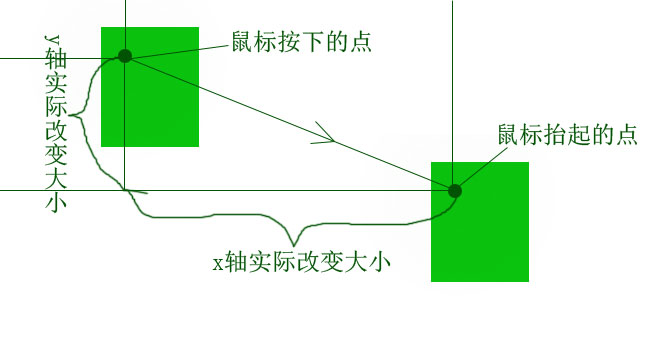
原理是位移差值:滑鼠按下時記錄 disx = e.clientX、disy = e.clientY;拖動時算出當前座標與起始值的差,把第 4 層圖片的 left 設為選區 offsetLeft 的負值,top 同理。這樣選區往哪移,底圖就往反方向補位,選框內永遠顯示正確的畫面。
四、按比例縮放選區
選框四周有 8 個控制點,分成四組:
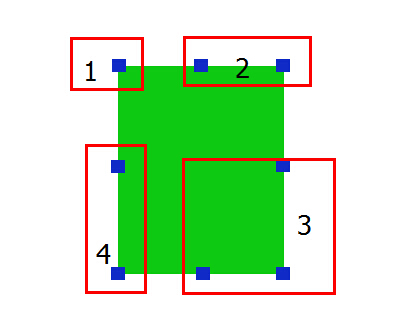
四組的事件邏輯幾乎相同——都是改寬高並維持固定比例——差別只在左上角那一組要同時改 left 與 top;上/下中間那組只改 top 與高度;左右中間那組只改 left 與寬度;右下角那組只改寬高。所有拖動過程都要夾在圖片範圍內,不能超出邊界。
五、座標換算(最易出錯的一步)
選區的 offsetLeft / offsetTop / 寬 / 高是縮放後的顯示值,後端裁切卻是依原圖尺寸進行。因此上傳完成時必須記下圖片的原始寬高,算出「顯示尺寸 ÷ 原始尺寸」的比例,再將四個值乘回去才是後端要的答案。
六、虛線邊框的做法
最省事是 border: 1px dashed #fff;更精緻的做法是放四個絕對定位的 div 貼在選區上下左右(上下寬 100%、高 1px;左右寬 1px、高 100%),背景使用一段波浪紋 GIF 並 repeat,就是常見螞蟻線的效果。
七、右側預覽
右邊三個固定尺寸的框只是展示用。由於選區比例固定,只要把選區寬度與各框寬度相除,就能算出該框內圖片應顯示的尺寸與偏移,繪製原理與左邊相同,只是少了遮罩與底圖兩層。
八、完整程式碼
<!DOCTYPE html>
<html>
<head>
<title>頭像裁切上傳</title>
<script src="js/jquery.min.js"></script>
<style>
  *{margin:0;padding:0}
  .uploadHead{max-width:800px}
  .l{float:left}.r{float:right}
  .preview{width:400px;height:400px;padding:1px;border:#B8B8B8 1px dashed;margin-right:18px;position:relative}
  .canvas{background-color:#E8F3F7;width:392px;height:392px;margin:4px;text-align:center;position:relative;overflow:hidden}
  .canvas .mask{width:100%;height:100%;background:#000;opacity:0.7;filter:alpha(opacity=70);position:absolute}
  .photoBox p{width:100px;padding-left:16px;float:left;color:#aeacab}
  .photoBox .size{width:100%}
  .p_180,.p_80,.p_70{position:relative;border:#B5B5B5 1px solid;overflow:hidden}
  .p_180 img,.p_80 img,.p_70 img{position:absolute;left:0;top:0}
  .p_180{width:180px;height:210px;margin-bottom:20px}
  .p_80{width:80px;height:80px;margin-bottom:20px}
  .p_70{width:70px;height:70px}
  .cutImg{text-align:center;margin-top:10px}
  .cutImg input{width:80px;height:30px;border:none;margin:10px 20px;font-size:16px;color:#fff;cursor:pointer;border-radius:2px}
  .cutImg .save{background-color:#e34128}
  .cutImg .cancel{background-color:#a19f9f}
  .imgBox{position:relative;margin:0 auto;overflow:hidden}
  .cutImgBox{width:180px;height:210px;position:absolute;z-index:2}
  .cutImgBox img{position:absolute;left:0;top:0}
  .imgCon{position:relative;width:100%;height:100%;overflow:hidden;cursor:pointer;z-index:1}
  .imgCon .lineBg{background:#fff url(img/jcrop.gif) center repeat;opacity:0.6;filter:alpha(opacity:60);position:absolute;z-index:3}
  .imgCon .tandb{width:100%;height:1px}
  .imgCon .landr{height:100%;width:1px}
  .imgCon .right{right:0}
  .imgCon .bottom{bottom:0}
  .cSize{width:100%;height:100%;position:absolute;left:0;top:0;cursor:move;z-index:8}
  .cSize .btn{width:7px;height:7px;border:#eee 1px solid;background-color:#333;opacity:0.5;filter:alpha(opacity:50);position:absolute}
  .cSize .lt{left:-4px;top:-4px;cursor:nw-resize}
  .cSize .tc{left:50%;margin-left:-4px;top:-4px;cursor:n-resize}
  .cSize .rt{right:-4px;top:-4px;cursor:ne-resize}
  .cSize .rc{right:-4px;top:50%;margin-top:-4px;cursor:e-resize}
  .cSize .rb{right:-4px;bottom:-4px;cursor:se-resize}
  .cSize .bc{bottom:-4px;left:50%;margin-left:-4px;cursor:s-resize}
  .cSize .lb{left:-4px;bottom:-4px;cursor:sw-resize}
  .cSize .lc{left:-4px;top:50%;margin-top:-4px;cursor:e-resize}
  .width_392{max-width:392px;max-height:392px;z-index:1}
</style>
<script type="text/javascript">
// 裁切物件
function CutImg() { this.init(); }

CutImg.prototype.init = function () {
    var that = this;
    this.con = $('.cutImgBox')[0];          // 選區
    this.img = $('.cutImgBox img:last')[0]; // 選區內的圖片(第 4 層)
    this.imgBox = $('#imgBox');
    this.defaultWidth = 180;
    this.defaultHeight = 210;
    this.scalex = this.defaultWidth / this.defaultHeight;   // 寬高比
    this.scaley = this.defaultHeight / this.defaultWidth;
    this.drag().setSize().cSize().cPosition();
};

// 拖拽選區
CutImg.prototype.drag = function () {
    var that = this;
    this.con.onmousedown = function (e) {
        var e = e || window.event,
            target = e.target || e.srcElement;
        if ($(target).hasClass('btn')) return;   // 點到控制點則交給縮放處理

        var disx = e.clientX - that.con.offsetLeft,
            disy = e.clientY - that.con.offsetTop;

        document.onmousemove = function (ev) {
            var ev = ev || event, L, T;
            L = ev.clientX - disx;
            T = ev.clientY - disy;

            // 限制在圖片範圍內
            if (L < 0) L = 0;
            else if (L > that.con.parentNode.offsetWidth - that.con.offsetWidth)
                L = that.con.parentNode.offsetWidth - that.con.offsetWidth;

            if (T < 0) T = 0;
            else if (T > that.con.parentNode.offsetHeight - that.con.offsetHeight)
                T = that.con.parentNode.offsetHeight - that.con.offsetHeight;

            that.con.style.left = L + 'px';
            that.con.style.top = T + 'px';
            // 底圖往反方向補位
            that.img.style.left = -that.con.offsetLeft + 'px';
            that.img.style.top = -that.con.offsetTop + 'px';
            that.cPosition();
        };

        document.onmouseup = function () {
            document.onmousemove = null;
            document.onmouseup = null;
        };
        return false;
    };
    return this;
};

// 依選區比例縮放三張預覽圖
CutImg.prototype.setSize = function () {
    var that = this.con;
    $('.p_180 img').css('width', that.parentNode.offsetWidth * 180 / that.offsetWidth);
    $('.p_80 img').css('width', that.parentNode.offsetWidth * 80 / that.offsetWidth);
    $('.p_70 img').css('width', that.parentNode.offsetWidth * 70 / that.offsetWidth);
    return this;
};

CutImg.prototype.cPosition = function () {
    this.setPosition($('.p_180'), 180, 210);
    this.setPosition($('.p_80'), 80, 80);
    this.setPosition($('.p_70'), 70, 70);
    return this;
};

CutImg.prototype.setPosition = function (obj, w, h) {
    var that = this.con;
    obj.find('img').css({
        'left': -w * that.offsetLeft / that.offsetWidth,
        'top':  -h * that.offsetTop  / that.offsetHeight
    });
    return this;
};

// 計算後端裁切所需的座標與尺寸
CutImg.prototype.saveImg = function () {
    var x = 0, y = 0, w = 180, h = 210,
        that = this,
        cutObj = $('.cutImgBox')[0];

    w = parseInt(this.oldW * cutObj.offsetWidth / that.imgBox.width());
    h = parseInt(w * that.scaley);
    x = parseInt(cutObj.offsetLeft / (that.imgBox.width()  - that.con.offsetWidth)  * (this.oldW - w));
    y = parseInt(cutObj.offsetTop  / (that.imgBox.height() - that.con.offsetHeight) * (this.oldH - h));

    x = x ? x : 0;   // 可能為 NaN,需保險處理
    y = y ? y : 0;
    // x, y, w, h 即為後端裁切所需參數
};

// 縮放選區
CutImg.prototype.cSize = function () {
    var that = this.con, This = this, thatImg = this.img;

    $('.cSize .btn').each(function () {
        var obj = this;
        obj.onmousedown = function (e) {
            var e = e || window.event,
                disx = e.clientX, disy = e.clientY,
                disw = that.offsetWidth, dish = that.offsetHeight,
                disl = that.offsetLeft, dist = that.offsetTop;

            document.onmousemove = function (ev) {
                var ev = ev || window.event,
                    dirx = ev.clientX - disx, diry = ev.clientY - disy,
                    minW = 6, minH = 7, L, T;

                // 左上角:同時改變 left 與 top
                if ($(obj).hasClass('t1')) {
                    L = disl + dirx;
                    T = dish - (disw - dirx) * This.scaley + dist;
                    if (L < 0 || T < 0 || disw - dirx < minW || (disw - dirx) * This.scaley < minH) return;
                    $(that).css({ 'left': L, 'top': T, 'width': disw - dirx, 'height': (disw - dirx) * This.scaley });
                    $(thatImg).css({ 'left': -L, 'top': -that.offsetTop });
                }

                // 上/下中間:只改 top 與高度
                if ($(obj).hasClass('t2')) {
                    if (dist + diry < 0 || (dish - diry) * This.scalex < minW || dish - diry < minH ||
                        (dish - diry) * This.scalex + that.offsetLeft > that.parentNode.offsetWidth) return;
                    $(that).css({ 'top': dist + diry, 'width': (dish - diry) * This.scalex, 'height': dish - diry });
                    $(thatImg).css({ 'top': -that.offsetTop });
                }

                // 右下角:只改寬高
                if ($(obj).hasClass('t3')) {
                    if (disw + dirx + that.offsetLeft > that.parentNode.offsetWidth ||
                        (disw + dirx) * This.scaley + that.offsetTop > that.parentNode.offsetHeight ||
                        disw + dirx < minW || (disw + dirx) * This.scaley < minH) return;
                    $(that).css({ 'width': disw + dirx, 'height': (disw + dirx) * This.scaley });
                }

                // 左下角:改變 left 與寬度
                if ($(obj).hasClass('t4')) {
                    if (disl + dirx < 0 || (disw - dirx) * This.scaley + that.offsetTop > that.parentNode.offsetHeight ||
                        disw - dirx < minW || (disw - dirx) * This.scaley < minH) return;
                    $(that).css({ 'left': disl + dirx, 'width': disw - dirx, 'height': (disw - dirx) * This.scaley });
                    $(thatImg).css({ 'left': -that.offsetLeft });
                }

                This.setSize().cPosition();
                return false;
            };

            document.onmouseup = function () {
                document.onmousemove = null;
                document.onmouseup = null;
            };
            return false;
        };
    });
    return this;
};

$(function () { new CutImg(); });
</script>
</head>
<body>
<div class="uploadHead" id="uploadHead">
  <h3>上傳真實頭像</h3>
  <div>
    <div class="previewBox l">
      <div class="preview">
        <div class="canvas">
          <div class="imgBox" id="imgBox">
            <div class="cutImgBox">
              <div class="imgCon">
                <div class="lineBg tandb"></div>
                <div class="lineBg tandb bottom"></div>
                <div class="lineBg landr"></div>
                <div class="lineBg landr right"></div>
                <img class="width_392 staPhoto" src="img/1.png" />
              </div>
              <div class="cSize">
                <div class="btn lt t1"></div><div class="btn tc t2"></div>
                <div class="btn rt t2"></div><div class="btn rc t3"></div>
                <div class="btn rb t3"></div><div class="btn bc t3"></div>
                <div class="btn lb t4"></div><div class="btn lc t4"></div>
              </div>
            </div>
            <div id="mask" class="mask"></div>
            <img class="width_392 staPhoto" src="img/1.png" />
          </div>
        </div>
      </div>
      <div class="cutImg">
        <input type="button" class="save" value="保存" />
        <input type="button" class="cancel" id="cancelUp" value="取消" />
      </div>
    </div>

    <div class="photoBox l">
      <div class="size">
        <div class="p_180 l"><img class="staPhoto" src="img/1.png" /></div>
        <p>大尺寸頭像 180×210 像素</p>
      </div>
      <div class="size">
        <div class="p_80 l"><img class="staPhoto" src="img/1.png" /></div>
        <p>中尺寸頭像 80×80 像素</p>
      </div>
      <div class="size">
        <div class="p_70 l"><img class="staPhoto" src="img/1.png" /></div>
        <p>小尺寸頭像 70×70 像素</p>
      </div>
    </div>
  </div>
</div>
</body>
</html>
結語
這個方案的好處是純 JS、相容性佳,還能加上特性偵測:支援 HTML5 的瀏覽器可直接用 Canvas 在前端裁切,省下一次上傳往返。缺點是裁切前必須先把原圖上傳,慢網路下使用者要等。另外提醒,選區比例寫死在 defaultWidth / defaultHeight,若要支援自由比例(不鎖定 180:210),只需拿掉各處的 scalex / scaley 換算即可,但同時得改 saveImg 的計算方式。
- 上一篇文章: 用 jQuery 實作瀑布流排版:從靜態到動態載入
- 下一篇文章: 用 jQuery 實作「查看全文/收起」功能