XAML 實例演練之一:入門初體驗
編輯:XML詳解
本文搭配免費下載的 Kaxaml 工具,示範 XAML 的一些基礎用法。關於 Kaxaml 工具的介紹與下載,請參考〈推薦一款免費下載 XAML 編輯調試工具-Kaxaml〉一文。
整個 XAML 系列文章都是我的學習筆記,也是我在今年春節期間為自己安排的學習任務。
StackPanel、Menu、Expander 元素的示範
<Window
XMLns="https://schemas.microsoft.com/winfx/2006/xaml/presentation"
Title="Welcome" Height="300" Width="300"
>
<StackPanel
Name="HelloWorldGrid"
Background="AntiqueWhite"
>
<Menu
Height="21" Margin="0,0,0,0">
<MenuItem Header="開源博客平台">
<MenuItem Header="ASP.Net" />
<MenuItem Header="C#" />
</MenuItem>
<MenuItem Header="開源論壇系統">
<MenuItem Header="Version 1.0" />
<MenuItem Header="Version 2.0" />
<MenuItem Header="Version 3.0" />
<MenuItem Header="Version 3.5" />
</MenuItem>
</Menu>
<Label
Content="Welcome to https://forum.EntLib.com"
FontFamily="Verdana"
FontSize="12" Padding="20"
/>

<Expander Height="50"
Name="MyExpander"
VerticalAlignment="Bottom"
Content="When you click on an expander it shows its content."
/>
</StackPanel>
</Window>
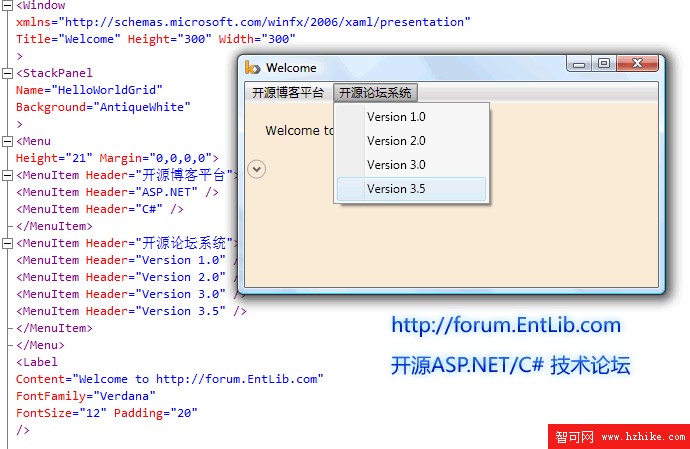
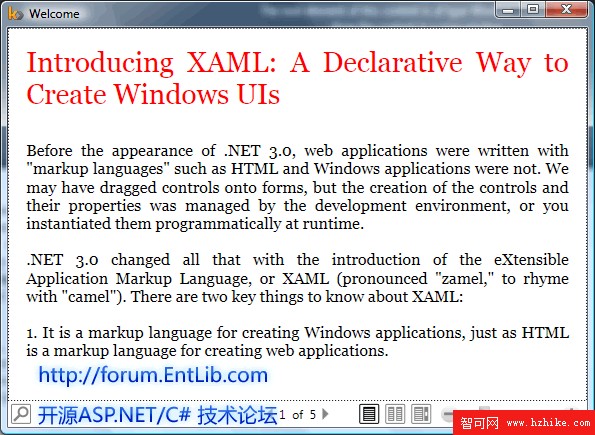
FlowDocument 元素的示範
<Window
XMLns="https://schemas.microsoft.com/winfx/2006/xaml/presentation"
Title="Welcome">
<FlowDocument>
<Paragraph FontSize="28" Foreground="Red">
Introducing XAML: A Declarative Way to Create Windows UIs
</Paragraph>
<Paragraph>
Before the appearance of .Net 3.0, web applications were written with "markup
languages" such as Html and Windows applications were not. We may have
dragged controls onto forms, but the creation of the controls and their
propertIEs was managed by the development environment, or you instantiated
them programmatically at runtime.
</Paragraph>
</FlowDocument>
</Window>
在我們的範例中,DockPanel 用來由左至右排列元素(當然也能透過屬性把元素靠向左、右、上、下各邊),而 StackPanel 則負責把元素由上而下地堆疊起來。
- 上一篇文章: 推薦一款免費的 XAML 編輯除錯利器——Kaxaml
- 下一篇文章: 評比各種 XML 資料庫方案