console.log 印出物件與陣列的正確用法
編輯:關於JavaScript
說白了,console.log 就是一個能把 JS 陣列與物件印出來的函式,功能有點像 PHP 的 print_r 或 var_dump。它本身沒什麼奧妙,真正的價值在於「怎麼用得好」。
在認識它之前,多數人查看輸出靠的是 alert,但 alert 只方便顯示字串或數字;一旦你想看物件或陣列的內容,它就會直接顯示成 [object Object],完全看不出所以然。
一、測試頁面 test.html
<html xmlns="https://www.w3.org/1999/xhtml"> <head> <meta http-equiv="Content-Type" content="text/html; charset=utf-8" /> <title>console.log test</title> </head> <script type="text/javascript"> var testobj = { 'id': 1, 'content': 'test', 'firstname': function() { document.getElementById('firstname').value = "zhang"; }, 'lastname': function() { document.getElementById('lastname').value = "ying"; } }; <!-- 打印對像 --> console.log(testobj); </script> <body> <input type="text" id='firstname' name="firstname" value=''> <input type="text" id='lastname' name='lastname' value=''> </body> </html>
把整個物件直接丟給 console.log,控制台就會把它展開成可折疊的結構,屬性、方法一覽無遺。
二、用 Chrome 開發者工具檢視
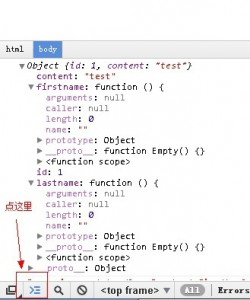
console chrome
這些年我大致是 Chrome 開發者工具與 Firebug 各用一半。Chrome 有個 Firebug 沒有的能力:控制台可以針對 iframe 內部的頁面執行。
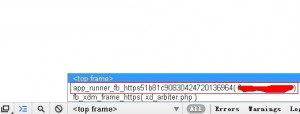
chrome iframe console
Firebug 只能把程式碼跑在最外層的父頁面上,而 Chrome 可以直接下拉切換到內層 frame,除錯嵌套頁面的時候差很多。
三、用 Firebug 檢視
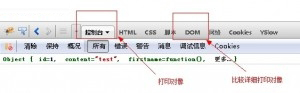
firebug console
補充一個實用習慣:想一次看多個值時,與其組字串,不如把多個參數分開傳給 console.log,輸出會自動以空格分隔,可讀性更好;另外在物件上直接點開也能即時展開巢狀結構,比層層 alert 有效率得多。
希望這次的整理對大家的 JavaScript 開發有所幫助。
- 上一篇文章: 動態載入 JS 檔案:jQuery 與原生兩種做法
- 下一篇文章: JS 陣列與物件遍歷、格式化輸出實作解析
相關文章
-
JavaScript 除錯:console.log 的進階小技巧 JavaScript 的四種輸出方式:alert、document.write、innerHTML 與 console.log 開啟 Sass 除錯:Chrome 與 Firefox 的 CSS 源碼定位設定 深入 localStorage:資料究竟存在哪裡,又該怎麼查看 Chrome 開發者工具入門:Timeline 效能分析指南 Chrome 開發者工具詳解:Timeline 面板怎麼看 JavaScript 的斷言式除錯:console.assert 用法 JavaScript console.log() 完整用法:從開啟主控台到輸出各種資料型別 前端 JavaScript 調試技巧大全:從 alert 到各類斷點 JS 斷點調試實戰心得:從打斷點到逐步追變數