HTML5 Canvas 旋轉動畫的兩種寫法(含旋轉太極圖)
編輯:HTML5詳解
效果預覽:
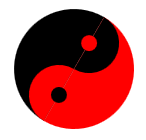
Canvas 做動畫的骨幹其實很單純:用 setInterval(或更推薦的 requestAnimationFrame)週期性清空畫布再重畫一次,只要每frame 的角度往前推一點,看起來就動了。下面用太極圖當題材,示範兩種不同取向的寫法。
方法一:把角度直接算進每個弧的起訖點
這個版本不呼叫 rotate(),而是把 deg 加進 arc() 的起始角與結束角裡,另外用 sin/cos 算出兩個小圓的偏移位置。
<!DOCTYPE Html>
<Html>
<body>
<canvas id="myCanvas" width="500" height="500">your browser does not support the canvas tag</canvas>
<script type="text/Javascript">
var deg = 0;
var r = 30;
var rl = 100;
function drawTaiji() {
var canvas = document.getElementById('myCanvas');
var context = canvas.getContext('2d');
var colorA = "rgb(0, 0, 0)";
var colorB = "red";

var px = Math.sin(deg)*r;
var py = Math.cos(deg)*r;
context.clearRect(0, 0, 300, 300);
context.beginPath();
context.fillStyle = colorA;
context.arc(rl, rl, 60, 0.5 * Math.PI + deg, 1.5 * Math.PI + deg, true);
context.closePath();
context.fill();
context.fillStyle = colorB;
context.beginPath();
context.arc(rl, rl, 60, 1.5 * Math.PI + deg, 0.5 * Math.PI + deg, true);
context.closePath();
context.fill();
context.fillStyle = colorB;
context.beginPath();
context.arc(rl+px, rl-py, 30, 0.5 * Math.PI + deg, 1.5 * Math.PI + deg, true);
context.closePath();
context.fill();
context.fillStyle = colorA;
context.beginPath();
context.arc(rl-px, rl+py, 30, 1.5 * Math.PI + deg, 0.5 * Math.PI + deg, true);
context.closePath();
context.fill();
context.fillStyle = colorA;
context.beginPath();
context.arc(rl+px, rl-py, 8, 0, 2 * Math.PI, true);
context.closePath();
context.fill();
context.fillStyle = colorB;
context.beginPath();
context.arc(rl-px, rl+py, 8, 0, 2 * Math.PI, true);
context.closePath();
context.fill();
deg += 0.1;
}
setInterval(drawTaiji, 100);
</script>
</body>
</Html>
方法二:用 transform 搭配 rotate()
這個版本把「旋轉」交給 Canvas 的 rotate(),先把座標系平移到指定位置、旋轉指定角度,再以原點為中心畫圖形,畫完用 restore() 復原。圖形本身永遠畫在 (0, 0),可讀性明顯更好。
<!DOCTYPE Html>
<Html>
<body>
<canvas id="myCanvas" width="500" height="500" >your browser does not support the canvas tag </canvas>
<script type="text/Javascript">
var canvas = document.getElementById('myCanvas');
var ctx = canvas.getContext("2d");
var angle = 0;
var count = 360;
var clrA = '#000';
var clrB = 'red';

function taiji(x, y, radius, angle, wise) {
angle = angle || 0;
wise = wise ? 1 : -1;
ctx.save();
ctx.translate(x, y);
ctx.rotate(angle);
ctx.fillStyle = clrA;
ctx.beginPath();
ctx.arc(0, 0, radius, 0, Math.PI, true);
ctx.fill();
ctx.beginPath();
ctx.fillStyle = clrB;
ctx.arc(0, 0, radius, 0, Math.PI, false);
ctx.fill();
ctx.fillStyle = clrB;
ctx.beginPath();
ctx.arc(wise * -0.5 * radius, 0, radius / 2, 0, Math.PI * 2, true);
ctx.fill();
ctx.beginPath();
ctx.fillStyle = clrA;
ctx.arc(wise * +0.5 * radius, 0, radius / 2, 0, Math.PI * 2, false);
ctx.arc(wise * -0.5 * radius, 0, radius / 10, 0, Math.PI * 2, true);
ctx.fill();
ctx.beginPath();
ctx.fillStyle = clrB;
ctx.arc(wise * +0.5 * radius, 0, radius / 10, 0, Math.PI * 2, true);
ctx.fill();
ctx.restore();
}

loop = setInterval(function () {
ctx.clearRect(0, 0, canvas.width, canvas.height);
taiji(200, 200, 50, Math.PI * (angle / count) * 2, true);
angle = (angle + 5) % count;
}, 50);
</script>
</body>
</Html>
兩種寫法怎麼選
- 方法一把角度混進每個
arc()的參數,寫起來直觀但算式冗長,圖形一複雜就難維護。 - 方法二把座標系處理交給
save/translate/rotate/restore,圖形用固定座標描述,改動局部時不必重算整組角度,是比較值得推薦的習慣。 - 兩者都用了
setInterval;正式專案建議換成requestAnimationFrame,畫面會更順,也不會在分頁被切到後仍在背景空轉。
- 上一篇文章: HTML5 圖片上傳即時預覽:用 FileReader 實作
- 下一篇文章: HTML5 Canvas 鋸齒邊框圖形實作