做過 Android 開發的人對 Toast 應該不陌生——短暫浮現、自動消失,用最低的成本告訴使用者「發生了什麼」。到了微信小程序裡,這套思維依然成立,只是換成了 wx.showToast 等一系列 API。除了提示框,小程序還提供了模態彈窗、操作菜單、導航欄控制、頁面跳轉與動畫等一整套交互能力,下面按使用場景逐一梳理。
一、消息提示框
wx.showToast(OBJECT) 顯示提示
最常用的一組參數是 title(文案)、icon(success / loading / none)與 duration(毫秒)。

wx.showToast({ title: '成功', icon: 'success', duration: 2000 })
wx.hideToast() 主動收起
載入類提示通常不能等它自己消失,而是業務完成後立刻關掉,這時候配合 setTimeout 或異步回調調用 hideToast 更合適。
 wx.showToast({ title: '加載中', icon: 'loading', duration: 10000 })
setTimeout(function () { wx.hideToast() }, 2000)
二、模態彈窗與操作菜單
wx.showModal(OBJECT)
需要使用者明確確認或否認時使用,success 回調中的 res.confirm 表示是否點擊了確認。
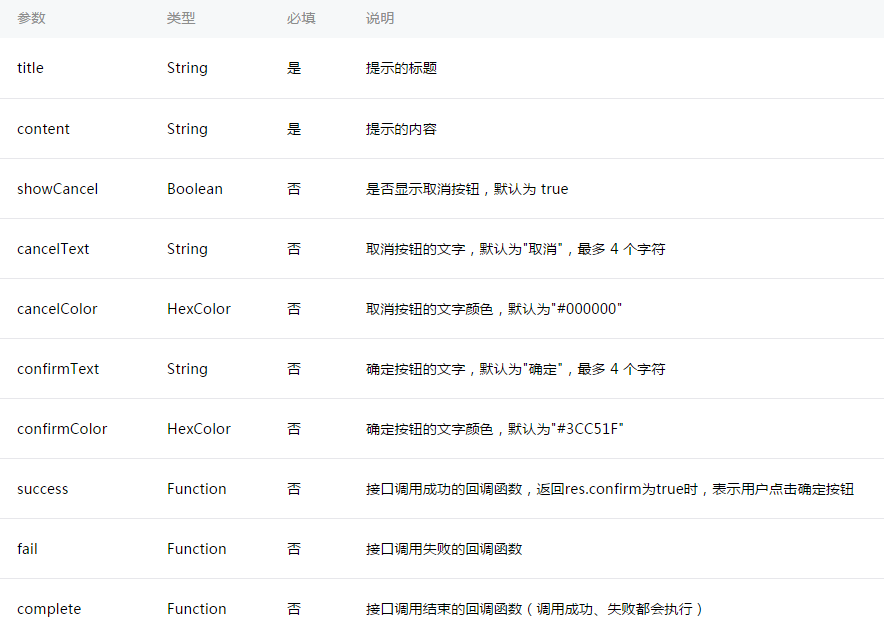
 wx.showModal({
  title: '提示',
  content: '這是一個模態彈窗',
  success: function (res) {
    if (res.confirm) { console.log('用戶點擊確定') }
  }
})
wx.showActionSheet(OBJECT)
提供 2 至 6 個選項讓使用者挑選,res.tapIndex 為所選索引,res.cancel 表示使用者放棄選擇。
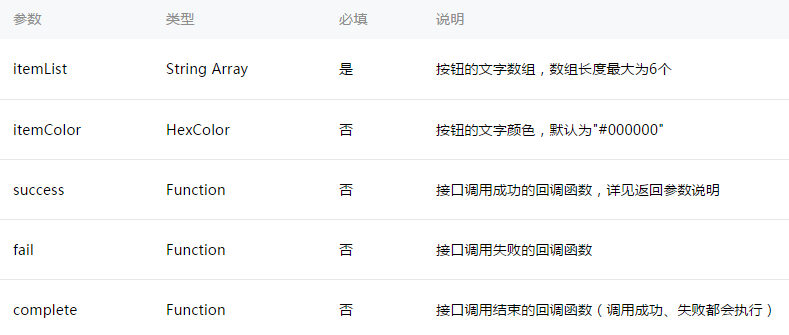
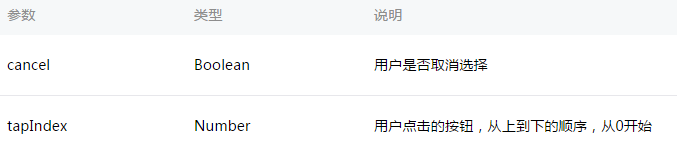
 wx.showActionSheet({
  itemList: ['A', 'B', 'C'],
  success: function (res) {
    if (!res.cancel) { console.log(res.tapIndex) }
  }
})
三、導航欄控制
動態修改當前頁標題用 wx.setNavigationBarTitle;需要表現「正在處理」時,則用 loading 動畫的一對方法。
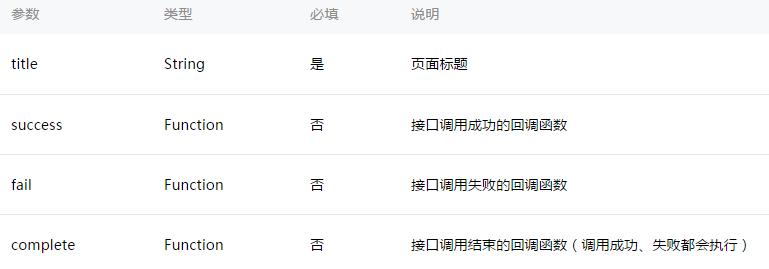
wx.setNavigationBarTitle({ title: '當前頁面' })
wx.showNavigationBarLoading() 顯示導航欄加載動畫,wx.hideNavigationBarLoading() 將其隱藏,兩者需成對出現,否則動畫會一直轉。
四、頁面跳轉的三種方式
wx.navigateTo(OBJECT)
保留當前頁並打開新頁,可用 wx.navigateBack 返回。
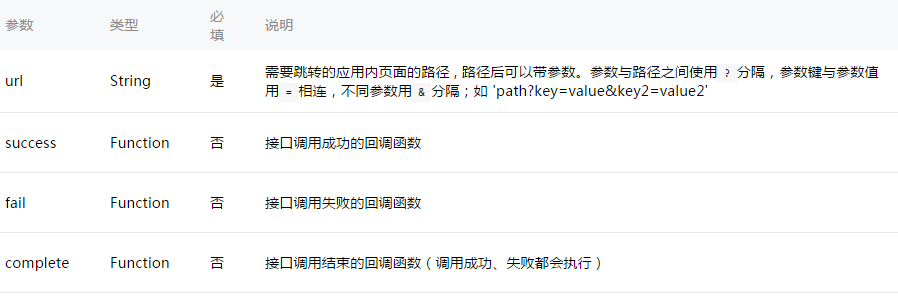
wx.navigateTo({ url: 'test?id=1' })
 // test.js
Page({
  onLoad: function (option) {
    console.log(option.query)
  }
})
官方限制頁面堆疊最多五層,因此設計交互時應盡量避免層層深入的路徑。
wx.redirectTo(OBJECT)
關閉當前頁後再跳轉,適合用於登入成功後進入主頁這類「不該返回」的場景。
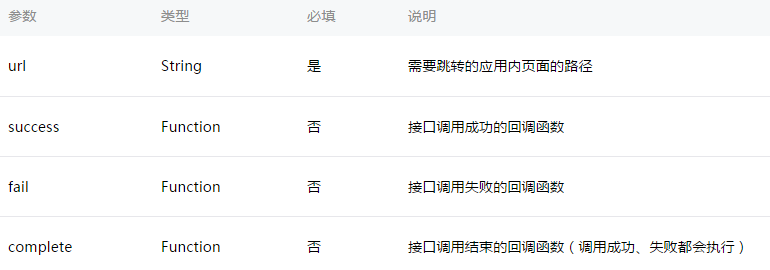
wx.redirectTo({ url: 'test?id=1' })
wx.navigateBack(OBJECT)
關閉當前頁並回退若干層,配合 getCurrentPages() 取得頁面堆疊長度,就能決定回退幾步。

五、動畫:wx.createAnimation
先建立動畫實例,用實例方法描述變化過程,最後以 export() 匯出資料,綁定到元件的 animation 屬性上。要特別注意:每次呼叫 export 都會清空之前累積的動畫操作。
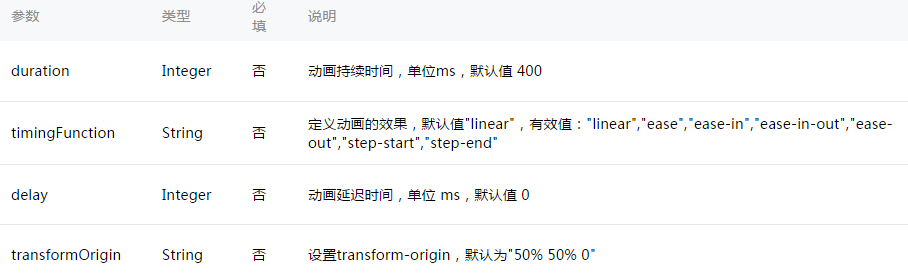
 var animation = wx.createAnimation({
  transformOrigin: '50% 50%',
  duration: 1000,
  timingFunction: 'ease',
  delay: 0
})
實例方法支援鏈式寫法,常用的分類如下:
樣式:
旋轉:
縮放: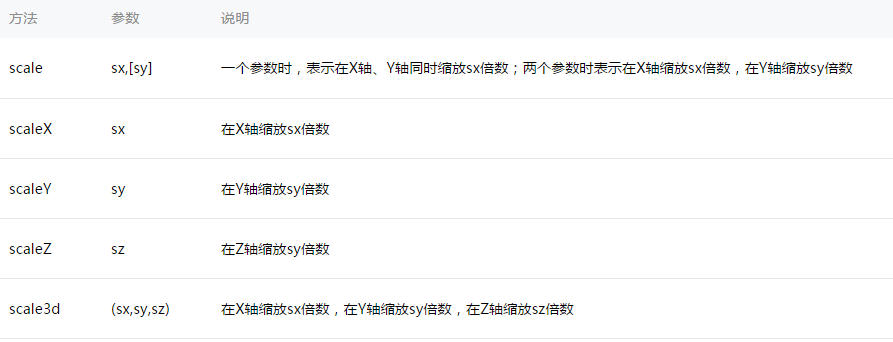
偏移: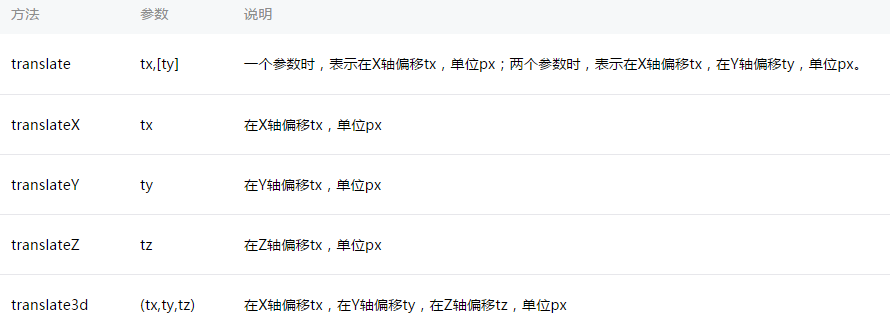
傾斜:
矩陣變形:
動畫隊列與 step()
呼叫 step() 代表「這一組動畫結束」。同一組內的所有動畫同時開始,這一組播完才會進入下一組;step 也可以傳入與 wx.createAnimation() 相同的設定物件,單獨覆寫該組參數。
<view animation="{{animationData}}" style="background:red;height:100rpx;width:100rpx"></view>
 Page({
  data: { animationData: {} },
  onShow: function () {
    var animation = wx.createAnimation({ duration: 1000, timingFunction: 'ease' })
    this.animation = animation
    animation.scale(2, 2).rotate(45).step()
    this.setData({ animationData: animation.export() })
    var that = this
    setTimeout(function () {
      animation.translate(30).step()
      that.setData({ animationData: animation.export() })
    }, 1000)
  },
  rotateAndScale: function () {
    // 旋轉同時放大
    this.animation.rotate(45).scale(2, 2).step()
    this.setData({ animationData: this.animation.export() })
  },
  rotateThenScale: function () {
    // 先旋轉,後放大
    this.animation.rotate(45).step()
    this.animation.scale(2, 2).step()
    this.setData({ animationData: this.animation.export() })
  },
  rotateAndScaleThenTranslate: function () {
    // 先旋轉並放大,再平移
    this.animation.rotate(45).scale(2, 2).step()
    this.animation.translate(100, 100).step({ duration: 1000 })
    this.setData({ animationData: this.animation.export() })
  }
})
六、兩個零碎但實用的小方法
wx.hideKeyboard() 用來主動收起鍵盤,例如點擊搜尋按鈕後先關鍵盤再發請求,操作手感會乾淨很多。
wx.stopPullDownRefresh() 用來結束當前頁的下拉刷新狀態,記得在 onPullDownRefresh 的資料請求回調裡呼叫它,否則轉圈動畫不會停。
掌握這些 API,基本就足以應付小程序中絕大多數的提示、確認、跳轉與過場需求。建議實作時把常用組合(例如「loading + 請求 + hideToast」)抽成工具函式,能省下不少重複程式碼。
- 上一篇文章: 微信小程序下拉刷新與上拉加載實作詳解
- 下一篇文章: 用原生 JavaScript 實作 Tab 頁籤切換