用原生 JavaScript 與 Canvas 寫一個連連看遊戲
編輯:關於JavaScript
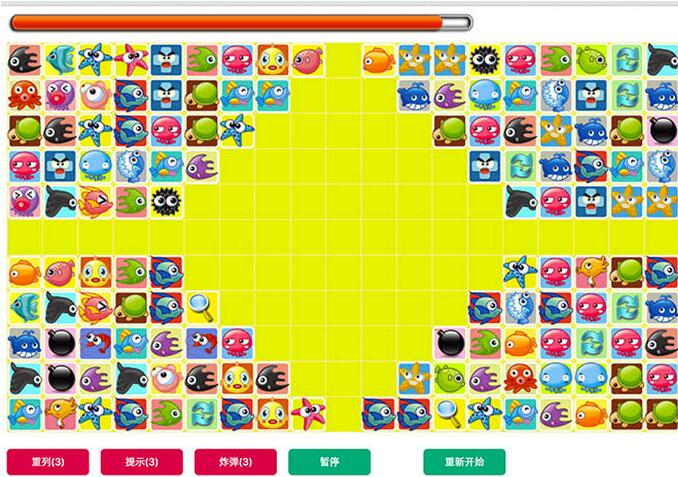
Canvas 很適合拿來練手做小遊戲,因為它把繪製邏輯完全交給開發者掌控。這篇示範一個以原生 JavaScript 撰寫的連連看,包含計時進度條、重列、提示、炸彈、暫停與重新開始等功能。
畫面結構
遊戲區用了兩層 canvas 疊放:bg 負責靜態背景與棋格,mycanvas 絕對定位在上層負責方塊與連線動畫。這樣分層可以避免每次重繪方塊時都得重畫背景。
<!DOCTYPE html>
<html>
<head>
<meta charset="UTF-8">
<title>連連看</title>
<style>
#box { overflow: hidden; position: relative; padding-bottom: 60px; }
#bg { background-color: rgba(254, 195, 89, .2); }
#mycanvas { position: absolute; top: 36px; left: 0; }

#toolsbar {
    width: 100%; position: absolute; bottom: 10px; left: 0; overflow: hidden;
}
button {
    outline: none; border: none; width: 100px; height: 32px;
    background-color: #d80049; color: #FFFFFF; border-radius: 5px;
    margin-right: 10px; cursor: pointer;
}

#timeline {
    height: 26px; width: 568px; padding-bottom: 10px;
    background: url(images/time_slot-hd.png) no-repeat; overflow: hidden;
}
#timeline span { display: block; width: 100%; height: 100%; display: flex; overflow: hidden; }
#timeline span:before, #timeline span:after {
    display: block; content: ""; height: 26px;
    background: url(images/time_bars-hd.png) no-repeat;
}
#timeline span:before { width: 12px; }
#timeline span:after { background-position: right top; -webkit-flex: 1; }
</style>
</head>
<body>
<div id="box">
    <div id="timeline"><span></span></div>
    <div id="toolsbar">
        <button class="resort">重列(3)</button>
        <button class="tip">提示(3)</button>
        <button class="boom">炸彈(3)</button>
        <button class="parse" style="background-color: #00AA79;">暫停</button>
        <button class="restart" style="margin-left: 50px; background-color: #00AA79;">重新開始</button>
    </div>
    <canvas id="bg" width="818" height="474px"></canvas>
    <canvas id="mycanvas" width="818" height="474px"></canvas>
</div>

<script type="text/javascript" src="../../public/js/jquery-1.11.2.min.js"></script>
<script type="text/javascript" src="control.js"></script>
<script type="text/javascript" src="matrix.js"></script>
<script type="text/javascript" src="draw.js"></script>
<script type="text/javascript" src="map.js"></script>
<script type="text/javascript">
$(function () {
    // 隨機挑一份地圖配置
    var matrix = MAP_ARR[parseInt(Math.random() * MAP_ARR.length)];
    window._Matrix = new Matrix(matrix, 36);

    window.draw = new Draw({
        id: "mycanvas",
        step: 42,
        matrix: _Matrix.matrix,
        dir: "images/",
        speed: 300
    });

    var controller = new control({
        step: 42, col: 19, row: 11,
        id: "bg",
        time: 90000,      // 90 秒
        draw: draw,
        _Matrix: _Matrix,
        times: 3          // 各道具可用次數
    });

    // 依點擊座標換算棋格索引
    $("#mycanvas").on("click", function (e) {
        var x = e.offsetX, y = e.offsetY;
        var _x = Math.floor((x - 1) / 43), _y = Math.floor((y - 1) / 43);
        controller.click(_x, _y);
    });

    $(".resort").on("click", function () {
        var count = parseInt($(this).text().match(/\d+/)[0]);
        if (count) { $(this).text("重列(" + (--count) + ")"); }
        controller.resort();
    });

    $(".tip").on("click", function () {
        var count = parseInt($(this).text().match(/\d+/)[0]);
        if (count) { $(this).text("提示(" + (--count) + ")"); }
        controller.gettips();
    });

    $(".boom").on("click", function () {
        var count = parseInt($(this).text().match(/\d+/)[0]);
        if (count) { $(this).text("炸彈(" + (--count) + ")"); }
        controller.boom();
    });

    $(".restart").on("click", function () { controller.restart(); });

    $(".parse").on("click", function () {
        var bool = $(this).text() == "暫停";
        $(this).text(bool ? "繼續" : "暫停");
        controller.parse();
    });

    // 進度條同步剩餘時間百分比
    controller.watch(function (percent) {
        $("#timeline span").width(percent + "%");
    });
});
</script>
</body>
</html>
模組怎麼分工
程式被拆成四個檔案,各自負責一件事:map.js 存放多組方塊配置(MAP_ARR),讓每次開局都能隨機變化;matrix.js 處理棋盤資料結構與「兩塊方塊能否連通」的路徑判定;draw.js 負責 Canvas 繪製與消除動畫;control.js 則是總控,管理計時、道具次數、點擊狀態與遊戲流程。
這種切分方式值得借鏡。遊戲邏輯中最容易糾纏的是「連通判定」與「繪製狀態」,把兩者分開之後,調整視覺效果不會動到規則,反之亦然。另外,點擊座標必須先除以格寬再取整數才能對應棋格,這裡用了 43(42 的格距加上 1 像素間隔)與減 1 的偏移補償,實作時要依自己的格子尺寸重新核算。
想再深入的朋友,可以參考 JavaScript 經典小遊戲相關的整理文章,裡面還有貪吃蛇、2048、打磚塊等更適合入門的題目,循序練習 Canvas 的事件處理與狀態管理會更有感。
- 上一篇文章: 原生 JavaScript 打造可控制方向的無縫滾動
- 下一篇文章: 原生 JavaScript 實作省市縣三級聯動選單