趁著週末用微信小程序做了一個簡易錄音機,在此與大家分享,歡迎批評指正。
老規矩,先看幾張圖。
1.為了進來時看得清楚,一開始沒有載入音頻列表,把程式碼往前挪一挪即可。

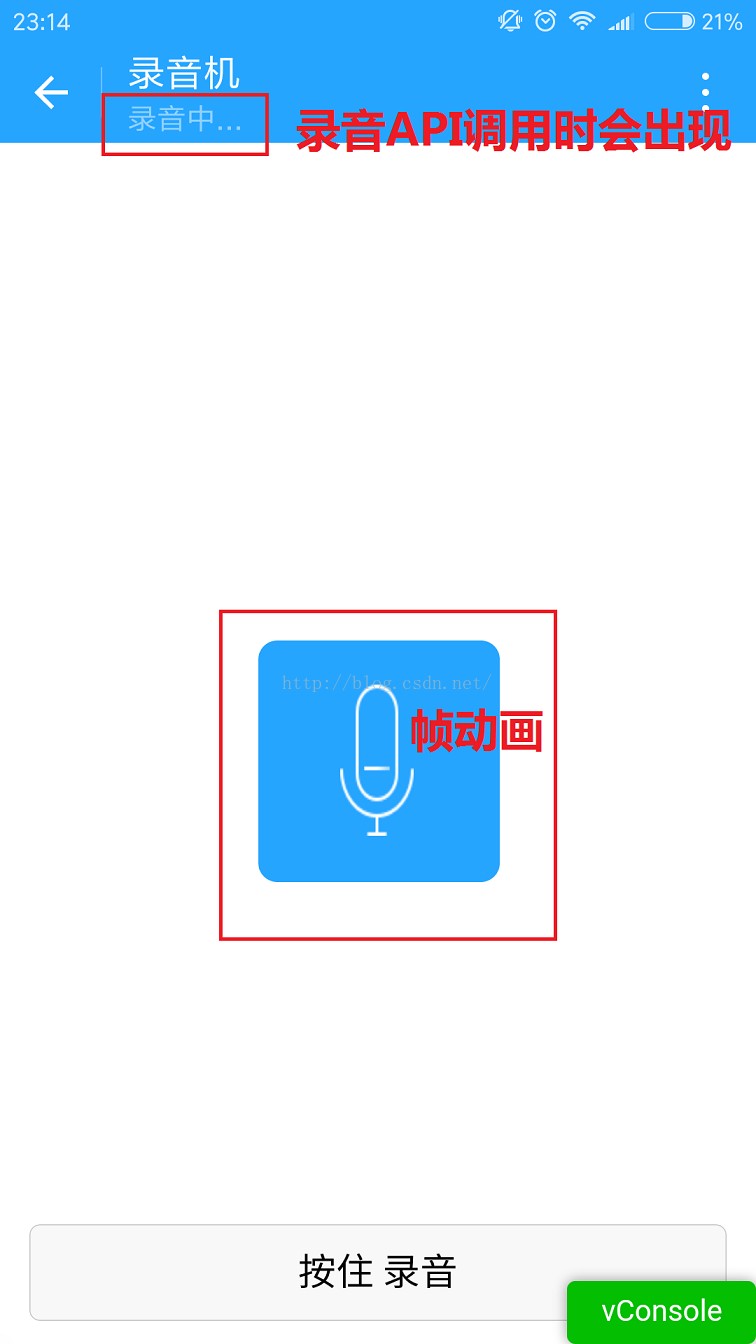
2.按住錄音按鈕時會出現麥克風,中間的麥克風是一段幀動畫。
其實就是用 JS 控制圖片的顯示與隱藏,沒什麼特別。這裡值得一說的是錄音:使用微信的錄音 API 之後,如果錄音時間太短會導致失敗,所以 fail 時需要處理一下。錄音時長限制與微信語音相同,為 60 秒。
3.我在錄音完成後才載入列表。
下圖是從微信儲存檔案裡取得的列表資訊,包含儲存路徑、建立時間、檔案大小。
這裡的檔案可能不只是音頻,我沒有做額外判斷。下面的路徑都是 wx:file//store_...
我也查了一下,在 Tencent/micromsg/wxafiles/wx..../ 這一層目錄就能找到。
時間是格式化之後的,檔案大小由 B 轉成 KB。

手機目錄如下,但打開之後卻無法播放,目前原因不明。

下面是檔案全名稱。
1.tempFilePath:錄音後的暫存檔案,第二次進入小程序就無法正常使用了。
2.savedFilePath:持久儲存的檔案路徑。值得注意的是,微信只給 100M 的儲存空間,最好盡早上傳到後台。

4.播放錄音音頻。
點擊項目就能聽到自己的聲音了,別被自己嚇到,哈哈。

上程式碼:
1.index.wxml
<!--index.wxml--> <scroll-view> <view wx:if="{{voices}}" class="common-list" style="margin-bottom:120rpx;"> <block wx:for="{{voices}}"> <view class="board"> <view class="cell" > <view class="cell-bd" data-key="{{item.filePath}}" bindtap="gotoPlay" > <view class="date">儲存路徑:{{item.filePath}}</view> <view class="date" >儲存時間:{{item.createTime}}</view> <view class="date">音頻大小:{{item.size}}KB</view> </view> </view> </view> </block> </view> </scroll-view> <view wx:if="{{isSpeaking}}" class="speak-style"> <image class="sound-style" src="../../images/voice_icon_speech_sound_1.png" ></image> <image wx:if="{{j==2}}" class="sound-style" src="../../images/voice_icon_speech_sound_2.png" ></image> <image wx:if="{{j==3}}" class="sound-style" src="../../images/voice_icon_speech_sound_3.png" ></image> <image wx:if="{{j==4}}" class="sound-style" src="../../images/voice_icon_speech_sound_4.png" ></image> <image wx:if="{{j==5}}"class="sound-style" src="../../images/voice_icon_speech_sound_5.png" ></image> </view> <view class="record-style"> <button class="btn-style" bindtouchstart="touchdown" bindtouchend="touchup">按住 錄音</button> </view>
2.index.wxss
/**index.wxss**/ .speak-style{ position: relative; height: 240rpx; width: 240rpx; border-radius: 20rpx; margin: 50% auto; background: #26A5FF; } .item-style{ margin-top: 30rpx; margin-bottom: 30rpx; } .text-style{ text-align: center; } .record-style{ position: fixed; bottom: 0; left: 0; height: 120rpx; width: 100%; } .btn-style{ margin-left: 30rpx; margin-right: 30rpx; } .sound-style{ position: absolute; width: 74rpx; height:150rpx; margin-top: 45rpx; margin-left: 83rpx; } .board { overflow: hidden; border-bottom: 2rpx solid #26A5FF; } /*列布局*/ .cell{ display: flex; margin: 20rpx; } .cell-hd{ margin-left: 10rpx; color: #885A38; } .cell .cell-bd{ flex:1; position: relative; } /**只顯示一行*/ .date{ font-size: 30rpx; text-overflow: ellipsis; white-space:nowrap; overflow:hidden; }
3.index.js
//index.js //取得應用實例 var app = getApp() Page({ data: { j: 1,//幀動畫初始圖片 isSpeaking: false,//是否正在說話 voices: [],//音頻陣列 }, onLoad: function () { }, //手指按下 touchdown: function () { console.log("手指按下了...") console.log("new date : " + new Date) var _this = this; speaking.call(this); this.setData({ isSpeaking: true }) //開始錄音 wx.startRecord({ success: function (res) { //暫存路徑,下次進入小程序時無法正常使用 var tempFilePath = res.tempFilePath console.log("tempFilePath: " + tempFilePath) //持久儲存 wx.saveFile({ tempFilePath: tempFilePath, success: function (res) { //持久路徑 //本地檔案儲存的大小限制為 100M var savedFilePath = res.savedFilePath console.log("savedFilePath: " + savedFilePath) } }) wx.showToast({ title: '恭喜!錄音成功', icon: 'success', duration: 1000 }) //取得錄音音頻列表 wx.getSavedFileList({ success: function (res) { var voices = []; for (var i = 0; i < res.fileList.length; i++) { //格式化時間 var createTime = new Date(res.fileList[i].createTime) //將音頻大小 B 轉為 KB var size = (res.fileList[i].size / 1024).toFixed(2); var voice = { filePath: res.fileList[i].filePath, createTime: createTime, size: size }; console.log("檔案路徑: " + res.fileList[i].filePath) console.log("檔案時間: " + createTime) console.log("檔案大小: " + size) voices = voices.concat(voice); } _this.setData({ voices: voices }) } }) }, fail: function (res) { //錄音失敗 wx.showModal({ title: '提示', content: '錄音的姿勢不對!', showCancel: false, success: function (res) { if (res.confirm) { console.log('用戶點擊確定') return } } }) } }) }, //手指抬起 touchup: function () { console.log("手指抬起了...") this.setData({ isSpeaking: false, }) clearInterval(this.timer) wx.stopRecord() }, //點擊播放錄音 gotoPlay: function (e) { var filePath = e.currentTarget.dataset.key; //點擊開始播放 wx.showToast({ title: '開始播放', icon: 'success', duration: 1000 }) wx.playVoice({ filePath: filePath, success: function () { wx.showToast({ title: '播放結束', icon: 'success', duration: 1000 }) } }) } }) //麥克風幀動畫 function speaking() { var _this = this; //話筒幀動畫 var i = 1; this.timer = setInterval(function () { i++; i = i % 5; _this.setData({ j: i }) }, 200); }
注意:
1.錄音音頻預設存在本地的暫存路徑下,第二次進入小程序就無法正常使用。可以存成持久檔案,但本地檔案大小限制為 100M,最好還是上傳後台。
2.錄音時間不能太短,否則會失敗;也不能超過 60 秒,到 60 秒會自動停止錄音。
3.音頻播放不能同時播放多個,詳見官方文件「微信小程序 播放音頻」。
demo 程式碼下載:demo
以上就是本文的全部內容,希望對你的學習有所幫助。